Shopify swatches not showing on collection page: how to fix it (2026)
Your product cards on the collection page should show small color swatches underneath, so a customer can see at a glance that a shirt comes in five colors. But the swatches are gone. Or they only show on some cards. Or they show on desktop but not mobile. Shopify swatches not showing on the collection page is one of the most common product page problems we get pinged about. Almost every cause has a clean fix.
Quick context. Shopify’s native theme system does not show variant swatches under collection cards by default. Most themes added the feature in 2023-2024, but only for products with a “Color” option using one of the supported naming conventions. The moment your catalog or theme deviates from that narrow path, swatches disappear and merchants think something broke. Usually nothing broke. The feature just doesn’t cover your case.
This post covers the 7 most common reasons swatches go missing on the collection page, and what to do about each. If you want to skip ahead, the fix summary at the bottom maps each cause to a one-line action.
In this post
- Cause 1: Your theme doesn’t render swatches on collection cards
- Cause 2: Option name isn’t recognized as a color
- Cause 3: Variants don’t have color metafields set
- Cause 4: You’re confusing product page swatches with collection page swatches
- Cause 5: Each color is a separate product (no shared variant)
- Cause 6: Theme update or app conflict broke the renderer
- Cause 7: Mobile-specific or cache issue
- Fix summary table
- The permanent fix: a dedicated collection swatch app
- Frequently asked questions
- Related reading
Cause 1: Your theme doesn’t render swatches on collection cards
The most common cause, and the one merchants don’t suspect first. Many older Shopify themes (anything pre-2023, or many third-party themes) simply don’t ship code for swatches on collection cards. The product page might show swatches fine. The collection page just shows a static thumbnail.
How to check: Visit your collection page in an incognito window, inspect a product card with browser devtools, and search for any element with “swatch” or “color” class. If nothing matches, your theme isn’t rendering swatch HTML at all. No amount of metafield fiddling will fix that.
Fix: Either upgrade to a theme that supports collection-page swatches (Dawn 13+, Horizon, Studio, Sense, Refresh, Origin, most premium themes from Maestrooo, Pixel Union, Switch), or install a dedicated collection-page swatch app. The app path is faster and doesn’t risk breaking your existing customizations. More on that in the permanent fix section.
Cause 2: Option name isn’t recognized as a color
Themes that support native color swatches usually look for an option named exactly “Color”, “Colour”, or in some cases “Style”. If your option is named “Shade”, “Finish”, “Tint”, “Variant”, or anything custom, the theme skips the swatch render and shows nothing.
How to check: Open a product in admin, look at the Options section. The first word of your color option must match what the theme expects. For Dawn-based themes, that’s typically “Color”.
Fix: Rename the option to “Color” if you can. If renaming would break URLs or sales channels, your better path is an app that lets you pick which options render as swatches regardless of name. We covered the option naming problem in our variant option names guide.
Cause 3: Variants don’t have color metafields set
Modern Shopify themes pull swatch colors from a variant or product metafield (often shopify.color-pattern or a custom one). If the metafield isn’t populated, the theme can’t render a colored circle. It usually falls back to either nothing or a plain text label.
How to check: In admin, open a variant. Scroll down to Metafields. Look for a “Color” or “Color pattern” definition. If it’s empty, the swatch has no color value to render.
Fix: Populate the metafield manually for each variant, or use an app that auto-detects colors from the variant name (Olive, Charcoal, Navy) and fills the metafield in bulk. Doing this by hand on a 200-product catalog with 8 colors each is hours of work. Use AI for it.
Cause 4: You’re confusing product page swatches with collection page swatches
This one trips up a lot of merchants. Variant image apps that work on the product page (showing only the selected variant’s photos when you click a swatch) do not automatically work on the collection page. Different code path, different rendering location.
So if you installed a variant image switcher for the product page and you expected it to also show swatches under collection cards, that expectation is wrong. The product page app is doing its job. Collection-page swatches are a separate problem.
Fix: Use a dedicated collection-swatch app, or pair your variant image app with a Combined Listings app. We cover the split in detail in the next section. The cleanest combo we recommend is Rubik Variant Images for the product page and Rubik Combined Listings for the collection page. Same family, same admin language, designed to work together.
Cause 5: Each color is a separate product (no shared variant)
If you split each color into its own Shopify product (Olive Shirt, Charcoal Shirt, Navy Shirt as three separate products), there’s no single product with a “Color” option for the theme to render swatches against. The theme sees three unrelated products and shows three plain cards.
This is a common SEO play, since each color gets its own URL, title, and image set. But it kills native collection swatches. We weighed the trade-off in separate products vs variants for SEO.
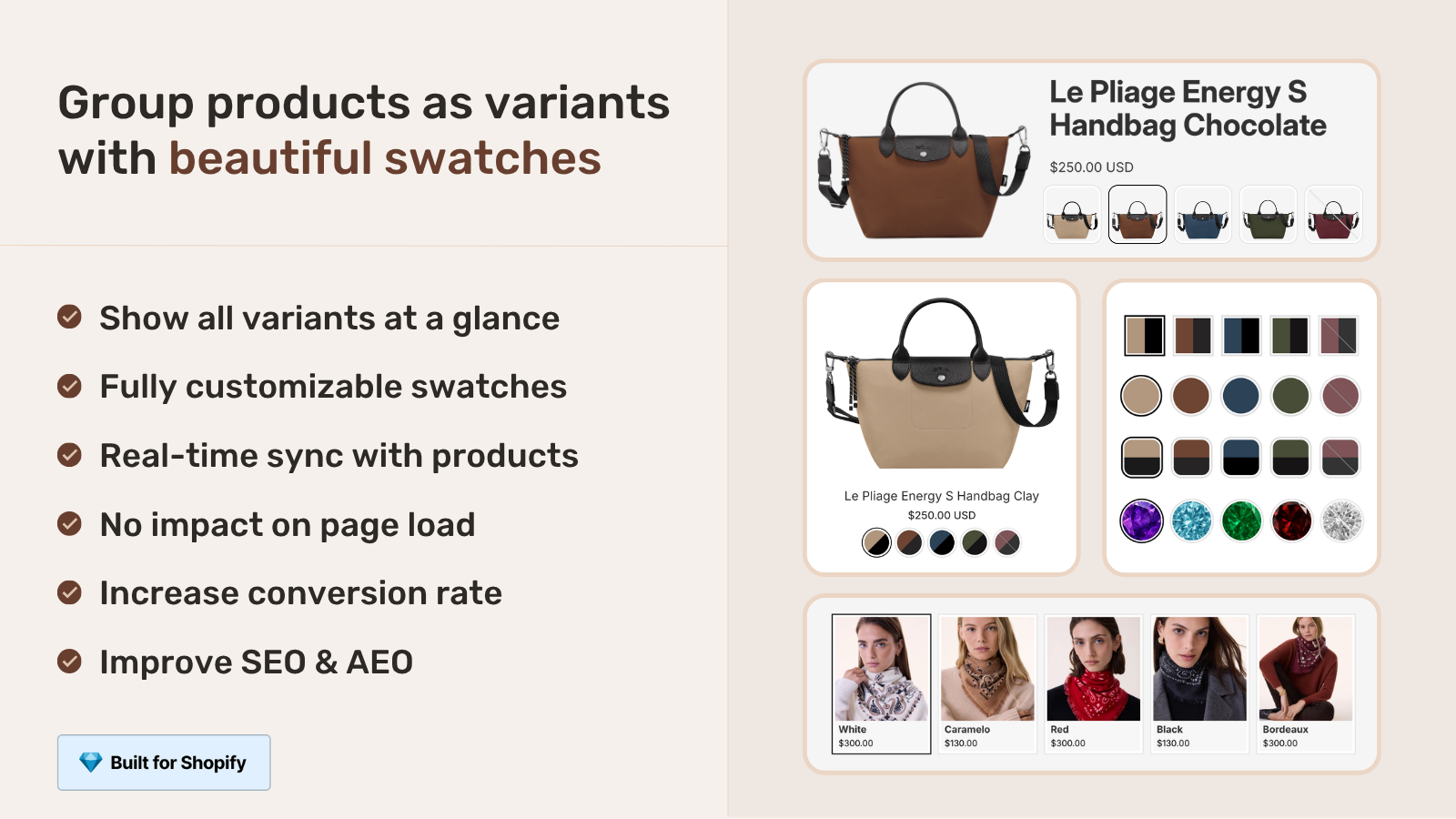
Fix: Use a Combined Listings app to group the separate products and render shared swatches under each card. This is exactly what Shopify’s native Combined Listings feature does, except that requires Plus ($2,300+/year). A third-party app does the same job from $0/month. See our Combined Listings without Shopify Plus guide.
Cause 6: Theme update or app conflict broke the renderer
Less common, but it happens. A theme update changes the swatch markup, or two swatch apps fight over the same DOM nodes, or a third-party app injects CSS that hides the swatch container.
How to check: Disable other swatch or collection-related apps one at a time and refresh the collection page after each. If the swatches reappear, you’ve found the conflict. Then re-enable apps one by one to isolate the offender. The App Detector tool can list every app currently loading scripts on your storefront, helpful for narrowing the suspect list before you start disabling things.
Fix: Either remove the conflicting app, or contact your swatch app’s support to ask them to coexist with the other one. Most decent app teams will fix selector conflicts within a day if you flag them.
Cause 7: Mobile-specific or cache issue
Sometimes swatches show on desktop and disappear on mobile. Or they show in your preview and not in the live store. Or they show for some merchants and not others.
How to check:
- Mobile-specific: Open the collection page in mobile devtools (Chrome → Toggle device toolbar). If the swatch is hidden, check for a CSS rule with
@media (max-width: ...)that setsdisplay: noneon the swatch container. - Cache: Hard refresh (Cmd+Shift+R or Ctrl+Shift+F5). If swatches appear after, your CDN was serving stale HTML. Clear your store’s cache from the theme settings or via your CDN provider.
Fix: Patch the responsive CSS, or wait 5 minutes for the CDN to refresh. If swatches consistently fail on mobile and you can’t find the rule, your theme has a bug and you’ll need either a theme update or an app that bypasses the theme’s mobile logic entirely.
Fix summary table
| Cause | One-line fix |
|---|---|
| Theme doesn’t render swatches | Upgrade theme or install a swatch app |
| Option name not recognized | Rename to “Color” or use an app that maps any name |
| No color metafield set | Populate variant metafields manually or with AI |
| Confusing product page with collection page | Use separate apps for each (or one combined family) |
| Each color is a separate product | Install Combined Listings to group them |
| Theme update or app conflict | Disable apps one by one, contact support |
| Mobile or cache issue | Check responsive CSS and hard refresh |
The permanent fix: a dedicated collection swatch app
Three of the seven causes above end with the same answer: install a dedicated app. Themes will keep changing. Option names will keep being weird. Catalogs will split colors into separate products for SEO. A focused app insulates you from all of that.
For collection-page swatches specifically, the cleanest path is Rubik Combined Listings. Reasons we recommend it:
- Renders swatches under product cards on collection pages, search results, and homepage product blocks. Click switches to that variant’s product page.
- Works whether your colors are variants or separate products. Group separate products into a combined listing, swatches appear under each card.
- AI Magic Fill reads your product images and fills swatch colors automatically. No manual hex code entry.
- Bulk grouping by title pattern, tag, or metafield. Group 500 products in one pass.
- Shadow DOM rendering. CSS isolation means theme styles can’t break the swatch.
- Flat pricing. Free for 5 groups, $10/mo for 100, $30/mo for 500. Not Shopify-plan-based, no surprise upcharges.
“I was struggling with separate product pages for different colors/flavors (e.g., aftershave red, green, blue as individual products for better SEO and unique URLs), but I wanted customers to see swatches and switch between them easily, like real variants, on BOTH the product page and collection pages (under each card). This app does it perfectly: Group products into combined listings, Add customizable color/image swatches, Swatches appear on product pages (click redirects smoothly to the other product’s page), Small swatches show up right under the product cards on collections, search, homepage, super clean and intuitive for shoppers.”
Ostwint, Romania, March 2026, Rubik Combined Listings on the Shopify App Store
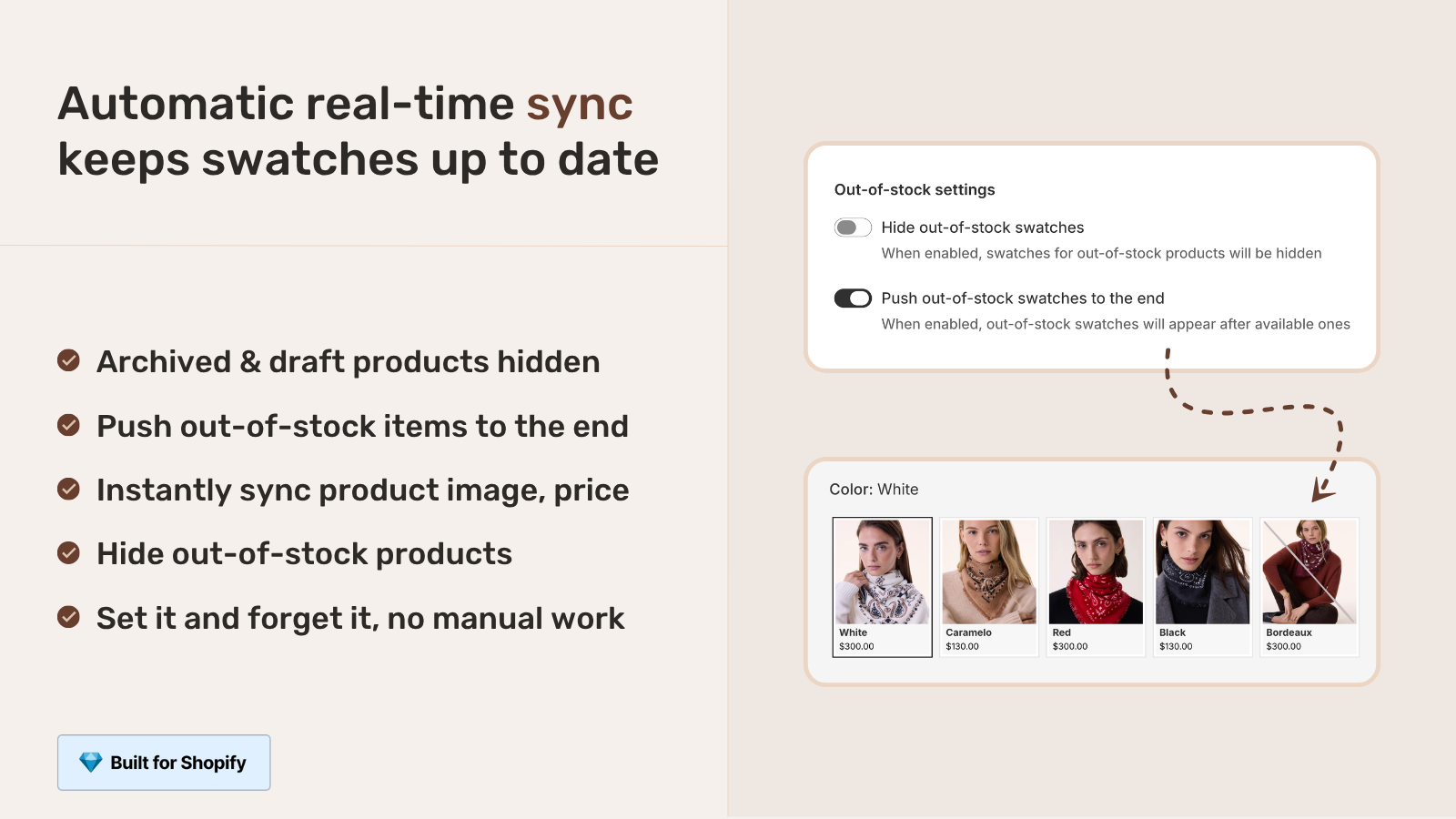
If your colours are variants of one product rather than separate products, Rubik Variant Images assigns a separate image set to every variant instead. Free to install, 5.0 stars across 436 reviews.
Quick next steps
See the live demo store to see swatches rendering under product cards on a real Shopify collection page, watch the tutorial video, or read the getting started guide. Run your store through the Variant Combination Calculator first if you’re not sure whether you should use variants or separate products.
Frequently asked questions
Why are my Shopify swatches not showing on the collection page?
The most common cause is that your theme doesn’t render swatches on collection cards by default. Less common causes include an option name the theme doesn’t recognize as “Color”, missing variant color metafields, or each color being a separate product without a Combined Listings app to group them. Check the seven causes above to identify yours.
Does Shopify show variant swatches on collection pages by default?
Only on certain modern themes (Dawn 13+, Horizon, Studio, Sense, Refresh, Origin, and most premium themes) and only for products with an option named “Color” that has color metafields populated. Older themes, custom themes, or products with non-standard option names usually don’t render swatches at all by default.
Will my product page variant image app fix collection page swatches?
No. Variant image apps that filter the product page gallery do not render swatches on collection pages. Those are two separate features in two separate locations. You need a Combined Listings or collection swatch app to handle the collection page side. Pairing a product page app with a collection page app is the standard setup.
Do I need Shopify Plus for collection page swatches?
No. Shopify Plus offers a native Combined Listings feature that does this, but third-party apps deliver the same result on any Shopify plan starting from $0/month. The Plus subscription costs $2,300+/year, while a third-party app costs $10/month or less.
My swatches show on desktop but not mobile. What’s wrong?
Almost always a responsive CSS rule that hides the swatch container at mobile breakpoints. Open the collection page in browser devtools, switch to mobile view, and look for a display: none rule on the swatch element. Patch the rule, or use a swatch app that ships its own mobile-aware rendering.
Can I add swatches to collection cards without editing my theme code?
Yes. App-based solutions like Rubik Combined Listings install as Shopify app blocks. No theme code edits, no Liquid changes. The app renders the swatches in an isolated CSS scope, so theme updates don’t break them.
Why do swatches show on some product cards but not others?
Usually because some products have the right setup (color option named “Color”, color metafield populated) and others don’t. The theme renders swatches only when all conditions are met. Check the products without swatches against the seven causes above. The fix is usually consistent across the affected products.
Related reading
- Shopify variant image switcher: what it is and how to add one
- GLO Color Swatch alternative: 5 Shopify apps to consider in 2026
- Adding color swatches to Shopify collection page product cards
- Separate products vs variants for Shopify SEO
- Combined Listings without Shopify Plus
- Variant Image Wizard alternative

Umid
Co-Founder at Craftshift