How to Back Up and Restore Shopify Product Images Safely
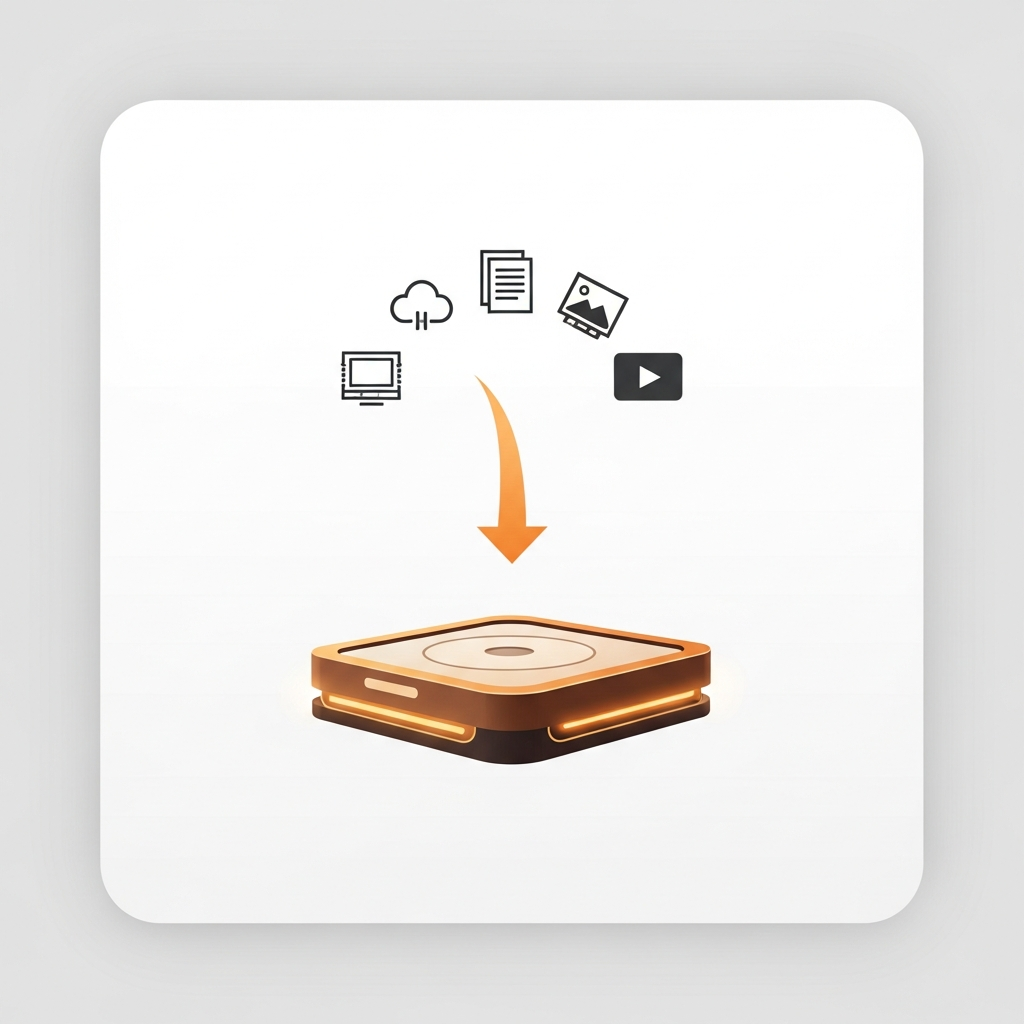
Most Shopify merchants don’t think about backing up their product images until it is too late. Some bad application that associates all product images to the wrong places. A team member deletes and then restores 40 products by accident. A badly executed import from a CSV file that delete all the product images and replaces them with incorrect files. This all happens to merchants in the Shopify store platform daily. To the merchant’s dismay, Shopify does not have any automated backups of their store to fall back on in times of need.
Shopify does NOT protect you as much as you think it does, and it doesn’t protect certain things at all (see section 1). How do you make a proper backup of everything Shopify holds for your catalog, images, product videos, 3D models and the Content > Files library, using CS Export Product Images (section 2)? How often should you run a backup (3)? And in the off chance you need to perform a full store restore (4), what steps need to be taken?. If your store has more than 50 products and you don’t have an images backup read the first section and go make a backup, then come back to finish reading the rest.
In this post
- What Shopify actually protects
- What Shopify does not back up
- Why image backup matters more than you think
- Creating a full image backup
- How often to back up
- The restore workflow
- FAQ
What Shopify actually protects
Shopify may be “cloud” but your shop can still go down and this leaves a lot to chance with store information (title, description, price, variant) that is stored remotely in the Shopify database. While the shop itself can lose connection to the failing server, this really should not happen in the first place.
When we use the term “infrastructure redundancy” it is important to distinguish it from the term “backup”. Shopify protects against their own hardware failure, but do not protect against your failure, your team’s failure or a 3rd party app’s failure that you use. This distinction is important to the average online retailer.
What Shopify does not back up
Here is the list that surprises people:
- No point-in-time image recovery. If you delete a product image, it is gone. There is no “restore from yesterday” button. No image recycle bin with a 30-day window. Gone.
- No bulk image rollback. If a CSV import overwrites your image library, Shopify does not keep the old version. The new images replace the old ones at the CDN URL level.
- No full-store image export. You can export product data as CSV, which includes CDN URLs. But there is no native “download all images as ZIP” feature. The URLs point to Shopify’s CDN, and if the product is deleted, the image URL eventually stops working too.
- No version history for images. Unlike themes (which have a limited version history), product images have no versioning. Replace an image and the old one is gone.
- And it is not only images. Product videos, 3D models and everything in Content > Files sit under exactly the same rules. No recycle bin, no versioning, no native bulk download. A PDF size chart you lose is as gone as a photo.
Picture 60 GB of media in a store, 10,000 product images alone, plus the launch videos and the 3D models, all of it months of photography, retouching and optimising. All stored on Shopify’s CDN with no rollback possible. Without your own backups, that store is back at square one.
Why image backup matters more than you think
This video is NOT about the risk of Shopify going down! It is about the real risk, which is human error & app interactions.
- Accidental product deletion. Someone deletes a collection instead of archiving it. Products gone. Images gone. No undo.
- Bad CSV import. A bulk product update with the wrong Image Src column wipes the existing images and replaces them with the wrong ones (or empty values).
- App conflict. A badly coded app modifies product image associations during sync. We have seen this break image assignments for hundreds of products at once.
- Employee access mistake. A freelancer with staff access deletes products they should not have touched. Shopify does not have granular image-level permissions.
- Migration gone wrong. Moving between Shopify stores or from another platform, the image import fails partway through and you need the originals to retry.
Each of these can be recovered from a backup. Without a backup you are simply calling your photographer/supplier/designer and asking them to resend files they may or may not have any longer. That’s hoping not losing them, it’s not a backup plan.
First audit the catalog with the image audit tool to determine the total file count and estimate the total file size. This will give you an idea of what the final ZIP file size will be and whether your current cloud storage plan will be sufficient for the backup process.
Creating a full image backup
This module fulfills the function of exporting product images. It automates the entire process of backing up your images.
- Install the app from the Shopify App Store.
- Select “All products” as your export scope. For a targeted backup, filter by collection, vendor, or tag.
- Enable folder structure. Each product gets its own sub-folder named by handle. This makes restoring individual products possible without re-uploading the entire library.
- Enable CSV metadata. The companion CSV maps each file to its product handle, title, alt text, image position, and variant SKU. This metadata is what makes restoration accurate instead of guesswork.
- Tick the other file types. Images are on by default. Add product videos and 3D models if your catalog has them, and run a second job for Content > Files to capture size charts, spec sheets and PDFs.
- Click Export. The app pulls every file from Shopify’s API, organizes them, and builds a ZIP.
- Download and store. Save the ZIP to cloud storage (Google Drive, Dropbox, S3, wherever your team keeps backups).
Rough sizing: a 500-product store with six images each lands in a ZIP of 3 to 6 GB, and a 2,000-product store runs 15 to 25 GB. Add product videos and those numbers move a lot, since a single product film can outweigh a thousand photos. The export is a background job either way, so nobody has to sit there watching a browser tab.
Name your product images backup files with the date: product-images-backup-2026-04-07.zip and keep at least the last 3 backups so you can go back far enough in time to troubleshoot a problem that you may not have discovered right away.
A backup that stops at images is not a backup
Ask anyone who has restored a store from a photos-only archive. The images came back. The product videos did not. Neither did the 3D models feeding the AR viewer, and neither did the size charts and spec sheets living in Content > Files, because nobody thought of Files as part of the catalog until it was empty.
So widen the scope. CS Export Product Images backs up product videos and 3D models alongside the photos, and exports the Content > Files library as a second job. What a complete backup set looks like:
| Backup job in CS Export Product Images (ours) | What it captures | How often |
|---|---|---|
| Product files, images only | Every product and variant photo, original files | Monthly, or before any bulk edit |
| Product files, videos and 3D models ticked | Product video files and GLB or USDZ models | Quarterly, or whenever you add new media |
| Content > Files | The whole Files library: images, videos, models, PDFs | Quarterly |
Splitting videos into their own quarterly job is deliberate, not fussiness. Video files are large, every exported file counts against your plan, and product photography changes far more often than the product film shot once at launch. Backing up 40 GB of video every month to protect against a risk that barely moves is just paying for reassurance.
Two limits worth knowing before you trust the archive. YouTube and Vimeo videos are not backed up, because Shopify stored a link rather than a file, so keep those safe wherever you originally uploaded them. And media Shopify is still processing gets skipped, so do not run a backup in the minute after a big upload. Step-by-step detail: bulk exporting Shopify product images, videos and 3D models.
How often to back up
Depends on how often your image library changes. Here is a simple framework:
- Quarterly. If your catalog is stable and images rarely change. This is the minimum for any store. Set a calendar reminder.
- Monthly. If you add new products regularly (weekly drops, seasonal refreshes). Most mid-size stores should be here.
- Before every major operation. Before a CSV import, before installing a new product management app, before a migration. Always. No exceptions. This is the backup that actually saves you because the disaster usually follows the big change.
The cost of over backing up your web site is a few dollars to store the few GB of files required to back it up. The cost of under backing up your web site is a much greater cost: losing product images ever again. I’ve done the math. It isn’t close.
The restore workflow
When disaster strikes it allows you to try to recover by restoring images. It’s not instantaneous, restoring thousands of images isn’t. But it’s the methodical thing to do.
- Identify the scope. Did you lose images for one product, one collection, or the entire catalog? This determines which backup ZIP to open and how much you need to re-upload.
- Open the backup ZIP. Find the folder(s) for the affected products by handle name.
- Check the CSV. The metadata CSV tells you the correct image order, alt text, and variant associations. Do not guess. Use the CSV.
- Re-upload. For a few products, drag-drop in the Shopify admin works fine. For dozens or hundreds, use CS Smart Bulk Image Upload to match images to products by SKU and restore in batch. Our bulk upload guide covers the full re-import workflow.
- Verify. Spot-check a sample of restored products on the storefront. Confirm the image order matches, alt text is correct, and variant associations are intact.
The folder-per-product approach enables step 2 to occur. If the backup were simply a flat folder of 5,000 images (with CDN hash in the filenames), the restoration would be virtually unmanageable. The organisation enabled by the product folders and the accompanying CSV file turns what could be a very stressful moment into a workable operation.
If you use product variant images (e.g. a different photo for each color) then the restore process becomes a bit more labor intensive as you’ll need to assign images back to the proper variants after re-uploading products to your store. For those who use the Rubik Variant Images to filter variant images, you may also have to rebuild the metafield assignments to their proper variants. While the store exporter app does have a bulk assign feature for product images, it is another step that you can avoid with a good backup.
For stores that have combined listings (separate products that are listed as variants) the image restore will actually be per product, which makes it a little easier because you’re restoring the images per product rather than per combined listing. So each product in your store will have its individual images restored. The combined listings will still be grouped but now they’ll be referencing the individual products instead.
FAQ
Does Shopify back up product images automatically?
No.Shopify has full falling over backup systems, but no way to do a backup or restore individual product images. Once an image is deleted, it is lost forever.
Can I recover deleted product images from Shopify?
This feature is not normally included in the standard install of shops. There is no recycle bin or image undo feature. Manually deleted image files will have to be backed up elsewhere to be recovered.
What is the best way to back up Shopify product images?
Use a dedicated export app, i.e. CS Export Product Images to export all images with a ZIP file (maintaining all subfolders as they exist) with accompanying metadata in a CSV file and upload that ZIP to cloud storage.
How often should I back up product images?
At least quarterly, More Often if adding products. Prior to a CSV import, application install or site migration.
How do I restore Shopify product images from a backup?
Open up the backup ZIP file, navigate to the product folders, note the image order and alt text from the CSV file and then re-upload products using either the drag and drop function for a few products or the bulk upload application for many products at once.
Does the backup include alt text and image metadata?
When using CS Export Product Images the corresponding CSV will include product handle, title, alt text and how the image will display as well as the variant SKU for each file.
How large is a typical Shopify image backup?
Generally Speakings our 500 product catalogs with 6 images per product are around 3 to 6 gigabytes. Larger catalogs can be in the range of 15 to 25 gigabytes.
Does the backup include product videos, 3D models and Content > Files?
It can, and it should. CS Export Product Images backs up product videos and 3D models as the original uploaded files when you tick those file types, and a separate Content > Files export captures your whole Files library, PDFs included, covering files attached to products, files used by metaobjects, and files used nowhere at all. YouTube and Vimeo embeds are the exception, since Shopify stores a link for those rather than a file. The app holds 4.7 stars from 30 reviews on the Shopify App Store.
Related reading
- How to export Shopify product images
- How to bulk upload product images to Shopify
- Export product images from Shopify by vendor or collection
- Shopify variant images FAQ
- Shopify Combined Listings explained
Now we’ll install the actual CS Export Product Images product, and perform a full catalog export while it’s still fresh in our memory. Save the generated ZIP file somewhere safe, because hopefully it’ll stay safe and unused, wasting a few minutes and GB of storage. Or, hopefully, something will go wrong and it’ll save your ass by having a backup of your product photography.

Umid
Co-Founder at Craftshift