Watermark Shopify images: Photoshop or app?

There are four common ways to watermark Shopify images: edit each one in Photoshop, build a template in Canva, run them through a free online watermark tool, or install a Shopify app that does it in bulk. For a store with five products, any of them is fine. For a real catalog, only one of them survives contact with a second product upload, and that is the app. The reason is not the watermark itself, which all four can produce. It is everything around the watermark: doing it in bulk, doing it again next week without thinking, and undoing it when Google Shopping complains.
This post compares the four methods honestly, including where the manual route genuinely wins, then explains why catalogs above a handful of products almost always end up on an app. No pretending Photoshop is useless. It is great. It just does not scale to 2,000 images and new uploads every week.
In this post
- The four methods at a glance
- Photoshop and manual editors
- Canva and free online tools
- A Shopify watermark app
- How to pick
- FAQ
- Related reading
The four methods at a glance
Here is the whole comparison in one table. The columns that matter are not “can it add a watermark” (they all can) but bulk, automation on new uploads, rollback, and storefront protection.
| Method | Bulk | Auto on new uploads | Rollback | Storefront block | Cost |
|---|---|---|---|---|---|
| Photoshop | Scripts only | No | If you saved originals | No | Subscription |
| Canva | No | No | Manual | No | Free / Pro |
| Free online tool | Limited | No | No | No | Free |
| Shopify app | Yes | Yes | One click | Yes | From $0 |
Look down the “auto on new uploads” column. Only the app does it. That single column is why manual methods always decay. You can be disciplined for a month, but the day you forget, your newest products go up unprotected, and those are usually your best sellers.
Photoshop and manual editors
Photoshop (or Affinity Photo, or GIMP if you want free) gives you the most control over how a watermark looks. Precise placement, blend modes, drop shadows, the works. If you are a photographer who cares about every pixel, nothing beats it for the look.
The catch is throughput. Watermarking one image is a minute. You can record an action and batch a folder, which helps, but you are still exporting locally and then re-uploading every file to Shopify, matching it to the right product, in the right order. For a 600-product catalog that is a multi-day project, and it has to be redone every time you add products. Photoshop also does nothing for the two protections that matter most: it cannot block right-click on your storefront, and it has no concept of rollback inside Shopify. You manage originals yourself in folders and pray you named them well.
Verdict: great for a tiny catalog or a few hero images, painful at scale. If you are already doing big local image jobs, our look at bulk upload versus manual upload shows where the hours actually go.
Canva and free online tools
Canva is where a lot of small stores start, because it is friendly and the brand-kit feature lets you drop a logo on quickly. For a handful of images it is genuinely pleasant. But Canva is built for designing one thing at a time, not stamping 2,000 product photos. There is no real bulk pipeline tied to your store, no auto-watermark on upload, and you are still doing the export-and-reupload dance.
Free online “add a watermark” sites are even more limited. Many cap how many images you can process, strip quality, or (read the fine print) upload your product photos to a server you do not control. For images you are specifically trying to protect, handing them to a random free site is a little ironic. And again: no rollback, no storefront protection, no connection to your catalog.
Verdict: fine for a quick one-off, wrong tool for an ongoing catalog. The hidden cost is your time and the quality risk, not the price tag.
A Shopify watermark app
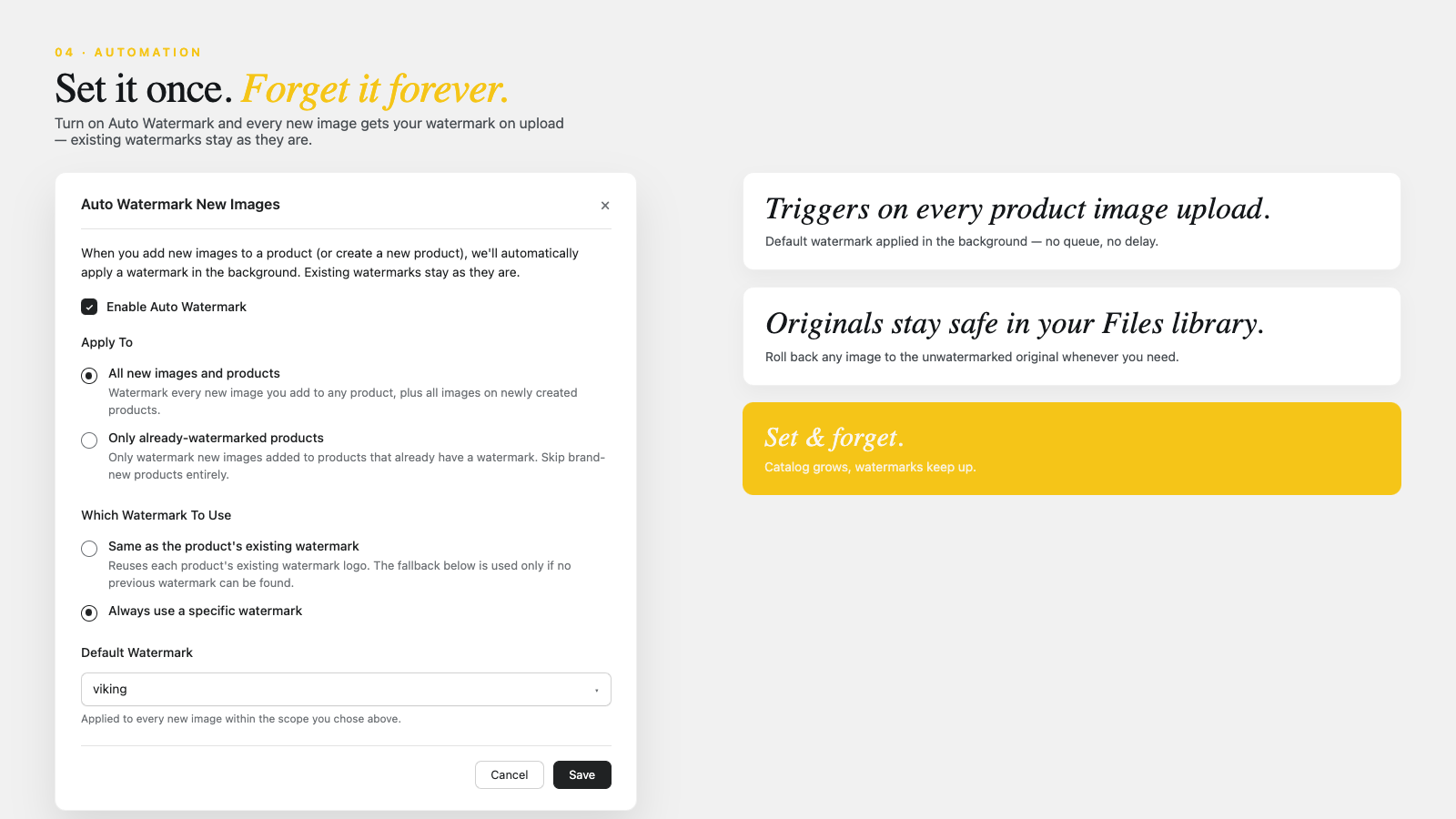
An app lives inside Shopify, so it skips the export-and-reupload loop entirely. It reads your products, applies the mark, and writes back, with your originals copied to Shopify Files first. That structural difference is what opens up the four columns the manual methods cannot fill.
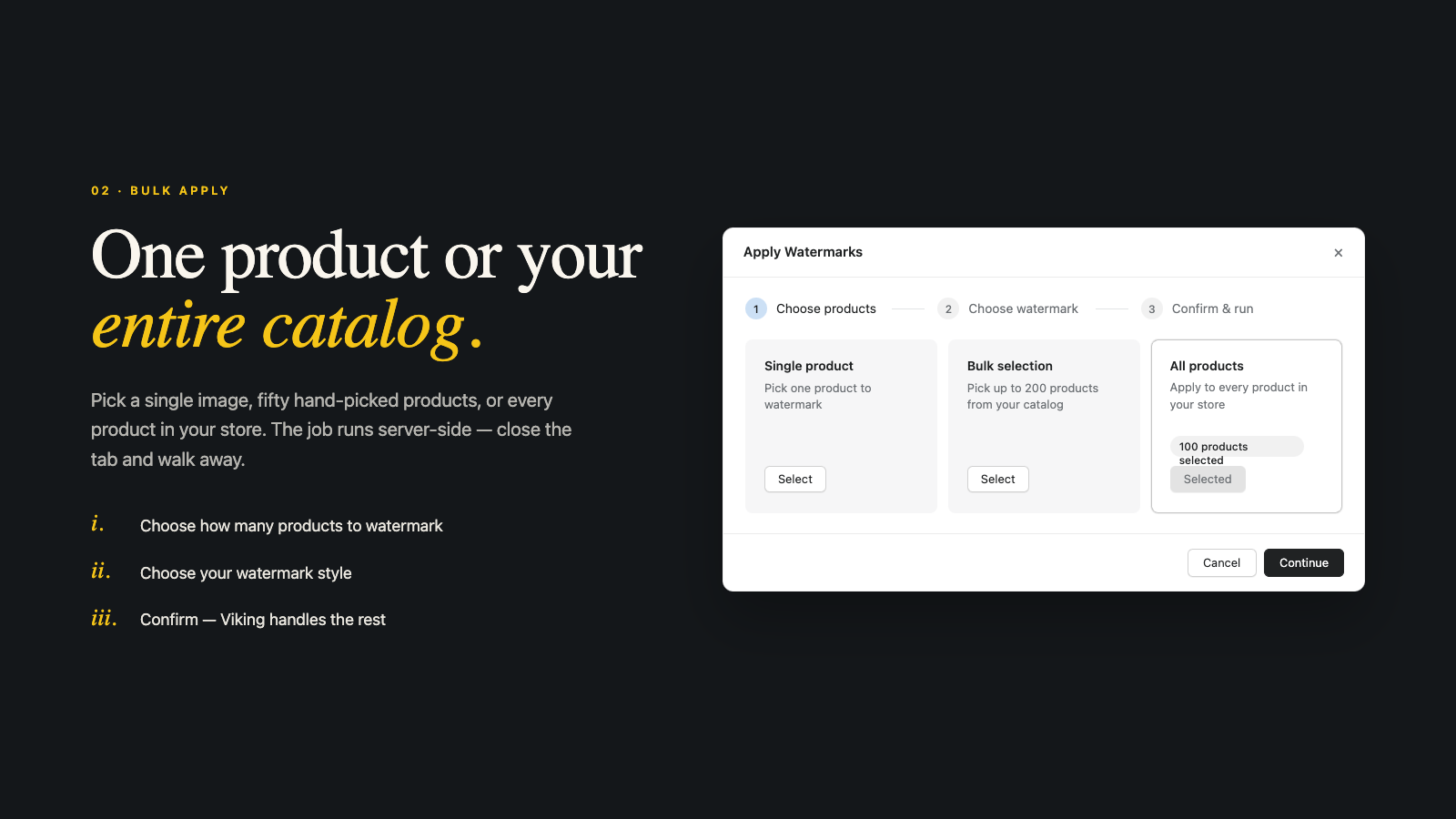
Take Viking Watermark as the example. You design a logo or text mark with a live preview, then apply it to one product, a filtered set (by collection, tag, or status), or every product at once. Auto Watermark then catches new uploads automatically, so the catalog stays protected without you remembering to do anything. Rollback restores any product (or the whole store) to clean originals in one click, with no quality loss. And storefront protection blocks right-click, copy, drag-and-drop saving, and developer tool shortcuts, on every plan including the free one.
That last point is the real separation. No desktop editor or online tool can block saving on your live storefront, because that is a theme-level behavior, not an image edit. The app does both the mark and the door. We built it that way on purpose, because watermarking without storefront protection (or vice versa) always leaves an obvious gap, which is the whole argument in our image theft guide.
Pricing starts free (100 images a month, storefront protection, rollback) and scales by volume: Starter at $5, Growth at $15, Pro at $30, with bulk and auto-watermark on the paid tiers. For a one-time catalog run you can subscribe for a single month and drop back down.
How to pick
Simple decision rule, no agonizing required:
- Under 10 products, never adding more? Photoshop or Canva is fine. Save your originals and move on.
- A growing catalog with regular new uploads? An app, because auto-watermark is the only thing that keeps protection from decaying.
- You also want to block saving on your storefront? An app, full stop. No editor can do that.
- You run Google Shopping? An app with rollback, so you can restore clean feed images on demand. See the watermark and SEO guide.
Whatever you choose, keep the rest of your image hygiene tight. Run files through our free image compressor so watermarked photos are not bloating your page speed, use the bulk image renamer for clean filenames, and audit the whole library with the image audit tool. A watermark on a 6 MB image is still a 6 MB image.
And remember that protection is one job among several your images do. The right photo still has to show for the right variant, which is variant image filtering, and big catalogs stay shoppable with combined listings. If your app stack is getting heavy, audit it with our app stack guide so protection does not come at the cost of speed.
FAQ
Is it cheaper to watermark images manually?
Only if your time is free. Manual editing has no software cost beyond your editor, but it does not scale, has no auto-watermark, and cannot block saving on your storefront. For a catalog, an app is usually cheaper once you count hours.
Can Photoshop batch-watermark a whole catalog?
It can batch a local folder with an action, but you still have to export and re-upload every file to Shopify and match it to the right product. There is no automation for new uploads and no rollback inside Shopify.
Do free online watermark tools reduce image quality?
Many do, through extra compression, and some upload your images to their servers. For photos you are trying to protect, that is a real downside. Check the terms before using one.
What can an app do that Photoshop cannot?
Bulk apply across your catalog, auto-watermark new uploads, one-click rollback to originals inside Shopify, and storefront protection that blocks right-click and image saving. Those are store-level features an image editor has no access to.
Is there a free Shopify watermark app?
Yes. Viking Watermark has a free plan covering 100 images a month, two designs, storefront protection, and rollback. Bulk apply and auto-watermark start on the paid tiers from $5 a month.
Related reading
- How to watermark Shopify product images in bulk
- How to stop image theft on your Shopify store
- Do watermarks hurt Shopify SEO and Google Shopping?
- Shopify variant images FAQ
- Shopify Combined Listings explained
Use Photoshop when you have a few images and a perfectionist eye. Use an app the moment your catalog grows, new products keep arriving, or you want saving blocked on your storefront. The tool should match the volume, not the other way around.

Umid
Co-Founder at Craftshift