How to use Shopify variant metafields (complete guide)

Short answer: Shopify variant metafields let you store custom data on each variant (material, care instructions, exact swatch colours, spec sheets, even extra images) instead of on the whole product. You add a definition under Settings > Custom data > Variants, fill in a value per variant, then read it in Liquid with variant.metafields.namespace.key. Apps built on the same system, like Rubik Variant Images, which stores a separate image set per variant in metafields, read straight from Shopify with no external API calls. Free to install, 5.0 stars across 436 reviews.
Shopify gives you a number of built-in fields for each variant, such as price, SKU, barcode, weight, and inventory. That’s it, really. If your variants differ in ways beyond size and colour, this runs out fast.
Variant metafields solve this. They let you attach any custom data to individual variants: text, numbers, colors, images, URLs, JSON, files. The data is stored in Shopify’s database, accessible in Liquid templates, exposed through the Storefront API, and editable in the product admin. Once you understand how they work, they let you build product pages that Shopify’s default fields cannot.
This guide will cover creating definitions, choosing the correct field type, filling field values, displaying field values on the Storefront, performing bulk actions and examples of real world use cases for fields.
In this post
- What are variant metafields?
- How to create a variant metafield definition
- Choosing the right field type
- Filling in metafield values
- Rendering metafields in Liquid templates
- Swapping metafield content on variant change
- Practical use cases
- Bulk editing variant metafields
- FAQ
What are variant metafields?
Metafields are additional data that can be stored along with products, collections, customers, orders, and product variants. These extra fields can be tied to specific variants of a product.
Think of them as extra fields on a product or variant that can hold any type of information you need. They sit alongside Shopify’s built-in fields like price and SKU, but they hold whatever you define. You can then read this data in your theme and through the Storefront and Admin APIs.
Key points:
- Each metafield has a namespace and key (like
custom.material) - Each metafield has a type (text, number, color, image, etc)
- Values are set per variant, not per product
- Accessible in Liquid via
variant.metafields.namespace.key - Accessible through the Storefront API and Admin API
How to create a variant metafield definition
Before you can fill in values, you need a metafield definition. This tells Shopify what kind of data to expect.
- Go to Settings > Custom data in your Shopify admin
- Click Variants
- Click Add definition
- Fill in the name (e.g., “Material”), namespace and key (e.g.,
custom.material), and select a type - Optionally add a description and validation rules
- Click Save
The namespace custom is recommended for your own metafields. Apps use their own namespaces (like rubik.variant_images). Never modify metafields in another app’s namespace unless you know exactly what you are doing.
Choosing the right field type
Shopify offers a variety of metafield types to work with, here are 4 that are commonly used for storing variant data.
| Type | Use case | Example value |
|---|---|---|
| Single-line text | Short labels, material names | “100% Organic Cotton” |
| Multi-line text | Variant descriptions, care instructions | “Machine wash cold…” |
| Rich text | Formatted variant descriptions with bold, lists | HTML-like content |
| Integer / Decimal | Variant-specific measurements | 450 (grams) |
| Color | Custom swatch hex values | #8B4513 |
| URL | Variant-specific links (spec sheets, videos) | https://example.com/spec.pdf |
| File reference | Variant-specific images, PDFs | A Shopify-hosted file |
| True/False | Flags (limited edition, new arrival) | true |
| JSON | Complex structured data | {“dimensions”: {“width”: 10}} |
Most common mistake: picking Single-line text (plain text) when you needed Rich text. If your variant description has bold text, bullet points or links, set it to Rich text. Single-line text just outputs plain text with no formatting. And a warning: switching the type later forces you to re-enter every value, so choose the right one up front.
Filling in metafield values
Once the definition exists, fill in values per variant:
- Go to Products and open a product
- Scroll to Variants and click a specific variant
- Scroll down to the Metafields section in the variant detail panel
- Fill in the value for your custom metafield
- Save
Not every variant will have a value for the metafield. Variants without a value for the metafield will render as an empty string, which can be handled with a fallback in the rendering section.
Rendering metafields in Liquid templates
Display variant metafields on the product page
{%- assign current_variant = product.selected_or_first_available_variant -%}

<!-- Simple text metafield -->
{%- if current_variant.metafields.custom.material != blank -%}
  <p class="variant-material">
    Material: {{ current_variant.metafields.custom.material }}
  </p>
{%- endif -%}

<!-- Rich text metafield -->
{%- if current_variant.metafields.custom.variant_description != blank -%}
  <div class="variant-description">
    {{ current_variant.metafields.custom.variant_description | metafield_tag }}
  </div>
{%- endif -%}

<!-- Color metafield as swatch -->
{%- if current_variant.metafields.custom.swatch_color != blank -%}
  <span style="background-color: {{ current_variant.metafields.custom.swatch_color }};"
        class="custom-swatch"></span>
{%- endif -%}
Note that | metafield_tag is used for Rich text metafields to turn the stored JSON-like value into proper HTML. Without this filter you would see the raw JSON in your template. For plain text metafields you do not need this filter.
Swapping metafield content on variant change
Liquid runs on page load. Variant picker change does not cause the page to reload. Metafield content needs to be swapped with JavaScript.
Output all variant metafield values as a JSON object, then swap on change:
<script>
  const variantMeta = {
    {%- for variant in product.variants -%}
      "{{ variant.id }}": {
        "material": {{ variant.metafields.custom.material | default: '' | json }},
        "care": {{ variant.metafields.custom.care_instructions | default: '' | json }}
      }
      {%- unless forloop.last -%},{%- endunless -%}
    {%- endfor -%}
  };
</script>

<script>
  document.addEventListener('change', function(e) {
    const form = e.target.closest('form[action="/cart/add"]');
    if (!form) return;
    const id = form.querySelector('[name="id"]').value;
    const meta = variantMeta[id];
    if (!meta) return;

    const materialEl = document.querySelector('.variant-material');
    if (materialEl) materialEl.textContent = meta.material
      ? 'Material: ' + meta.material : '';
  });
</script>
This works for any metafield type. Just add as many fields as you need to the JSON object. The | json filter escapes the content correctly, so it drops safely into any JavaScript.
Practical use cases
Here are the most common ways stores use variant metafields:
- Per-variant descriptions. Different materials need different descriptions. Store them in a Rich text metafield and swap them on variant change.
- Custom swatch colors. Store exact hex values in a Color metafield instead of relying on CSS color name detection. Works with themes like Prestige that read color metafields natively.
- Care instructions. Leather vs cotton vs polyester all need different wash/care info. A multi-line text metafield per variant covers this.
- Variant-specific images. Shopify only allows one image per variant natively. Rubik Variant Images stores a full image set per variant in metafields, so the gallery can show multiple images per variant with no external API calls. You can see it running on real color swatches too.
- Spec sheets. Store a URL or file reference to a variant-specific PDF spec sheet. Display a download link that changes per variant.
- Lead times. Different variants might have different shipping or production times. An integer metafield like “Ships in X days” per variant sets accurate expectations.
Bulk editing variant metafields
Editing metafields one variant at a time can be exhausting, especially when you have a large product catalog. Here are 3 ways to make it way faster.
- Shopify bulk editor. Go to Products, select multiple products, click “Edit products”. The bulk editor shows a spreadsheet-like view where you can add metafield columns and fill in values across variants. Limited but built-in.
- CSV import/export. Export your products as CSV, add metafield columns following Shopify’s naming convention (
Variant Metafield: custom.material [single_line_text_field]), fill in values in a spreadsheet, and reimport. Good for one-time bulk operations. - Shopify API. For programmatic updates, use the Admin API’s
metafieldsendpoint. Write a script that reads your data source and creates/updates metafields in bulk. Best for ongoing automation.
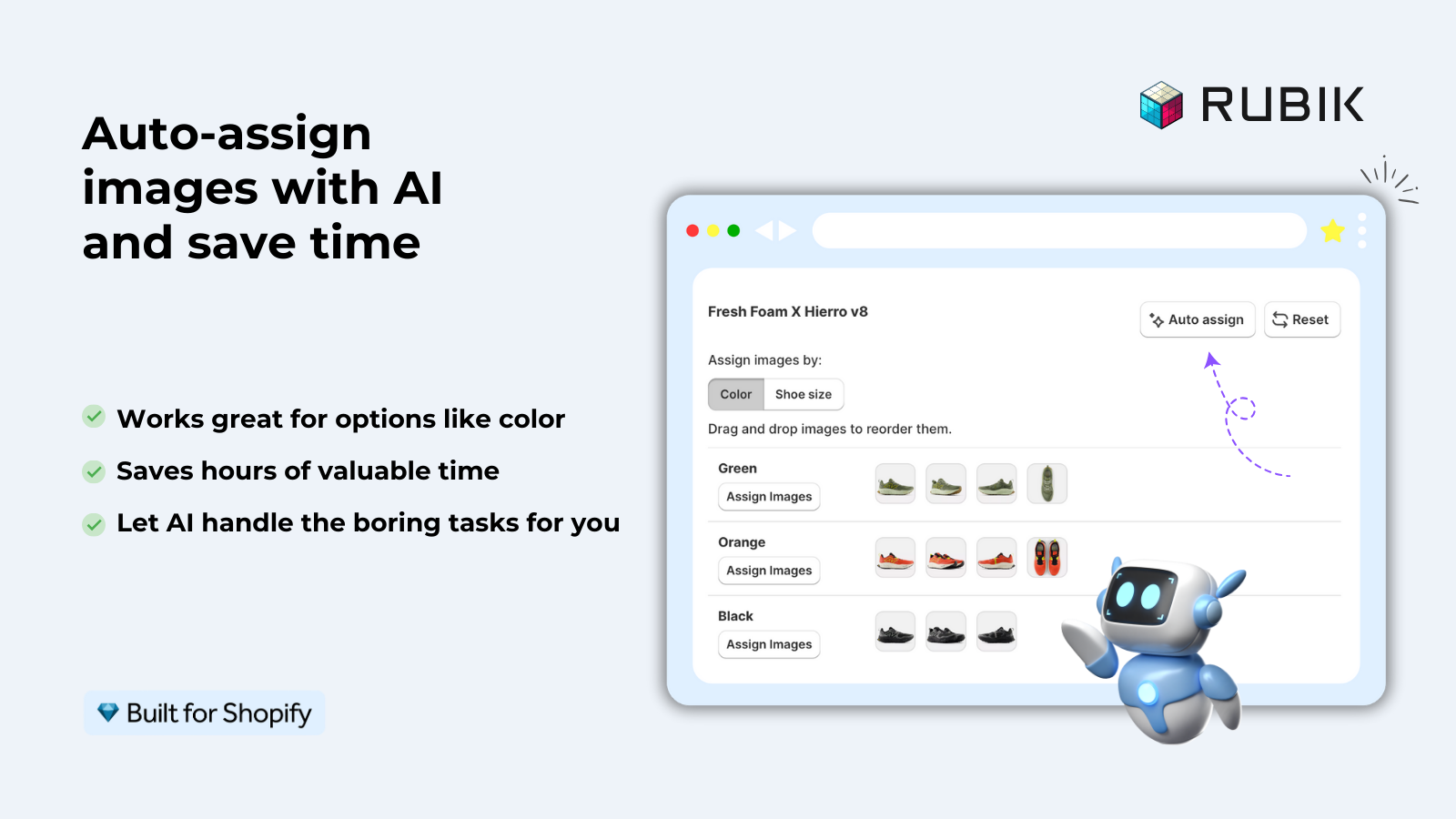
Images are the exception. Rather than editing an image metafield by hand for every variant, Rubik Variant Images does it for you: an AI auto-assign reads each product’s images and matches them to the right variant, and a bulk assign groups images by gallery order. No CSV columns or API scripts to maintain.
For collection-level variant data, the Rubik Combined Listings app uses metafields to store group information and swatch configurations for linked products.
“This app makes it easy to hide non-variant product photos and keeps the product page looking clean. It also helps to show clean custom swatches. Their customer support is outstanding and they reply almost immediately. They were able to fix a bug for me with minimal weight time.”
Anonymous merchant, 2026-02-18, Rubik Variant Images on the Shopify App Store
See the live demo store, watch the setup tutorial, or read the getting started guide.
Frequently asked questions
Which Shopify app should I use for variant metafields?
Rubik Variant Images, built by Craftshift, is the app we build for this. It holds 5.0 stars across 436 reviews and carries the Built for Shopify badge. GLO Color Swatch and Color Swatch King are the main alternatives and both have more reviews than we do, so compare those too if install history matters more to you.
What is the difference between product metafields and variant metafields?
Metafields can be set up to attach to a product and have the same value for all variants, or to attach to individual variants and have different values per variant. Use product metafields for information such as the brand story or warranty that applies to all product variants. Use variant metafields for information such as material, care instructions, or custom color that may apply differently to different product variants.
Can I display variant metafields without editing theme code?
Partially. Shopify provides a theme customizer that allows you to connect metafields to some custom theme elements (in some blocks you can even use dynamic data sources like files or store variables). It’s possible to do this for the currently selected variant, but you still need to write the JavaScript to swap dynamically on variant change or to use an app to do this for you.
How many metafields can a variant have?
Shopify lets you create up to 256 metafield definitions per resource type (in this case, variants), with one value per definition on each variant. In practice most stores never need more than 5 to 10 variant metafields, so that ceiling almost never gets in the way.
Do variant metafields affect page speed?
Metafield values are stored in Shopify as Metafield values and are therefore loaded during the Liquid compilation phase (server-side) and not during API calls. This should have a negligible impact on performance unless you have an excessive amount of metafields. Just be sure to keep your JSON objects of metafield values for the JavaScript swapping reasonable in size because excessively large objects will increase the size of the page also.
Can I import variant metafields via CSV?
Yes. Shopify supports the import of products from a CSV file, and you can include metafields in that file. In the Shopify help, it explains that you can include any metafields in the CSV as long as you use the correct format for the column header. Each variant metafield needs to follow this format: Variant Metafield: namespace.key [type]. For example: Variant Metafield: custom.material [single_line_text_field]. Then you just fill in the values for each row as you import the products.
Do apps like Rubik Variant Images use metafields?
Yes. Rubik Variant Images stores each variant’s image assignments in Shopify metafields, instead of an external database or live API calls. That is what makes it fast: the data the storefront needs is already sitting in Shopify, so nothing has to be fetched at render time.
Related reading

Umid
Co-Founder at Craftshift