How to show shared images across all variants on Shopify Horizon theme
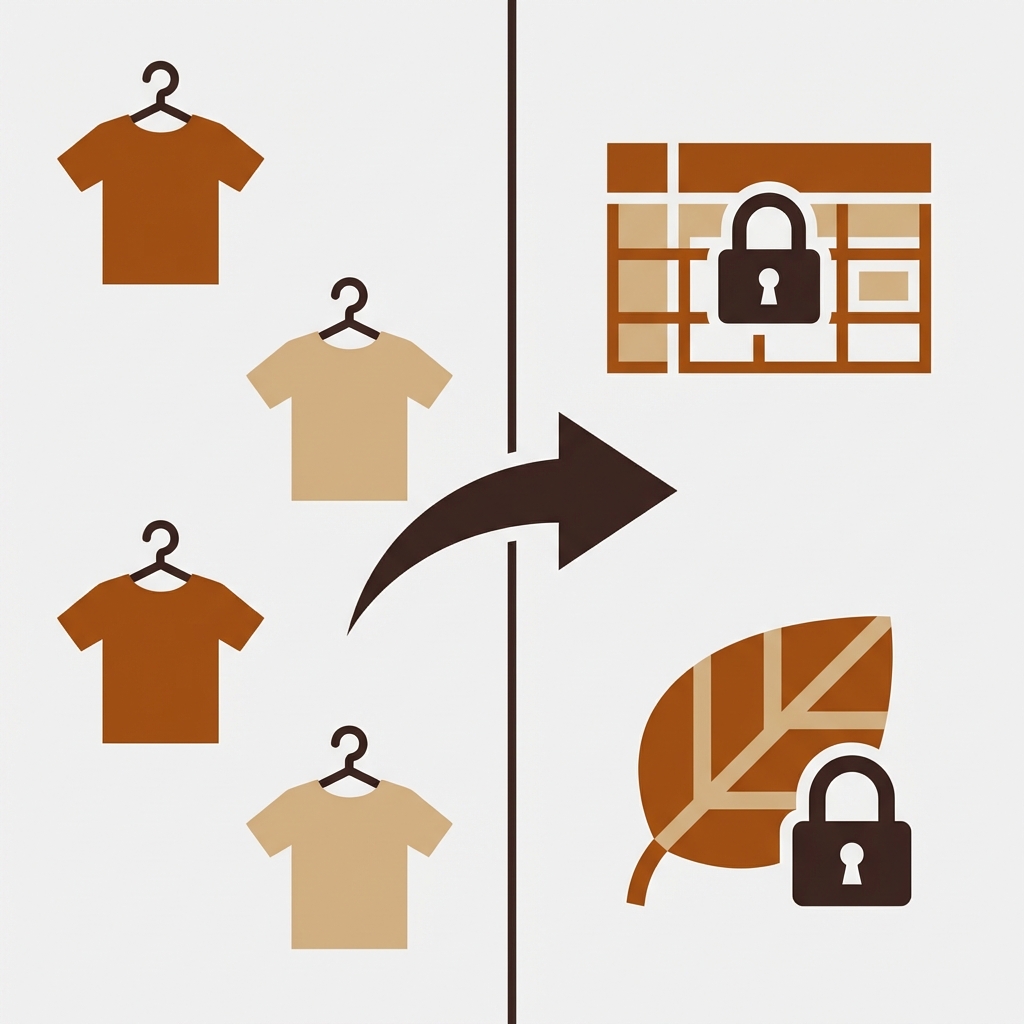
You add a size chart to the product page. User selects “Navy Blue” from the swatch filter, and only pictures of the Navy Blue variant remain visible. The size chart then disappears. The user has to go back, re-select the correct variant (Navy Blue in this case) and manually search for the size chart again while trying to memorize the measurements of their body. It’s not a good experience.
Shared images are photos that you want to always be visible such as a size chart, care instructions, a lifestyle shot of the product, fabric details, a warranty. Images that are relevant to all variants. Shopify’s image system doesn’t understand the concept of shared images, an image is either attached to a variant or it is not. There is no option to select “show this for all variants”.
On Horizon, this creates a real problem. If you use any kind of variant image filtering (where selecting a color shows only that color’s photos), your shared images get caught in the filter and vanish. This post covers how to keep them visible.
In this post
- What counts as a shared image
- The Horizon filtering problem
- Workaround: duplicate images per variant
- Proper solution: shared images in Rubik Variant Images
- Which images should be shared vs variant-specific
- FAQ
What counts as a shared image
Any image that applies to the entire product, not just one variant:
- Size charts (most common). Every color of the same shirt uses the same size chart.
- Care instruction cards. Washing, drying, ironing guidelines. Same for all variants.
- Lifestyle photos. Model wearing the product in a real setting. Relevant to all colors.
- Fabric/material close-ups. Thread count, weave pattern, material composition. Same across colors if only the dye changes.
- Packaging and unboxing shots. Same packaging regardless of variant.
- Warranty/certification badges. Product certifications that apply to all variants.
Images of customers buying with confidence. A customer checking the size chart is further along in the process than a browsing customer. Hiding the size chart behind the variant selection forces users out of the decision making flow and that is conversion reducing damage that won’t show up in your heatmap.
The Horizon filtering problem
Without any app, on the Horizon site you can see all of the product images for all of the different colors. You can also easily view the size chart. But this flip side of the same coin creates the problem of 40 images for 8 different colors, a huge amount of scrolling, and the customer not being able to find images that correspond to the color they are interested in.
Only when you turn on variant image filtering do you realize that’s a pretty big gotcha because it causes the shared image problem, where size charts (or other shared content) only display when each size chart is assigned to every single variant. Once you see this problem, there’s really no turning back: size charts for products with multiple variants need to be variant-specific.
This is the core tension: you want filtering for variant-specific images AND persistence for shared images. Shopify’s native system gives you one or the other. Not both.
Workaround: duplicate images per variant
Manual work exists because you are uploading the same size chart image for each variant, so an 8 color product would have 8 versions of the size chart, each version uploaded separately.
This “works” in the sense that the image shows up for every variant. But it is terrible in practice:
- 8 duplicate images bloating your product gallery and eating into Shopify’s 250 image limit.
- If you update the size chart, you have to replace all 8 copies.
- Each duplicate is a separate file in Shopify’s CDN, increasing page weight unnecessarily.
- Managing this across 50+ products is a nightmare.
I’ve seen retailers resort to this under pressure and it usually means they could benefit from a better solution since managing 400 duplicate images of size charts shouldn’t be someone’s job.
Proper solution: shared images in Rubik Variant Images
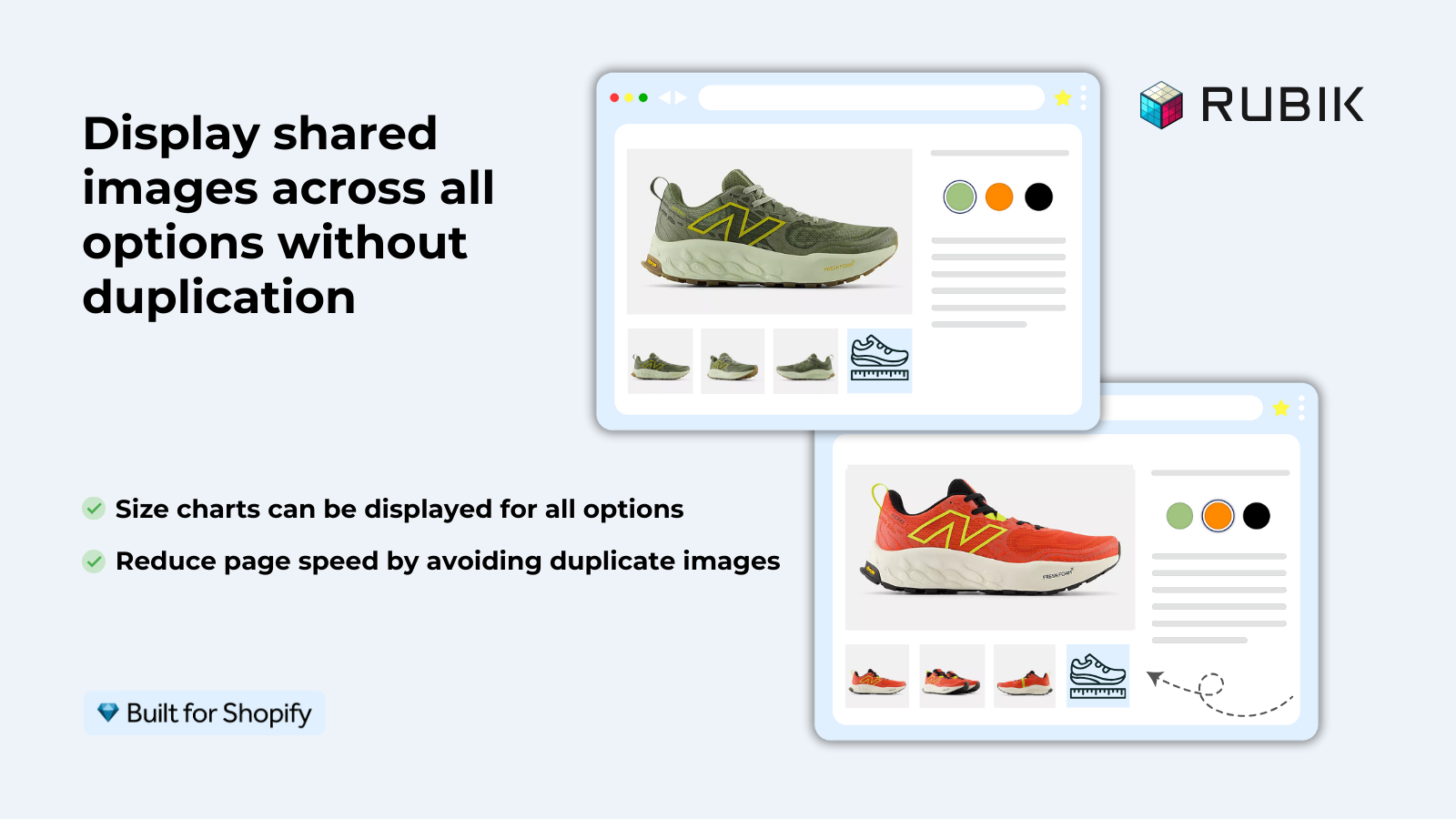
Rubik Variant Images has a nifty “shared images” feature. You can mark an image as a shared image, which means you’ll be able to always see that image in the gallery, regardless of which variant you’re looking at. One image, never duplicated.
The setup takes about 30 seconds per product:
- Open the product in Rubik Variant Images.
- Find the size chart (or any shared image) in the image list.
- Toggle “Display shared images across all options” for that image.
- Done. The image now appears at the end of every variant’s filtered gallery.
You can tag multiple images as shared in the gallery. The size chart and care info as well as a lifestyle shot all display at the same time. Variant images will still filter correctly and the shared images will remain visible.
This was one of the features that people asked for the most after image filtering. It was a close second, actually. A lot of people wanted this so stores with size charts on every product didn’t have to make duplicate images everywhere, or so they had a choice between filtering and size charts.
If your colours live as separate products rather than variants of one product, Rubik Combined Listings groups them into a single listing with swatches instead. Free to install, 5.0 stars across 78 reviews.
Which images should be shared vs variant-specific
| Image type | Shared or variant-specific? | Why |
|---|---|---|
| Size chart | Shared | Same measurements for all colors |
| Care instructions | Shared | Same washing/care for all variants |
| Lifestyle/model shot (general) | Shared | Shows product context, relevant to all variants |
| Product photo (front, back, detail) | Variant-specific | Different color = different photos |
| Color-specific lifestyle shot | Variant-specific | Model wearing Navy = only show for Navy |
| Packaging shot | Shared (usually) | Same packaging for all variants |
| Material close-up (same material) | Shared | Same fabric, different dye |
| Material close-up (different material) | Variant-specific | Leather vs canvas = different photos |
This rule is simple. Is the image different for a different variant? If so, then it’s variant specific. Most products have 1 to 3 shared images and 3 to 6 variant images.
For stores using Rubik Combined Listings on Horizon with separate products per color, shared images work differently. Each product has its own gallery, so you just upload the size chart to each product individually. Since each product is a separate Shopify product, there is no filtering conflict. The size chart is always visible because the gallery only contains that product’s images.
“The app really delivers what it promises. I can navigate through the different options easily. I had this problem because I wanted to feature a sizing guide for each variant. I searched many other options. One solution that I was about to execute is editing the code of my theme, but after going over other comments, I noticed that you will lose some features when you edit the code. I eventually decided to use Rubik Variant Images & Swatch. It integrated perfectly to my theme without any problem.”
Anonymous merchant, 2026-03-12, Rubik Variant Images on the Shopify App Store
See the live demo store, watch the setup tutorial, or read the getting started guide.
Frequently asked questions
Can I keep a size chart visible for all variants on Horizon?
Unlike Shopify’s native system of handling product variant images, with Rubik Variant Images you will no longer have to worry about unassigned images vanishing into thin air. Instead, you can mark those images as “shared” to ensure that they are always visible regardless of the specific product variant selected.
How many shared images can I have per product?
Up to 8 within the 250 image limit per product on Shopify. Most stores use 1 to 3 shared images (like a size chart or care instructions) and then 5 to 6 per product.
Where do shared images appear in the gallery?
Filter galleries should end with content common to variants. So, for the “Red” product, the user would see a shot of the Red itself, followed by a shot of the Red’s backing, then a shot of the Red up close, then the Size Chart, and then the Care Card.
Do shared images count against the variant image limit?
Shared images count towards product image limit. Meaning shared images count towards the overall limit of 250 images per product on Shopify and are not duplicated. Therefore 1 shared image is 1 file and displayed across all variants.
Can I use shared images with videos and 3D models?
Yes. We support images, videos and 3D models. You can tag a video, like care instructions, as shared content and it will appear for every variant.
Related reading

Umid
Co-Founder at Craftshift