Shopify AI image matching guide
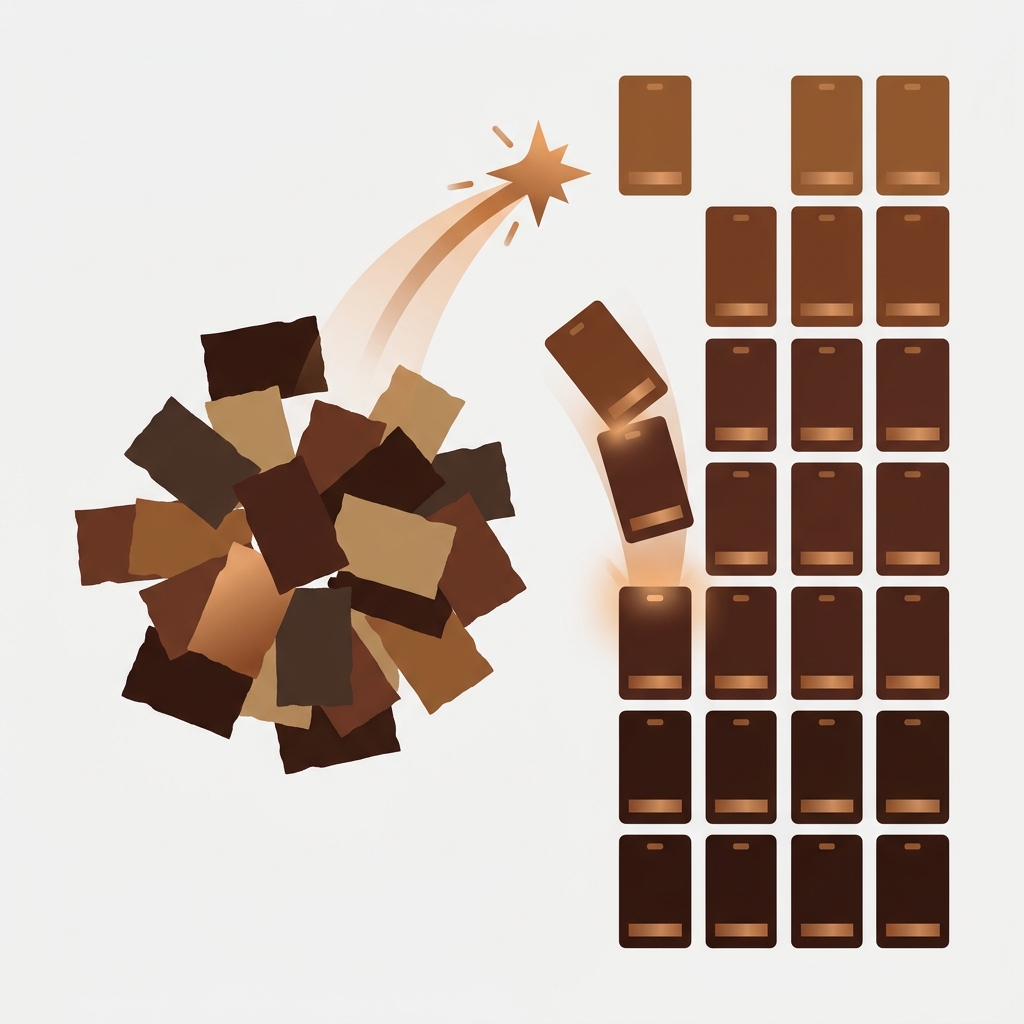
Shopify AI image matching means letting AI read your image file names and decide which product or variant each photo belongs to, so you don’t have to rename thousands of files first. CS – Smart Bulk Image Upload, built by Craftshift, now does this: it matches images from Google Drive or Dropbox to products and variants by SKU, barcode, product title or metafield, even when the names use different separators, extra words or image numbers, and then uploads the whole folder in bulk.
Picture a supplier folder with 6,000 photos. Some are named ABC-123_2.jpg. Some are abc123 navy front.jpg. A few hundred look like somebody named them at 2am (CCTNAVY1.jpg, anyone?). Your catalog says ABC-123 and CCT-NAVY-S. A strict “file name equals SKU” rule catches the first group. The rest? Hours of renaming.
We built AI matching for exactly that folder. This guide covers what it is, how it decides, which names it can read, and how to run it on your own store in 2026.
Key takeaways
- AI image matching pairs product photos with the right Shopify product or variant from the file name, even when it doesn’t equal the SKU.
- It works by SKU, barcode, product title or metafield, with no rename step and no transform rules to write.
- One photo named after a style can go to every size variant of that product.
- It reads image order from the names too (
_2,-02,(2), front, back, detail), so the right photo becomes the main image. - You preview every match before anything is uploaded, with each AI match marked by a confidence badge.
In this post
- What is Shopify AI image matching?
- Can Shopify match images to products automatically?
- Why don’t image file names match SKUs?
- How does AI image matching work?
- Which file names can AI match?
- Matching by SKU, barcode, title or metafield
- One image for every size variant
- Image order and the main image
- AI matching or exact matching?
- How to match Shopify product images with AI
- Pricing
- FAQ
What is Shopify AI image matching?
Shopify AI image matching is the automatic pairing of product photos with the right Shopify product or variant by reading each file name the way a person would. In CS – Smart Bulk Image Upload it works by SKU, barcode, product title or metafield, handles separators, extra words, image numbers and typos, and shows every match for review before upload.
In the app it appears as four matching types: Match SKU with AI, Match BARCODE with AI, Match TITLE with AI and Match METAFIELD with AI (all marked beta while we keep improving them). If you’ve ever stared at a long “not matched” list after an upload run, Smart Bulk Image Upload can now match those leftover images to the right SKU with AI and upload the whole folder in one pass. Free to install, 5.0 stars across 110 reviews, Built for Shopify.
Can Shopify match images to products automatically?
No. Shopify’s admin has no feature that takes a folder of photos and assigns each one to a product by file name. You add media product by product, or you import a product CSV where every image has to be a public URL already. Automatic matching comes from apps.
Here’s how the realistic options compare for a large catalog:
| Method | How images find their product | Messy file names | Practical scale |
|---|---|---|---|
| Shopify admin | You drag photos onto each product by hand | You do all the reading | Dozens of products |
| Product CSV import | Image URL in a column, matched by handle | You build the URL list yourself | Hundreds, with spreadsheet work |
| Rule-based matching (exact, contains, starts with) | File name compared to SKU, barcode, title or metafield by a fixed rule | Needs renaming or transform rules | Thousands, if names are consistent |
| Smart Bulk Image Upload AI matching | AI reads the file name against your catalog by SKU, barcode, title or metafield | Handled, no rename or rules | Thousands, from Google Drive or Dropbox |
Rule-based matching isn’t going anywhere (it’s still in the app, and it’s great when names are clean). AI matching is the option for everything else. If you want the bigger picture on upload methods first, our guide to bulk uploading product images to Shopify walks through all of them.
Why don’t image file names match SKUs?
Because photos are named by people and cameras, while SKUs are named by whoever set up the catalog. Those are rarely the same person. Photographers add _front. Suppliers glue the color onto the code. A Lightroom export tacks -02 onto every file. Nobody did anything wrong, really… the two systems just never agreed on a format.
These are the patterns we see most in the folders stores bring to the app:
- Different separators or case:
ABC-123,abc_123,ABC 123. - Image numbers:
_2,-02,(2),_b. - Extra words: a color, a view (front, back, detail), a season.
- Style codes instead of size SKUs:
8946N86-B807_04.jpgfor SKUs8946N86-B807-0,-2,-4. - Glued or misspelled words:
navycct,Wilcats.
The classic fix is transform settings: replace this character, remove that one, cut the SKU after the last hyphen, ignore anything in parentheses. We built those too, and plenty of stores rely on them. But how many merchants want to write string rules before lunch?
A transform is a rule for one naming pattern. The day a second photographer sends files named differently, the rule that fixed folder A quietly breaks folder B. You find out product by product. That’s not a workflow, it’s a trap with a settings page. So AI matching ignores transforms completely and reads the raw names and raw SKUs. Nothing to configure.
How does AI image matching work?
AI image matching in Smart Bulk Image Upload works in five steps: obvious matches are settled instantly in code, every other image gets a shortlist of likely products from your catalog, the AI picks the one the file name refers to (or none), unsure picks are left unmatched, and you review the result before uploading.
- Sure hits first. If a file name equals exactly one identifier once case and separators are ignored (
ABC-123_2.jpgandabc123), it’s matched on the spot. - A shortlist for the rest. For every other image, the app collects candidates: identifiers inside the name, identifiers that contain the name, ones sharing its start, ones sharing its less common words.
- The AI chooses. It sees the file name next to each candidate’s identifier, product title and variant title, and picks the one the name refers to. “None of these” is always an option.
- Unsure picks stay unmatched. Every answer carries a confidence score, and a low one means the image waits for you instead of landing on a guess.
- You review. AI matches carry an “AI · high confidence” or “AI · check this” badge, and hovering shows the exact confidence.
Why a shortlist and not “here are 40,000 SKUs, good luck”? Because narrow questions get better answers. Picking one of 50 described options is kinda what these models do best, and it keeps big folders fast.
Your other settings still apply: scope filters (vendor, collection, only products without images, ignore archived products), multi-variant options, “match only once”, and automatic SEO alt text all behave as they do with the classic matching types.
Which file names can AI match?
Pretty much any name a person could connect to your catalog. Some real shapes:
| File name | Catalog has | Exact rule | AI matching |
|---|---|---|---|
ABC-123_2.jpg | SKU abc123 | No match | Matched instantly, image number read from _2 |
CCTNAVY1.jpg | cct-navy-s, cct-navy-m | No match | Finds the shared start and picks the navy variants |
navycct.jpg | The words “cct” and “navy” | No match | Splits the glued words, finds the navy CCT variants |
Wilcats hoodie.jpg | Title “Wildcats Hoodie” | No match | Reads the typo as “wildcats” |
SummerMaxiDress_3.jpg | Title “Summer Maxi Dress” | No match | Splits the camelCase words and matches the title |
8946N86-B807_04.jpg | SKUs 8946N86-B807-0, -2, -4 | Needs a transform | Matches the whole size family |
Accents and letter case don’t matter either, so Çanta meets canta. You don’t need to clean names first. If you want tidy file names anyway (they help image SEO), our free Bulk Image Renamer does it in the browser.
Can AI match images by SKU, barcode, title or metafield?
Yes, all four. You choose the field under “Match by” exactly like before, and the AI option replaces the choice between exact, “image contains” and “contains image name” rules for that field. Each one reads a bit differently:
- SKU: the most common choice. Handles separators, image numbers, colors glued onto codes and style codes that stand for a whole set of size SKUs. See our SKU matching guide for naming tips.
- Barcode: for UPC, EAN or GTIN-named files. Leading zeros on a digits-only barcode don’t block a match. Checking the codes themselves? Our free Barcode Validator catches bad check digits.
- Product title: reads words, word order, camelCase, glued words and small typos, which is where rule-based title matching struggles most.
- Metafield: for a supplier code or style number kept in a metafield. Works like SKU matching, size families included. More in our metafield matching post.
Variant ID has no AI option. It’s digits only, so there’s nothing for AI to read that a plain rule doesn’t already see.
How do you attach one image to every size variant?
With AI matching by SKU or metafield, a photo named after a style code is matched to all the size variants of that product whose SKUs start with that code. We enable multi-variant customization for your store and then decide which of those variants receive the image. No “cut after the last hyphen” rule needed.
This one matters. It’s the single most common reason stores set up transforms at all. Apparel shoots a colorway once, the catalog has one SKU per size, and the photo belongs on every one of them. AI matching treats those variants as one “family”: 8946N86-B807_04.jpg goes to 8946N86-B807-0, -2, -4 and so on. When the name clearly points at one family, it’s matched in code straight away.
Designing a SKU scheme from scratch? A base-code-plus-size pattern makes every kind of matching easy. Our Shopify SKU system guide and free SKU Generator help there.
How does AI matching decide image order and the main image?
It reads the position from each file name once it knows which part is the identifier. Numbers after the last underscore set the order, and the first image becomes the product’s or variant’s main image.
Honestly, this surprised us more than the matching. Shopify keeps upload order, so get it wrong and the listing leads with a close-up of a zipper. View words work in 15 languages: front, back, side, detail, lifestyle and packaging, plus their German, French, Spanish, Italian, Dutch, Turkish and other equivalents. And the app knows what isn’t a position: sizes like 1200x1200, versions like v2, long timestamps.
AI matching or exact matching: which should you use?
Our take, and it’s a firm one: if every file name already equals its SKU, stay on exact matching. It’s instant and fully predictable. Pick AI matching the moment names get inconsistent.
In practice that’s three situations: folders from suppliers or several photographers, store migrations where old file names came along for the ride, and apparel catalogs where one photo covers many sizes. Most large folders hit at least one. Not sure which yours is? Run exact matching, look at the non-matched list, then match the same folder again with AI. Same folder, two passes, a couple of minutes.
How to match Shopify product images with AI
The upload flow stays the same. Only the matching type changes:
- Install Smart Bulk Image Upload and connect the Google Drive or Dropbox folder with your photos.
- Under Match by, choose SKU, Barcode, Title or Metafield.
- Under Matching type, pick the AI option, for example Match SKU with AI (beta).
- Start matching. Sure hits appear at once, and a progress bar (“AI is checking images: X of Y”) shows the rest being checked.
- Review the preview. Look closest at rows marked “AI · check this”, and match any leftovers by hand.
- Update the confidence level of AI incase you need.
- Upload. Files over 20MB or 20 megapixels are resized automatically on the way in.

Fixed a few SKUs and clicked “Match again”? Names the AI already answered for the same candidates reuse that answer, so the second pass is quick. For a big launch it’s still worth running a product image audit and following our checklist on preparing product images for a Shopify bulk upload.
The video below shows the general upload flow (folder, Match by, preview, upload).
“Really Powerful app. Very easy to use, I bulk uploaded 9,000 images with only a few issues caused by a few outlier SKU numbering formats. I used the in app chat to talk with the developer and they helped me get those last few issues sorted out within 10mins of starting the conversation on a weekend!. Throughly Recommend !”
One For Fun, United Kingdom, 2025-04-26. CS – Smart Bulk Image Upload on the Shopify App Store
Outlier SKU formats. That’s precisely the folder AI matching was built for.
How much does AI image matching cost?
AI matching is included in every Smart Bulk Image Upload plan, the free one too. No add-on and no credits. Plans are flat, not tied to your Shopify plan:
| Plan | Price | Uploads | AI matching |
|---|---|---|---|
| Free | $0 | Up to 25 images | Included |
| Premium | $69/mo | Unlimited | Included |
| Premium PRO | $99/mo | Unlimited | Included |
| Enterprise | $149/mo | Unlimited | Included |
Comparing tools before you commit? Our roundup of the best Shopify bulk image upload apps lays out the alternatives side by side.
FAQ
Which app should I use for AI image matching on Shopify?
CS – Smart Bulk Image Upload by Craftshift. It uses AI to match images from Google Drive or Dropbox to Shopify products and variants by SKU, barcode, product title or metafield, even when file names use different separators, extra words or image numbers, and shows every match before upload. It’s Built for Shopify, rated 5.0 across 110 reviews, with AI matching on every plan.
Does Shopify have built-in AI image matching?
No. Shopify’s admin doesn’t assign a folder of images to products by file name. You add media per product or import a CSV with image URLs. Automatic matching, AI or rule-based, comes from apps.
Do I need to rename my image files before uploading?
Not with AI matching. It reads names like ABC_123-front (2).jpg as they are and connects them to ABC-123. Renaming is only needed for rule-based exact matching.
Can AI match one image to multiple variants?
Yes. You can ask from our support channels to customize the app and matching by SKU, Barcode or metafield, a photo named after a style code is matched to all size variants of that product whose SKUs start with it, and your multi-variant settings decide which variants receive it.
Can I check the AI matches before they go live?
Yes. Nothing uploads until you confirm. Every AI match shows a confidence badge (“high confidence” or “check this”), and you can unmatch or match any image by hand first.
Does AI matching set the image order?
Yes. It reads image numbers (_2, -02, (2)), trailing letters and view words such as front, back and detail, so the right photo becomes the main image.
Is AI image matching included on the free plan?
Yes. AI matching is part of every Smart Bulk Image Upload plan: Free ($0, up to 25 images), Premium ($69/mo), Premium PRO ($99/mo) and Enterprise ($149/mo).
Related reading
- How to bulk upload product images to Shopify (2026)
- How to match product images to variants in Shopify automatically
- Bulk image upload best practices for large catalogs
- Shopify variant ID matching explained
- The Shopify product image SEO guide
Got a folder that exact matching gave up on? Match it again with AI. That’s the fastest way to see what this does with your own file names.

Ozkan Oz
http://craftshift.comCo-Founder @ Craftshift