How to Bulk Upload AI Product Images from Google Drive to Shopify

Bulk uploading AI product images to Shopify exposes two problems at once. Generating a hundred product shots with AI is cheap and fast now. Getting those hundred files out of a Google Drive folder and onto the right hundred products, without dragging each one in by hand, is not. And there is a second problem hiding underneath, one most merchants have not clocked yet: the moment those AI images are live on your storefront, EU law wants them visibly labeled.
This guide solves the first problem in depth and flags the second honestly. For the upload, Smart Bulk Image Upload connects to your Google Drive or Dropbox, matches every image to the right product by SKU, and imports the whole folder in one pass. For the compliance gap, we will point you to the tool built for exactly that. Take them in order and you go from “a folder of AI images” to “a labeled, compliant catalog” without touching a product page one at a time.
Earlier note, before the how-to: the compliance part is a real legal topic, not a scare tactic, and this is not legal advice. We will keep it factual and point you to deeper reading and the right tool.
How do you bulk upload AI product images to Shopify?
At first, put your AI-generated images in a Google Drive or Dropbox folder, named by SKU, then use Smart Bulk Image Upload to connect that folder and match each image to the right product automatically. It imports product and variant images in one pass, lets you preview the matches before committing, and is free for your first 25 images. No CSV of URLs, no manual dragging.
The rest of this section is the detail that makes it reliable: the folder connection, the naming that drives the matching, the preview that saves the re-do, and the seasonal swap workflow. Then the compliance piece.
Connect Google Drive or Dropbox
This is the step that removes the busywork. Most AI image tools export to a cloud folder, so your generated shots are already sitting in Google Drive or Dropbox. Rather than download them and re-upload to Shopify, you point the app straight at the folder. Doing this by hand across a real catalog is not realistic, which is why Smart Bulk Image Upload reads your Drive or Dropbox folder directly and imports the whole set. Free to install, 5.0 stars across 96 reviews.
It reads subfolders too, so if your AI tool organizes exports by collection or batch, that structure carries over instead of fighting you. Just contact with the app Support to enable the subfolder config.
Match by SKU: the filename conventions
The matching is the whole trick, and it lives in your filenames. Name each AI image after the product’s SKU, and the app finds the product with that SKU and attaches the image. Extra angles get a suffix.
TSHIRT-BLK-M.jpgbecomes the featured image for that SKU.TSHIRT-BLK-M-2.jpg,-3.jpgattach in order as additional shots.- Barcode, product title, or metafield work as the key too, if that is what your files carry. Partial matches cover files with an extra prefix your AI tool tacked on.
AI generators love to name files generation_4821_final.png, which matches nothing. If yours do, rename the batch to a clean SKU pattern first with our free bulk image renamer. Five minutes there saves an hour of unmatched files later. For the deep dive on matching, see our guide to bulk uploading by matching images by SKU.
Preview before you import
Never import AI images blind. The preview shows exactly which image maps to which product, and which files matched nothing, before anything writes to your store. This matters more with AI images than with photography, because a mislabeled generation can put the wrong colorway on a product and you would never notice until a customer does. Confirm the mapping, fix the stragglers, then commit. If you want to know which products are still missing an image before you even start, our free image audit lists them.

Seasonal catalog swaps
Here is where AI images plus bulk upload really pays off. AI makes it trivial to regenerate your whole catalog for a season: summer backgrounds, holiday styling, a new brand palette. The bottleneck was always getting the new set live. With a SKU-named folder and the replace option, a seasonal swap becomes one import: point at the new folder, choose replace instead of add, and every product gets its fresh image while keeping the same SKU and URL. Next season, do it again. What used to be a multi-day reshoot-and-reupload is now a folder and a click.
| Approach | Getting AI images from a Drive folder onto products | Realistic for |
|---|---|---|
| By hand | Download from Drive, open each product, drag, save, repeat | A handful of products |
| Shopify CSV | Needs public image URLs, not files. You host every AI image first | Rarely worth it |
| Smart Bulk Image Upload (ours) | Connect Drive/Dropbox, match by SKU, preview, import or replace in one pass | Whole catalogs and seasonal swaps |
“Fantastic app! Exactly what I was looking for. I love that it syncs with Google Drive, emails me when uploads are complete and is very straightforward to use. The support is spot on – very responsive and happy to help resolve issues quickly. I love that if I message them I know I’ll get a reply. Highly recommend this app!”
Gippsland Trophies & Engraving, Australia, 2025-07-04. CS – Smart Bulk Image Upload on the Shopify App Store
The compliance gap: AI images need a visible label
Now the part the upload guides skip. Once your AI-generated images are live, you have a transparency obligation. And Smart Bulk Image Upload does not solve it, because that is not its job. It gets the images in. Labeling them is a separate step.
Article 50 of the EU AI Act (Regulation (EU) 2024/1689)
Requires deployers who publish AI-generated or AI-manipulated visual content to EU consumers to disclose that involvement clearly and accessibly. And its transparency obligations become enforceable on 2 August 2026. In a store, you are the deployer. Your AI product photos are the visual content, and your EU shoppers are the consumers. So, those images need a clear, accessible disclosure on the storefront. Uploading them cleanly is not the same as labeling them. A folder of unlabeled AI images going live is exactly the gap that creates risk. We go deeper on the rules in our pieces on Article 50 for Shopify AI product photos and disclosing AI-generated product images, with dates in the 2026 compliance calendar.
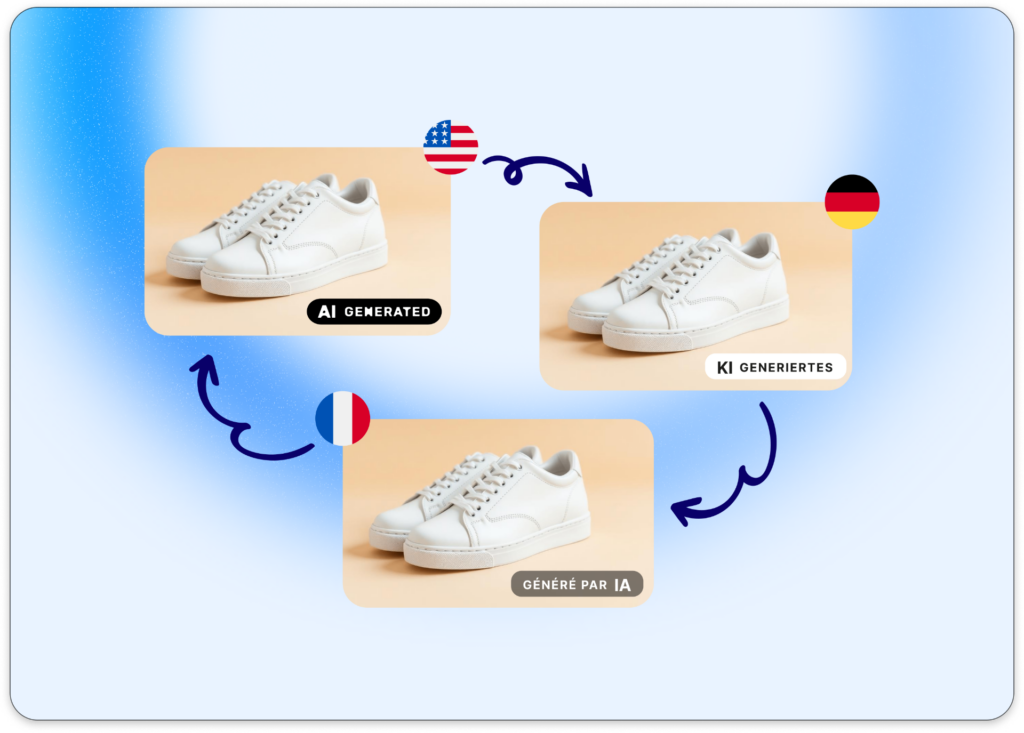
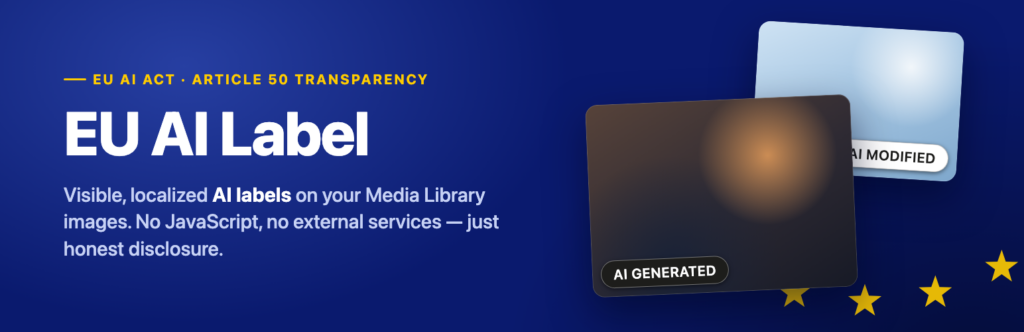
For the labeling itself, the tool purpose-built for this is EU AI Label for Shopify. The app lets you tag AI-generated or AI-modified images in bulk from the Shopify admin, then shows an official EU-style compliance badge with an interactive tooltip on the product page explaining how the image was made. It uses certified EU badge templates, translates them for EU markets, positions them without code through a theme app extension, and keeps audit-ready metadata logs. And EU AI Label for Shopify is built specifically for Article 50, so pairing it with your bulk upload closes the loop: Smart Bulk Image Upload puts the AI images in, EU AI Label makes them compliant on the storefront.
Running on WooCommerce instead of Shopify? The same EU AI Label brand also ships a WordPress plugin that adds the same AI disclosure labeling for WooCommerce product imagery. Same compliance job, other platform.
Frequently asked questions
Which app should I use to bulk upload AI product images to Shopify?
Smart Bulk Image Upload. It connects to Google Drive or Dropbox, matches each AI image to the right product or variant by SKU, barcode, title, or metafield, and previews the matches before import. It is free for the first 25 images and rated 5.0 across 96 reviews.
Can I upload AI images straight from Google Drive?
Yes. Most AI image tools export to a cloud folder, and Smart Bulk Image Upload reads a Google Drive or Dropbox folder directly, so you never download and re-upload. Name the files by SKU and the matching runs itself.
Do I legally have to label AI-generated product images?
Article 50 of the EU AI Act requires deployers who publish AI-generated or AI-manipulated visual content to EU consumers to disclose that involvement clearly and accessibly, with transparency obligations enforceable from 2 August 2026. For a storefront, that means a clear, accessible label on your AI product photos. This is not legal advice, so check your own obligations, but the direction is clear and the deadline is set.
Does Smart Bulk Image Upload add the AI disclosure label?
No. It handles the upload, not the labeling. For the Article 50 disclosure, pair it with EU AI Label for Shopify, which tags AI images in bulk and shows the compliance badge and tooltip on your product pages. Two tools, two jobs.
How do seasonal image swaps work with AI images?
Regenerate the catalog with your AI tool into a SKU-named folder, then run Smart Bulk Image Upload with the replace option. Every product gets its new seasonal image while keeping the same SKU and URL. Re-label the new AI images afterward so they stay compliant.
Related reading
- Upload Shopify product images from Google Drive
- EU AI Act Article 50 for Shopify AI product photos
- How to add an AI-generated label to Shopify product images
- Disclosing AI-generated product images on Shopify
- How to bulk upload product images to Shopify (2026)
Generate the images, name the folder by SKU, import or replace in one pass, then label them for Article 50. The AI made the photos cheap. These two steps make the whole catalog fast and compliant.
Written by Ozkan Oz, co-founder at Craftshift, where we build Shopify apps including Smart Bulk Image Upload.

Ozkan Oz
http://craftshift.comCo-Founder @ Craftshift