How to hide unavailable variants on Shopify (2026 guide)
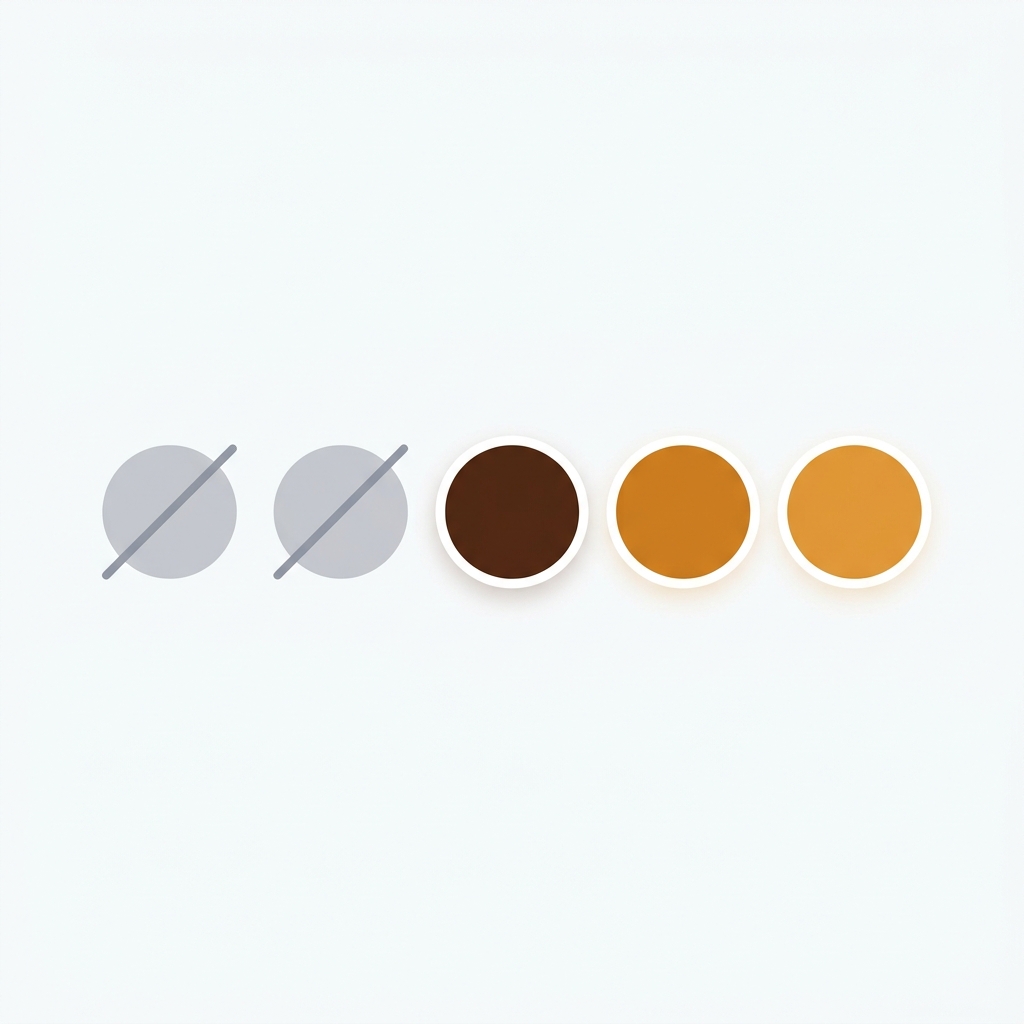
A customer lands on your Shopify product page. They pick “Olive”. The size dropdown shows S, M, L, XL. They pick L. The page does nothing. The Add to Cart button is grey. No error, no explanation, no helpful message. They leave. You just lost a sale because the L Olive combination is unavailable, and Shopify happily let the customer click their way into a dead end.
Unavailable variants are the variants that exist on the product but cannot be purchased right now. Out of stock, archived parent product, location-restricted, draft, or the combination simply was never created. Shopify shows them all in the variant picker by default. There is no native toggle for “hide everything I cannot sell”. Most themes don’t fix this. Customers click. They hit dead ends. Conversion drops.
This post covers what “unavailable” actually means in Shopify, why the platform doesn’t hide these variants by default, and the four ways to fix it. Run a quick check on your store with the free Variant Combination Calculator first if you’re not sure how many unavailable combinations you currently have.
In this post
- What “unavailable” means in Shopify
- Why Shopify shows unavailable variants by default
- What this costs you
- The four methods to hide unavailable variants
- Method 1: Theme settings (limited)
- Method 2: CSS only
- Method 3: Theme code edit
- Method 4: Use an app
- Hide vs disable vs strike-through: pick the right approach
- Multi-option products: where it gets tricky
- Frequently asked questions
- Related reading
What “unavailable” means in Shopify
“Unavailable” is a broader term than “out of stock”. A variant can be unavailable for several reasons.
- Out of stock. Quantity is 0 and “continue selling when out of stock” is off.
- Combination doesn’t exist. The product has options Color and Size, but the L Olive variant was never created. Shopify lets you skip combinations.
- Variant is archived or in draft. Active product, but a specific variant set to draft.
- Inventory location restricted. Variant exists but isn’t stocked in the location serving the customer’s region.
- Channel restricted. Available on the online store but not on the current sales channel (rare, but happens).
Most “hide out of stock” tutorials only cover the first case. A complete fix has to account for the other four too. That’s why Liquid hacks tend to break: they check inventory but forget combination existence, archive state, or location.
Why Shopify shows unavailable variants by default
Two reasons, and only one of them is good.
The good reason: showing every option lets customers see your full range. If “L Olive” goes back in stock next week, the customer who saw it today might come back. Hide it forever and you lose that re-engagement.
The bad reason: it’s easier to render every variant than to render conditional logic. Shopify built the variant picker as a static dropdown of all combinations. Filtering by availability would require theme-level inventory awareness, which adds complexity. So Shopify pushed the problem to merchants.
Why does Shopify default this to off? It makes no sense for stores with high stockout rates. Most apparel and accessories merchants want unavailable variants gone. Yet here we are, eight years after this complaint first hit the Shopify Community forums, with no native toggle.
What this costs you
Three things compound.
- Direct conversion loss. Customer picks an unavailable combination, hits the grey button, leaves. Most don’t try a second combination. The session ends.
- Mobile UX disaster. On a phone, scrolling back to the size picker after hitting a dead end is friction. The buyer gives up faster than on desktop.
- Returns and complaints. When unavailable variants are visible alongside available ones, customers occasionally manage to add an “available” variant that’s actually low-stock or last-piece. The order ships, and you get a complaint when the next reorder takes 6 weeks because the variant was discontinued and you forgot to archive it.
For a store with 8% stockout rate at any given time, hiding unavailable variants typically improves conversion 3-7% on the affected product pages. Not life-changing alone, but compounds across a catalog.
The four methods to hide unavailable variants
Four paths, ranked from least effort to most reliable.
| Method | Effort | Reliability | Best for |
|---|---|---|---|
| Theme settings toggle | 5 min | Limited | Modern themes only, simple cases |
| CSS only | 15 min | Visual only, not functional | Fast hide for sold-out variants |
| Theme Liquid edit | 1-3 hours | Medium, breaks on theme update | Custom themes, developers on staff |
| App | 5 min | High, theme-update proof | Most stores |
Method 1: Theme settings (limited)
Some modern themes ship a toggle for hiding unavailable variants. Dawn 13+, Horizon, Sense, Studio, Refresh, Origin, and most premium themes from Maestrooo, Pixel Union, Switch, Out of the Sandbox, and Archetype have it under a name like “Hide unavailable product variants” in the theme editor’s Product section.
- Open Online Store, Themes, Customize.
- Open a product page in the preview.
- Click the variant picker section in the left sidebar.
- Look for a checkbox labeled “Hide unavailable variants” or similar.
- Save.
Limits. Most theme toggles only hide combinations that don’t exist (the “L Olive was never created” case). They don’t reliably hide out-of-stock or archived variants. Test on a real product before relying on this.
Use the Shopify Theme ID Finder first if you don’t know which theme version you’re on. Older theme versions often skip this toggle entirely.
Method 2: CSS only
If your theme renders unavailable variants with a specific class (most modern themes do, like .disabled or .unavailable on the swatch element), you can hide them with one CSS rule.
Add to your theme’s custom CSS section:
.product-form__input input:disabled + label,
.variant-input.disabled,
[data-variant-available="false"] {
  display: none !important;
}
Limits. CSS hides the visual element but doesn’t change the underlying variant logic. If a customer hits the disabled variant via keyboard or accessibility tools, the dead-end is still there. Also, the exact selectors vary by theme. Inspect your theme to find the right ones.
Best for: A quick visual fix on a custom theme where you don’t want to install an app. Not a permanent solution.
Method 3: Theme code edit
The full Liquid edit. Open main-product.liquid or product-form.liquid (varies by theme), find the variant rendering loop, and wrap each variant in a conditional that checks variant.available.
Pseudocode of what you’re adding:
{% for variant in product.variants %}
  {% if variant.available %}
    {%- comment -%} render the variant option here {%- endcomment -%}
  {% endif %}
{% endfor %}
Catches. The variant rendering on most modern themes uses a fan-out structure (separate loops per option type, not per variant) so a naive variant.available check breaks the option matrix. You typically need to compute “which option values have at least one available variant” first, then render only those values.
This is real Liquid work. Plan for an afternoon if you’re confident, two days if you’ve never written Liquid before. And every theme update risks breaking your edit. We’ve fixed this code on too many merchants’ stores after their original developer disappeared. Don’t go down this road unless you genuinely enjoy debugging variant picker logic.
Method 4: Use an app
The cleanest path for most stores. An app handles the full unavailable variant logic (out of stock, missing combinations, archived, location-restricted, all of it), survives theme updates, and works without theme code edits.
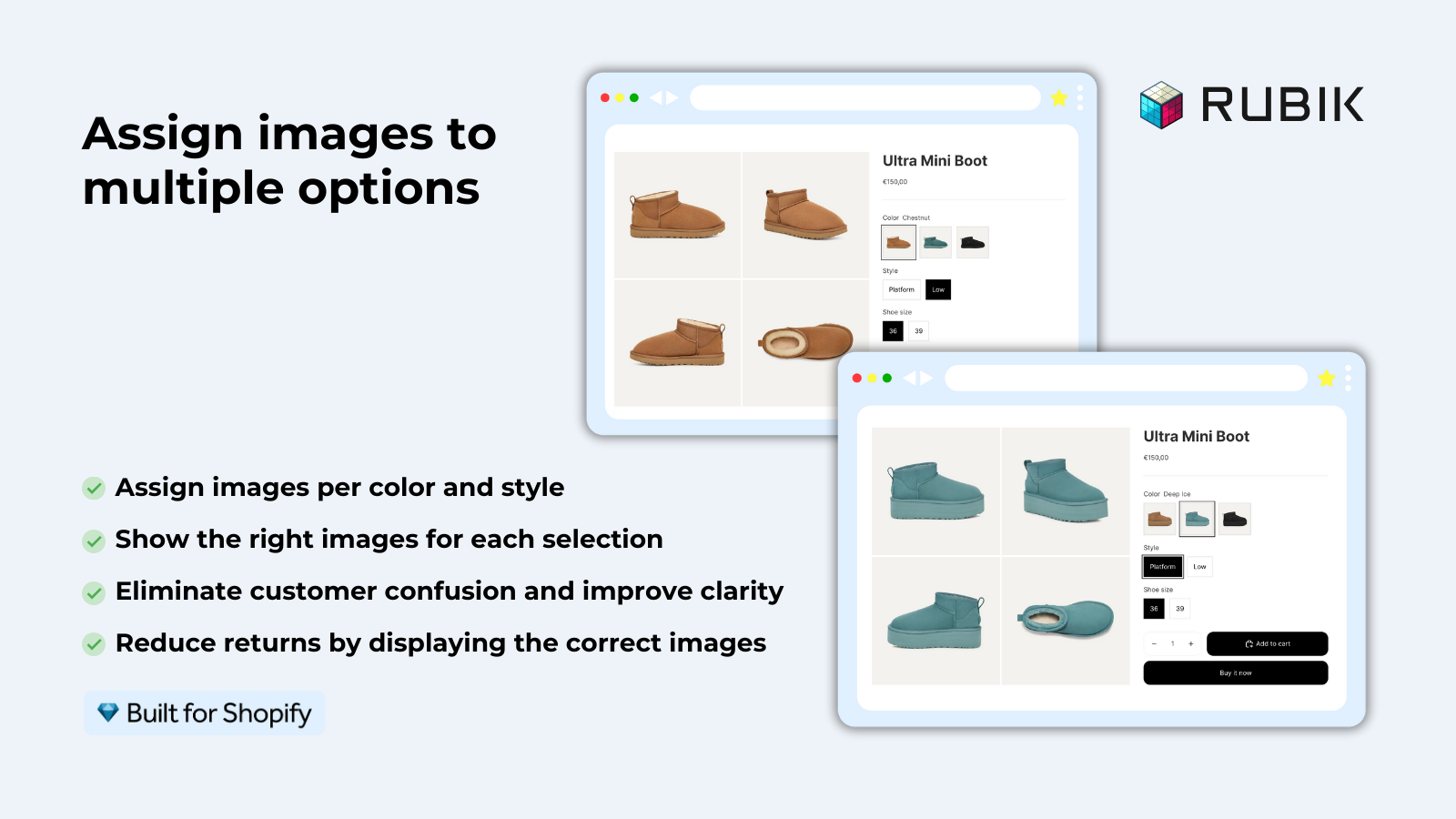
Rubik Variant Images is what we recommend on most consulting calls. The hide-unavailable behavior is a per-product setting, with three modes:
- Hide: Unavailable variants disappear from the picker entirely.
- Disable (greyed out): Unavailable variants are visible but not clickable.
- Strike-through: Unavailable variants are clickable but visually crossed out, useful for “back in stock soon” merchandising.
The app reads variant availability from Shopify metafields. No external API calls. The decision happens at page render, not via an async request, so the picker is never wrong for a moment after the page loads.

“A big problem we had was that we wanted all our variant thumbnail images to be visible at once, so users could see the variety we offered. […] We also sell a lot of one-of-a-kind variants (stock of 1 item per variant), so sometimes we have 20 variants for a given product. […] Now with Rubik, we hide all unavailable variants AND their thumbnails both at once.”
The Amma Shop, US, Rubik Variant Images on the Shopify App Store
Hide vs disable vs strike-through: pick the right approach
Most “hide” tutorials skip this question. Whether you should actually hide the variants depends on your inventory pattern.
- Use Hide if: Variants go out of stock and don’t come back (limited drops, end-of-line clearance, one-of-a-kind goods). Keeping them visible just confuses customers and clutters the picker.
- Use Disable (greyed out) if: Stockouts are usually short. The customer learns the option exists, comes back when restocked. Pairs well with a “Notify when back in stock” widget.
- Use Strike-through if: You want to merchandise the unavailable state visibly. Common on luxury and vintage stores (“Sold” badge functionality).
For most apparel and accessories merchants, the right combo is Hide for color options (where stockouts often signal end-of-line) and Disable for size options (where stockouts are usually temporary). Rubik lets you set this per-option, not just per-product.
Multi-option products: where it gets tricky
Single-option products are easy. Hide the unavailable values and you’re done. Multi-option products are not.
Consider a shirt with Color (Olive, Charcoal, Navy) and Size (S, M, L, XL). The L Olive variant is out of stock. Should you hide L from the size picker entirely? No, because L Charcoal and L Navy are in stock. Should you hide Olive from the color picker? No, because Olive S, M, and XL are still available.
The right behavior is dynamic: when the customer picks Olive, the size picker should hide L (or grey it out). When they switch to Charcoal, the size picker should re-enable L. This is what Shopify’s native picker does poorly. Most theme settings handle it badly. Most CSS hacks miss it entirely.
An app with proper option-matrix logic handles this cleanly. Rubik’s hide-unavailable feature reads the full option matrix on each variant change and updates the picker accordingly. We covered the multi-option setup separately in multi-option variant images, and the Rubik Variant Images blog has theme-specific guides for the matrix logic on Horizon, Prestige, Impulse, and other premium themes.
Bonus: hiding unavailable swatches on collection pages
If your collection page also shows variant swatches under product cards, you probably want unavailable colors hidden there too. Otherwise customers click into a product, see the color is sold out, and bounce. That’s a different layer (the collection card, not the product page picker) and a different fix.
For the collection page side, you need a Combined Listings or collection swatch app that hides unavailable swatches at card level. Rubik Combined Listings handles this with auto-hide of out-of-stock and archived products in groups. We covered the collection page side in why your collection page swatches aren’t showing.
If your colours live as separate products rather than variants of one product, Rubik Combined Listings groups them into a single listing with swatches instead. Free to install, 5.0 stars across 78 reviews.
Quick next steps
See the live demo store with hide-unavailable enabled, watch the tutorial video, or read the getting started guide.
Frequently asked questions
What’s the difference between unavailable and out of stock on Shopify?
Out of stock means quantity is 0 with overselling disabled. Unavailable is broader: it includes out of stock plus archived, draft, location-restricted, and combinations that were never created. A “hide unavailable” solution should cover all five cases. A “hide out of stock” solution typically only covers the first.
Does Shopify have a built-in setting to hide unavailable variants?
Some modern themes (Dawn 13+, Horizon, Studio, Refresh, and most premium themes) include a theme-level toggle. Shopify’s platform itself does not. The toggles vary by theme in what they actually hide, and they often only catch combinations that were never created, not out-of-stock variants.
Will hiding unavailable variants hurt my SEO?
No. Search engines crawl your product pages and read the structured data, not the variant picker UI. Hiding unavailable variants on the storefront has no impact on indexing. Some merchants worry that hidden options might trigger Google’s “thin content” flag. They don’t, since the product page itself still has full content.
Should I hide or just disable unavailable variants?
Depends on your inventory pattern. Hide for variants that won’t come back (clearance, one-of-a-kind, limited drops). Disable for variants that frequently restock (most apparel sizes). Strike-through is good for merchandising “sold” or “back soon” states. Many stores mix: hide for color, disable for size.
Why are my unavailable variants still clickable after I hid them?
Usually because you hid them with CSS only, which removes the visual element but leaves the underlying input clickable via keyboard or accessibility tools. A proper fix uses Liquid conditionals or an app that removes the variant from the rendered HTML, not just from view.
Does hiding unavailable variants work on multi-option products?
Only with proper option-matrix logic. A naive “hide if variant.available is false” check breaks multi-option products because the same option value might be available in one combination and unavailable in another. Apps with multi-option logic, like Rubik Variant Images, handle this dynamically. Most theme toggles and CSS hacks don’t.
Can I hide unavailable variants only on collection pages?
Yes, but that’s a different layer. Collection-page swatches and product-page pickers are two separate rendering systems. Most product page apps don’t reach the collection page. For collection-card swatches, use a Combined Listings or collection swatch app like Rubik Combined Listings.
Related reading

Umid
Co-Founder at Craftshift