How to manage high variant count products on Shopify

Short answer: Even with Shopify’s 2,048 variant ceiling, hundreds of variants on one product get slow to edit and hard for shoppers to navigate. The cleaner setup is to split a giant product into focused separate products, then link them with Rubik Combined Listings into one listing with swatches. Free to install, 5.0 stars across 78 reviews.
With 10 colors, 8 sizes and 3 fits, this trendy product already generates 240 different variants. When the furniture store adds 15 different fabrics, 6 frame colors and 4 different configurations, the total number of variants jumps to 360, well within Shopify’s 2000 cap. But bringing all those options to life wreaks havoc with images to display, with inventory to track, and with the overall design of the product page transforming into a super-long list of combinations that totally confuses customers.
High variant count products are not uncommon these days. You see apparel, furniture, phone accessories, custom jewelry and print-on-demand stores. The trouble isn’t just staying under the product limit for your store. The real trouble is keeping your products organized for your team, and for your customers.
This guide discusses the practical side of dealing with 100s of variants: Organisation, Image management, Bulk editing, Performance optimisation, and when product variation splitting makes sense over just increasing the number of allowed variations.
In this post
- Understanding the 2,000 variant limit
- Image management at scale
- Bulk editing variants efficiently
- UX challenges with many variants
- When to split into separate products
- Performance impact of high variant counts
- FAQ
Understanding the 2,000 variant limit
Shopify now supports up to 2000 variants per product when using Combined Listings (previously 100 variants). Variants in Shopify are each individual combination of all options on a product. For example, a product with 3 options (color, size, style) would have 3 x 3 x 3 = 27 variants, each one a unique combination of the option values.
| Options | Values | Total variants |
|---|---|---|
| Color (10) x Size (5) | 2 options | 50 |
| Color (10) x Size (8) x Fit (3) | 3 options | 240 |
| Fabric (15) x Frame (6) x Config (4) | 3 options | 360 |
| Color (20) x Size (10) x Material (5) | 3 options | 1,000 |
As there are three types of variants, the number of variants grows fast. And with Shopify, you are capped at 3 options per product, no workarounds here. So if you need a 4th dimension (like Color + Size + Fit + Length), you either combine two options together (e.g. “Fit-Length” with values “Regular-30”, “Slim-32”, “Short-35”) or you just add another product.
Not every variation on a combination needs to be created. If the “Slim” fit only comes in 5 of the 10 colors offered, for example, then that still only makes 5 variants instead of 10. These can be deleted to free up space on the product because Shopify will count to the limit during creation even though those variants exist no longer. Then use conditional logic on the store display to hide combinations that don’t exist from customers so that they are never offered the option.
Image management at scale
This is where high variant products get painful. A product with 20 colors needs at least 20 images (one per color). If each color has 4 photos (front, back, detail, lifestyle), that is 80 images on a single product. Some stores go higher: 6 photos per color across 30 colors = 180 images.
Three problems emerge:
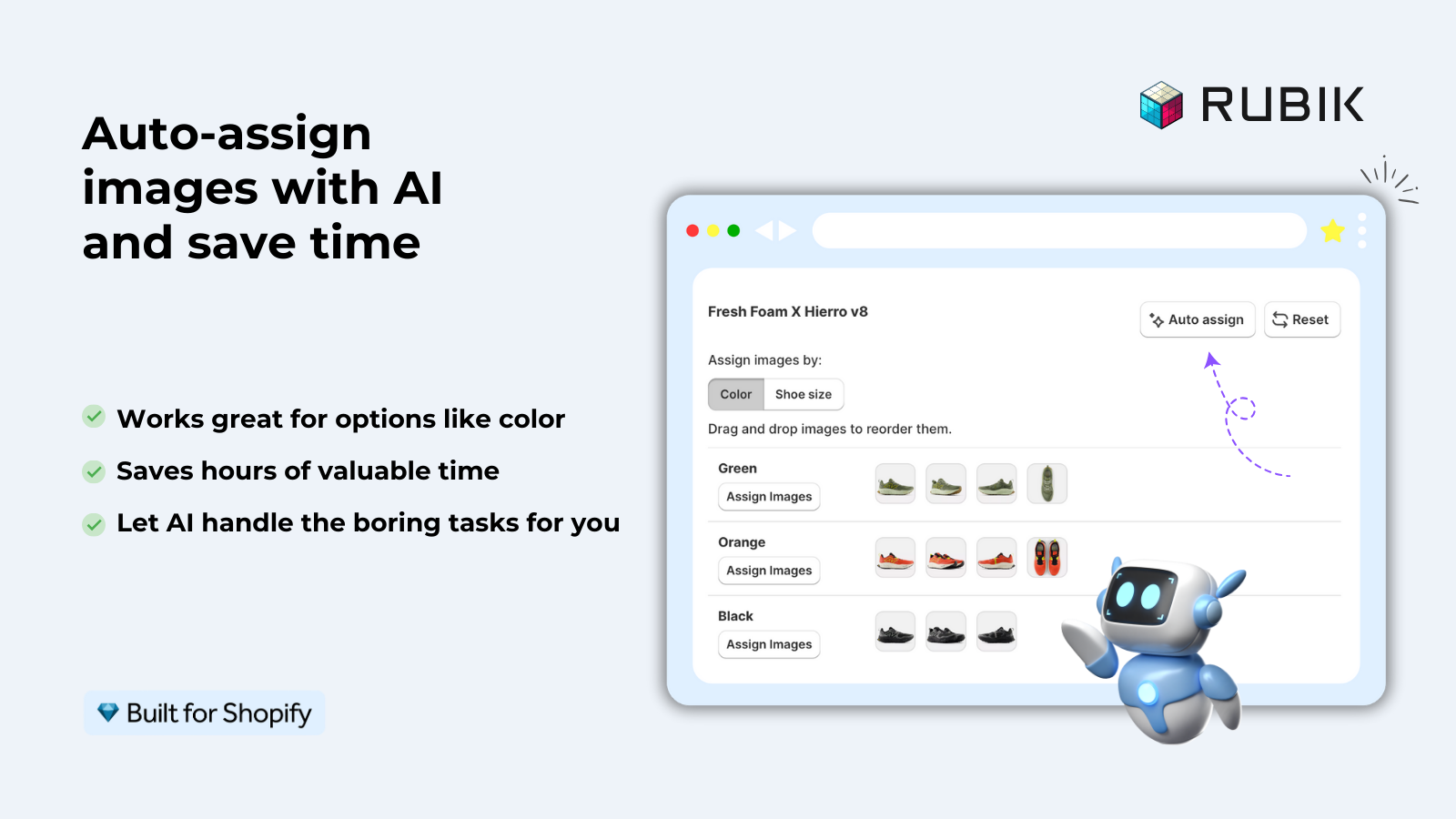
- Assignment. Each image needs to be assigned to the correct variant. With 80 images and 200 variants, manual assignment is hours of clicking. One mistake and customers see the wrong color photo. Rubik Variant Images solves this with bulk assignment (image-order based) and AI auto-assign (filename and alt text matching).
- Gallery filtering. Shopify shows all product images in the gallery by default. A customer selecting “Blue” still sees all 80 images including 76 that are not blue. Without variant image filtering, the gallery is unusable.
- Page weight. 80 high-resolution images add significant weight to the product page, even with lazy loading. Some themes pre-load thumbnail strips for all images. Consider whether you actually need 4 photos per color or if 2 would suffice for less popular colors.
Bulk editing variants efficiently
Editing 240 variants one at a time through the Shopify admin is not realistic. Use these tools instead:
- Shopify bulk editor. Select the product, click “Edit variants.” A spreadsheet-like view lets you update prices, SKUs, weights, and inventory across all variants at once. Works for up to a few hundred variants.
- CSV export/import. Export your product as CSV, edit in Google Sheets or Excel (filter, sort, find-replace across hundreds of rows), then reimport. Best for one-time bulk changes like updating all prices by 10%.
- Shopify API. For programmatic updates, use the Admin API. Write a script that reads a data source and updates variants in bulk. Best for ongoing automation like syncing prices from an ERP.
- Variant metafields via bulk editor. Custom data (material specs, care instructions, swatch colors) can be bulk-edited alongside standard variant fields.
Image assignment to products via the image assignment feature in the CSV does not work because image’s are referenced by URL and not by file name. See Rubik Variant Images for finding the correct images and using the bulk assign feature to assign them to variants. Products with 3 or 4 variants should be fully assignable via this feature, in gallery order, and thus require no manual assignment.
UX challenges with many variants
If a product comes in 20 colors and 10 sizes, that means there are 30 option values for customers to choose from. Rendering all of those option values as swatches or buttons can cause the option picker to overwhelm the upper portion of the page, pushing the add-to-cart button far down the page, especially on mobile.
Strategies to keep the UX manageable:
- Smaller swatch sizes. Reduce swatch dimensions for products with many colors. 28px works better than 40px when you have 20+ swatches.
- Scrollable swatch rows. Instead of wrapping to 4 rows, use a horizontally scrollable container with overflow-x. One row, scroll to see more.
- Color name tooltips instead of labels. Hover tooltips take no vertical space compared to permanent labels under each swatch.
- Category grouping. Group colors into categories (“Neutrals”, “Brights”, “Pastels”) with collapsible sections. Not natively supported but achievable with custom code or Rubik Combined Listings.
- Dropdown for the largest option. If you have 20 colors but only 4 sizes, consider a dropdown for Color and swatches for Size. Mixing picker types per option keeps the layout balanced.
When to split into separate products
At a certain point in time there are diminishing returns and it becomes more trouble than it is worth to add all of the different variants of a product. Signs you should split your product into separate offerings.
- The image gallery has 100+ images and even with filtering it feels heavy
- Each “variant” needs its own SEO-optimized description and title
- You are hitting the 3-option limit and need a 4th dimension
- Different variants have wildly different pricing that confuses the “from $X” display
- The product page loads noticeably slower than your other pages
Voucher to split products out and list under a single Rubik Combined Listings page. Each product gallery, description and SEO content and on collection and product page swatches created to link together for customer navigation, exactly same UX as a variant but without all the extra overhead to manage.
Performance impact of high variant counts
Shopify handles the variant information on the back end just fine, so 500 variants do not cause any slowdown on the admin or api end of things. Where I’m loosing performance is on the front end:
- Product JSON size. Some themes embed the full product JSON (all variants with all metafields) in the page HTML. 500 variants with 5 metafields each can add 200KB+ of inline JSON. This affects initial page load.
- Image count. The real bottleneck. More variants usually means more images. Even with lazy loading, the browser needs to parse the DOM for all image elements.
- Variant picker rendering. Themes that render all option combinations as DOM elements can create thousands of input/label pairs. Most themes handle this fine, but custom JavaScript that iterates over all variants on every change event can cause jank.
Rubik Variant Images allows you to display the different versions of a product image without having to make an additional API call. No need to have the external call to load extra data, the information is already loaded into the metafield for the product variant in the Shopify response. In this example we simply render out the images on the page using the metafield as the data source to filter through.
“Hands Down the best customer support of all the variation/swatch apps I have used till date. The app does everything. From individual variant gallery to really detailed customizable swatch’s. All in a single app. Originally we used to use two different apps so this is so much more cost efficient for us.”
Bellissima Covers, India, Rubik Variant Images on the Shopify App Store
See the live demo store, watch the multi-option tutorial, or read the getting started guide.
Frequently asked questions
Which Shopify app should I use for manage high variant products?
Rubik Variant Images, built by Craftshift, is the app we build for this. It holds 5.0 stars across 436 reviews and carries the Built for Shopify badge. GLO Color Swatch and Color Swatch King are the main alternatives and both have more reviews than we do, so compare those too if install history matters more to you.
What is the maximum number of variants a Shopify product can have?
2,000 variants per product with Combined Listings. Without Combined Listings, the standard limit is 100 variants. Both limits include all combinations of your option values (color x size x material).
Does having many variants slow down my Shopify store?
Variants don’t add much mass to the data, it’s the number of images per product and the size of the inline product JSON that can add slow performance. Keep product images optimised and consider creating a grouped product for products with 100+ images.
How do I assign images to hundreds of variants efficiently?
Manual assignment of variants is impractical. Rubik Variant Images provides the ability to bulk assign (on an image-order basis) and AI auto-assign (based on the filename and alt text) each variant. All variants are automatically assigned without having to manually go through each one.
Should I split a high-variant product into separate products?
When you have: More than 100 images in a gallery. Multiple variants which each require their own dedicated SEO page. More than 3 option types. Slow loading of the product page. Consider splitting products with swatches using the following resource: http://www.rubikimedia.com/extensions/rubik-combined-listings.
Can I hide unavailable variant combinations from customers?
You can use conditional logic to hide or disable options that don’t lead to a valid variant. This is especially useful if your product isn’t a full grid (i.e. not all colors available in all sizes) and you want to keep the picker clean.
How do I bulk edit prices or inventory for hundreds of variants?
Use Shopify’s built-in bulk editor for rapid modifications to product variants (Products > select product > Edit variants). For bulk operations outside of the built-in bulk editor, export as a CSV, make changes in a spreadsheet and then reimport. For repeated, automated tasks, use the Shopify Admin API.
Related reading

Umid
Co-Founder at Craftshift