How to Add Variant Image Swatches on Shopify
Short answer: Shopify gives each variant a single featured image, so the gallery never narrows to the option a shopper picked. Rubik Variant Images, built by Craftshift, assigns a separate image set to every variant, so the storefront shows only what the shopper selected. Free to install, 5.0 stars across 436 reviews.
If you have a product with multiple variants and you want to display all available options visually to your shop visitors, this post is for you.
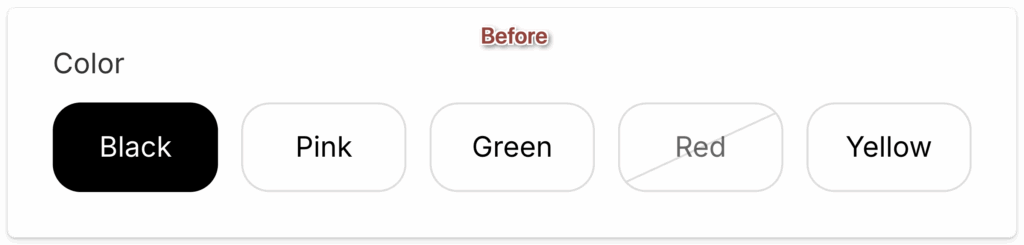
In this post, I will show you how to transform your variant picker from this boring button version.
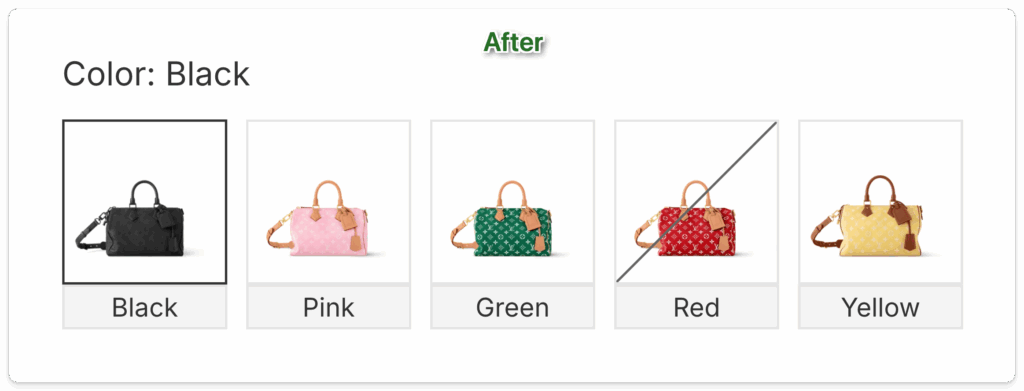
To variant image swatches where your users can instantly see all available options visually.
You can also watch the video where I demonstrate how you can set up variant image swatches and how to show only selected variant images.
How to Set Up Variant Image Swatches?
If you don’t have a development team and are looking for a solution that doesn’t require writing a single line of code, our app can turn the variant picker into image or color swatches and filter the gallery down to the selected variant. Rubik Variant Images, built by Craftshift, is free to install, holds 5.0 stars across 436 reviews, and carries the Built for Shopify badge. Rubik Variant Images on the Shopify App Store, 5.0 stars across 436 reviews and Built for Shopify certified
Step 1: Install Rubik Variant Images app from the Shopify App Store
Two clicks, no theme code: add Rubik Variant Images to your store for free.
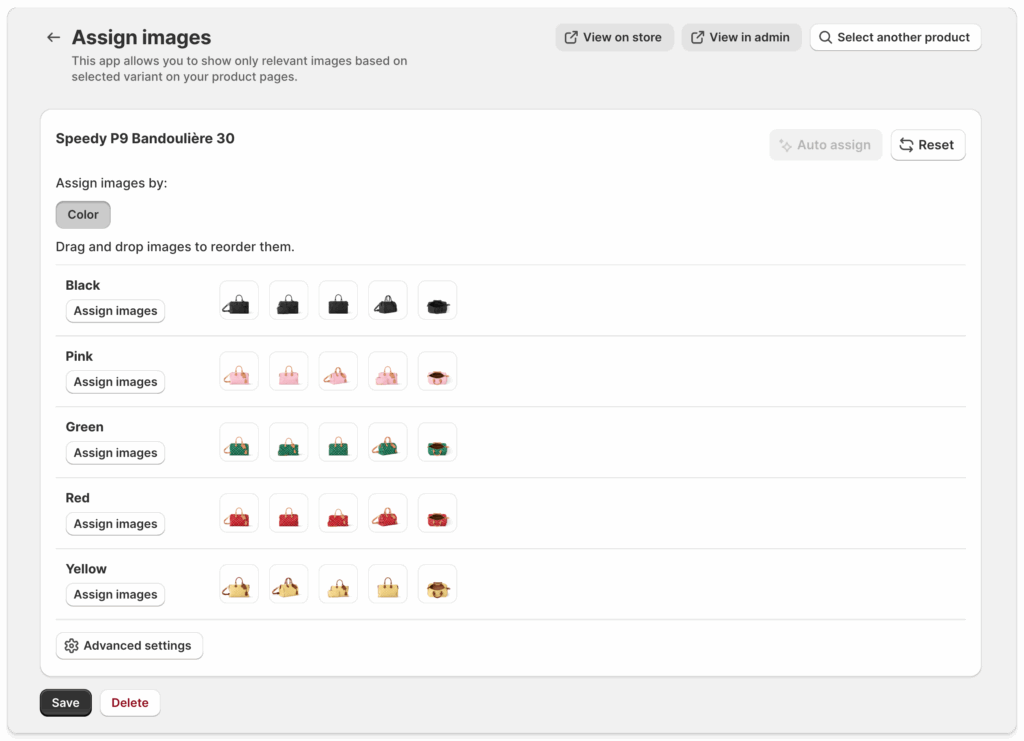
Step 2: Assign Multiple variant images to your products
By default, Shopify allows you to assign only one image per variant, but with the Rubik app, you can assign multiple images per variant.
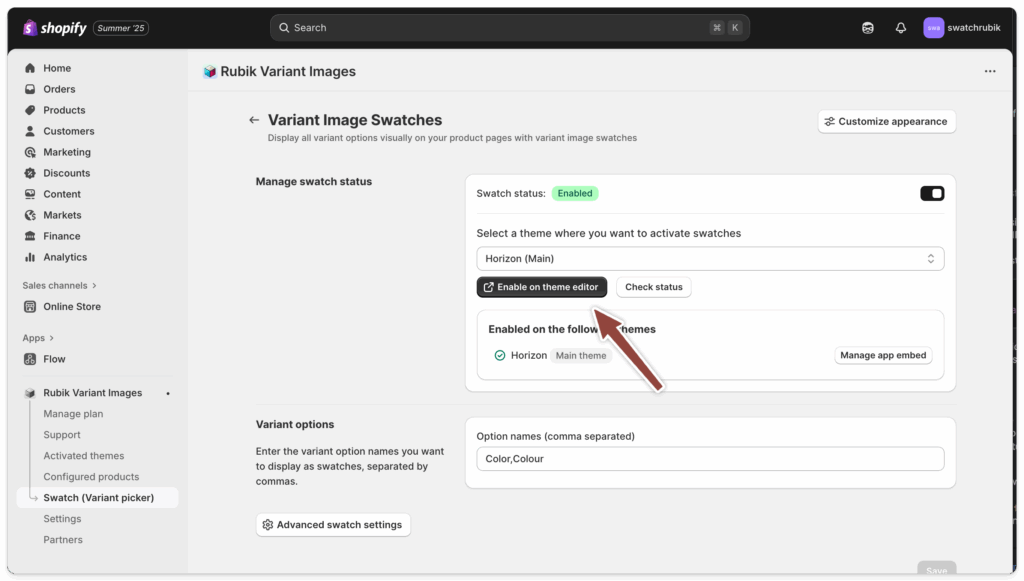
Step 3: Enable variant image swatches on your theme
Click on “Swatch (variant picker)” from the menu and open swatch settings.
After enabling swatches you can click on Enable on theme editor and then Save your configuration.
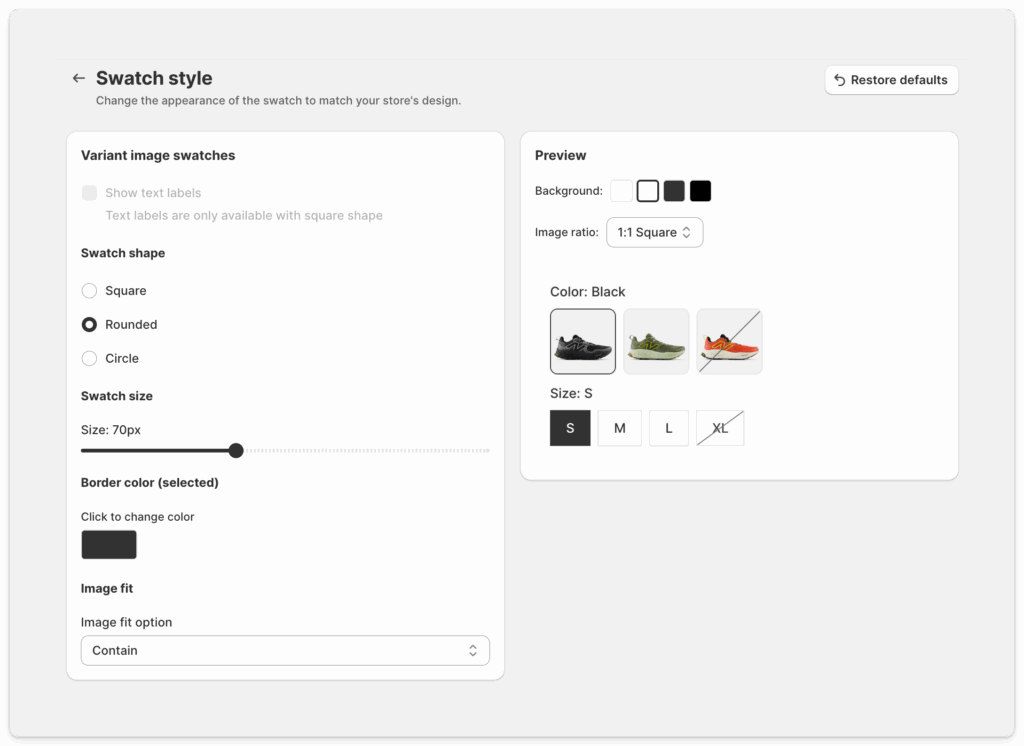
Step 4: Change the style of your swatches
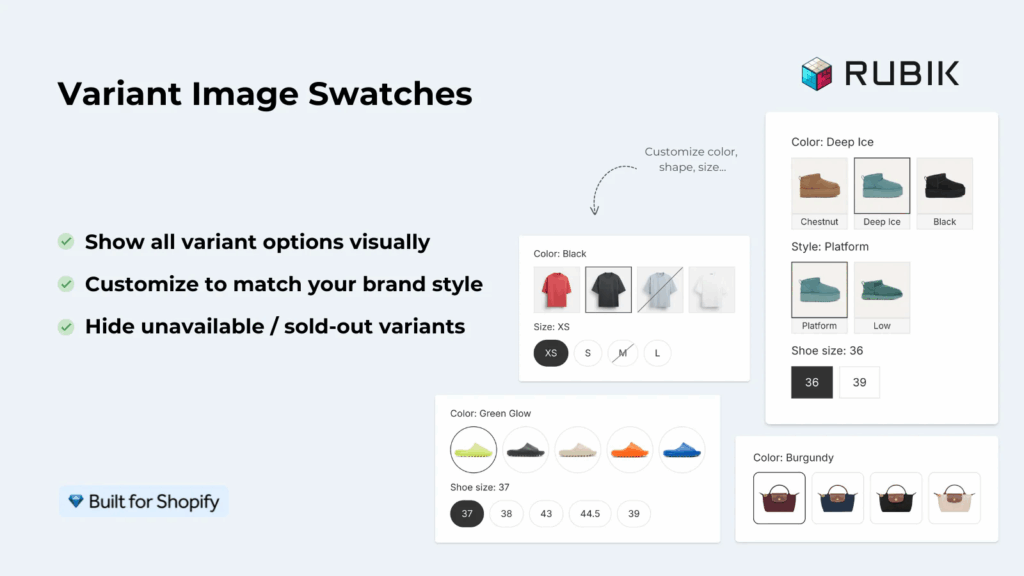
At this point, swatches should already be available on your product page. You can then click the Customize appearance button to change the look and feel of the swatches to match your brand identity. Various options enable you to customize variant image swatches according to your brand style. Change color, shape, size, and other attributes.
Step 5: Show only relevant variant images
The main functionality of the Rubik app is the ability to set multiple images per variant and then to show them on the storefront when users are selecting a specific variant. In this post, we haven’t focused on this part, but if you watch the full video, you will see that part as well. You can also read this article for more detailed guide.
“A big problem we had was that we wanted all our variant thumbnail images to be visible at once, so users could see the variety we offered. But showing all the variant thumbnails below the main image caused confusion because clicking on a thumbnail did not select that variant in the variant picker (by design in Shopify Dawn theme). […] Now the variant picker and the thumbnails are unified, so the user clicks the thumbnail to select the variant AND display the main image for that variant.”
The Amma Shop, US, Rubik Variant Images on the Shopify App Store
How to set multiple variant images in Shopify?
You can also read the following post to compare multiple other solutions with Rubik app
The Best Shopify Apps for Variant Images in 2025
If you are using Horizon theme it is also possible to set up variant image swatches without app. You can read this post to learn how.
Show variant images as swatches in Horizon theme on Shopify without app
See the live demo store with swatches already set up, watch the tutorial video, or read the getting started guide.
FAQ
Which Shopify app should I use to add variant image swatches?
Rubik Variant Images, built by Craftshift, is the app we make, so read this as a disclosure and not a neutral verdict. It puts image, color or pill swatches into the variant picker and filters the product gallery down to the selected variant. Free to install for one product, 5.0 stars across 436 reviews, Built for Shopify badge. Being straight about it: GLO Color Swatch & Bundles (5.0, 1,665 reviews) and StarApps Variant Image Automator (4.8, 673 reviews, on the App Store since 2017) both have far more reviews and far more history than we do, so if track record is what you weigh most, compare them properly. What that history costs them is focus. Our whole surface is one product page: images, videos and 3D models per variant, three swatch types mixable across different options, and flat pricing that does not climb when your Shopify plan does.
Can I add variant image swatches without an app?
Partly. Several themes ship native swatch support for color options, and on Horizon you can get most of the way there with theme settings alone (we wrote that one up step by step, linked above). What no theme does natively is give a variant more than one image. Shopify stores a single image_id per variant, so the moment you want four photos for Navy and four different ones for Olive, theme settings run out of road.
Do variant image swatches work with my theme?
Rubik Variant Images supports 350+ Shopify themes, including Dawn, Horizon, Prestige, Impulse, Impact and Focal, plus 7 page builders: Beae, EComposer, Foxify, GemPages, Instant, PageFly and Replo. Swatches render inside a Shadow DOM, so the app CSS cannot collide with your theme styles, and you get 100+ CSS variables to restyle them anyway.
Will swatches slow down my product page?
Swatch and image data lives in Shopify metafields and loads with the page itself. No external API calls, nothing to wait for after render. That is the reason we built it metafield-first instead of serving swatches from our own servers.
Can I show these swatches on collection pages too?
Yes, for a single product and its own variants. Rubik Variant Images has a product card swatch feature that drops swatches under the card on collection, search and home listing pages. Click one and the card image swaps, and it can update the card price and add-to-cart link too. It ships off by default, so you turn it on under Swatch settings. If your colors are separate Shopify products that you want linked together instead, that is a different job for a different app: Rubik Combined Listings groups separate products into one listing.
Four steps, no theme code, and the free plan covers one product so you can prove it on a real product page first.

Umid
Co-Founder at Craftshift