How to create custom Shopify product page templates
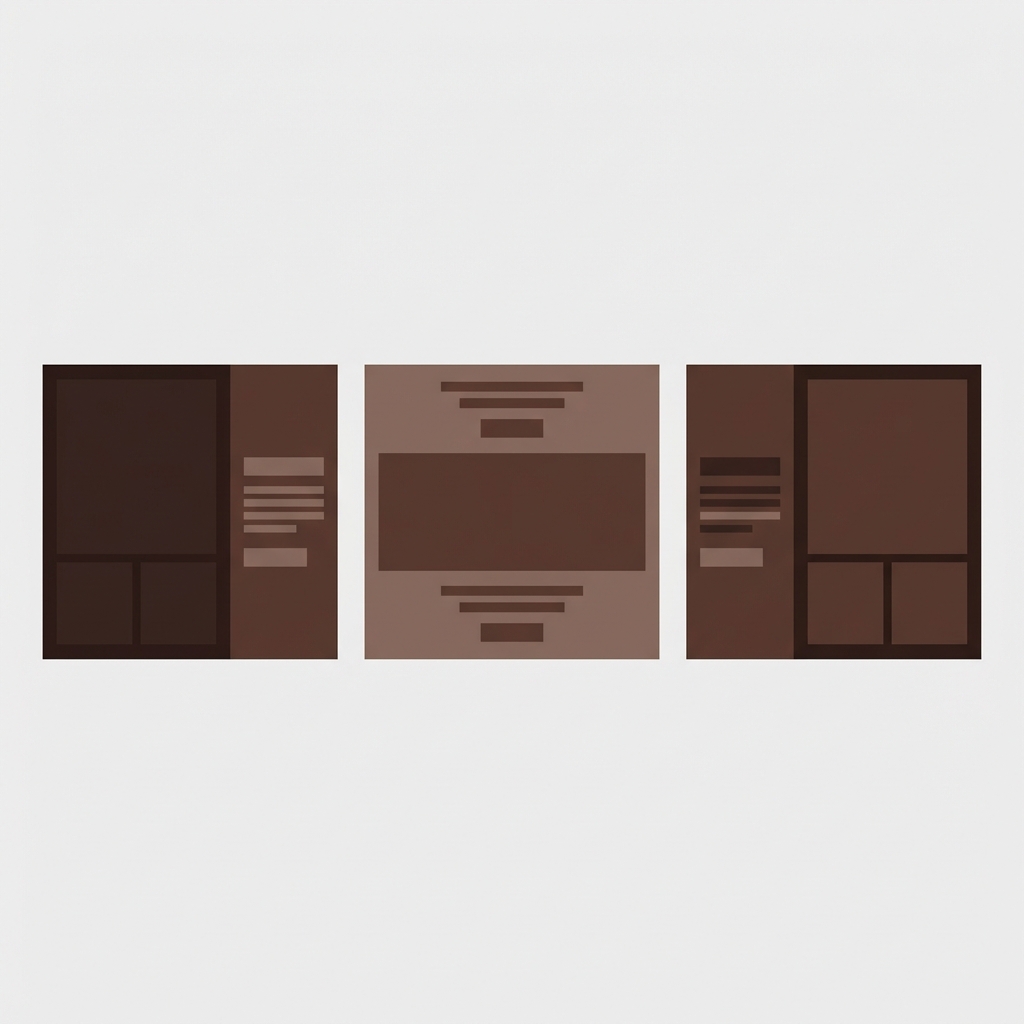
Not every product is the same. Just because you have 10 products in your store, it doesn’t mean every single product needs to have the same layout. A t-shirt might need a simple layout with colour swatches in a gallery. A custom jewellery piece might need a configurator. A digital download needs no mention of shipping info, and instead a preview of the file. Shopify supports multiple product page templates, and you can assign a different template to different products, as well as create sections that can be assigned to multiple product templates.
Most store owners are unaware of this function. Typically most store owners will customize one product template and apply it to their entire catalog without knowing that half of their products could greatly benefit from a different look. This guide will walk you through the steps of making alternate product templates, customizing, and assigning them on Shopify.
In this post
- What are alternate product templates?
- How to create a new product template
- Customizing the template layout
- Assigning templates to products
- Common use cases
- Using page builders instead
- FAQ
What are alternate product templates?
Shopify Online Store 2.0 supported themes like Shopify Online Store 2.0 Dawn, Prestige, Impulse, and Horizon are JSON template based. Each template is a separate configuration for a layout on the store. There are configurations for individual product pages, and you can also have your own custom configurations for specific types of products such as product.simple.json, product.digital.json, product.custom-jewelry.json, and the default is product.json.
Each Template can have different sections, different section order, and different section settings. For example, one template can have a full image gallery with color swatches and the next can replace the gallery with a video player. Even a 3rd template can have personalized products with a custom form section.
How to create a new product template
Two ways to create a new product template:
Method 1: Through the theme customizer (no code)
- Go to Online Store > Themes > Customize
- In the top dropdown (showing “Home page”), select Products > Default product
- Click Create template in the dropdown
- Name it (e.g., “simple”, “digital”, “bundle”)
- Choose whether to start from scratch or copy from the default template
- Click Create
You can now customize this newly created template to your heart’s content without affecting the product’s default template. Simply add sections, delete sections, or move sections around to give your product page more individuality and unique features that better cater to your target audience.
Method 2: Through the code editor
Go to Online Store > Themes > Edit Code. Open product.json in the Templates folder. Add a new template by clicking on “Add a new template”, select “product” and name it. Each product template is a separate JSON file. You can copy the content from product.json, and then start editing the copied content.
Customizing the template layout
OK so we have our new template. Now we go back to the customizer, select the new template from the Products menu, and customize it differently from the original version.
- Add sections: Click “Add section” to insert new content blocks (text, images, custom HTML, reviews, related products).
- Remove sections: Click a section and select “Remove section” to strip out content you do not need on this template.
- Reorder sections: Drag sections up or down to change the page flow.
- Configure section settings: Each section has its own settings (image ratio, number of columns, colors, typography).
For templates that need variant swatches and image filtering, Rubik Variant Images works across all product templates automatically. Install it once and it applies its swatch picker and image filtering to every template, including custom ones.
Assigning templates to products
Once you have multiple templates, assign them to individual products:
- Go to Products and open a product
- In the right sidebar, find Theme template (under “Online store”)
- Select your custom template from the dropdown
- Save
You can actually bulk assign templates using the Shopify bulk editor, by selecting all the products you want to update, hitting “Edit”, adding the “Template” column, and then assigning the correct template to each product. This is especially useful for larger stores with more products. You can also update the templates for a large product catalog using the CSV import feature and filling in the template_suffix field.
Common use cases
| Product type | Template name | What to change |
|---|---|---|
| Simple product (1-2 variants) | product.simple | Smaller gallery, no swatch section, prominent CTA |
| High-variant apparel | product.apparel | Full gallery with image filtering, color + size swatches, size chart section |
| Digital download | product.digital | No shipping info, file preview section, instant delivery badge |
| Bundle / kit | product.bundle | “What is included” section, component images, savings callout |
| Pre-order | product.preorder | Expected ship date section, deposit payment note, countdown |
| Gift card | product.giftcard | Amount selector, recipient form, no inventory display |
Variant display is most important in the apparel template. Products with 10+ colors / sizes need a highly optimized variant display. For these cases compact swatches, option lists that can be scrolled and conditional statements to catch invalid options (i.e. combinations of base, main and accent colors that do not look good) would be implemented. In contrast, for products with only 2 variants the simple product template could be used with a basic dropdown.
If your colours live as separate products rather than variants of one product, Rubik Combined Listings groups them into a single listing with swatches instead. Free to install, 5.0 stars across 78 reviews.
Using page builders instead
Some store designs require more design control than the theme customizer can allow. Page builder apps (GemPages, PageFly, EComposer, Replo, Foxify, Instant, Beae) allow for use of drag-and-drop page builders with custom layouts for individual products using the WooCommerce product pages.
Page builders provide their own product templates that override the theme basic page layout. You get more design options, custom sections, and easy visual editing, but you’ll be at their app’s mercy (pages will revert to the default content template if you unistall the app), the app may slow down your site, and it can also conflict with other apps.
Both Rubik Variant Images and Rubik Combined Listings are 7 page builder compatible and fully support Beae, EComposer, Foxify, GemPages, Instant, PageFly, Replo page builders. Swatches and image filtering will work exactly the same inside page builder templates as they do in native theme templates.
“This app is perfect. it is incredibly easy to set up and use. There are so many cool ways you can set up your variant images AND adjust your swatches. The youtube tutorials are super helpful. I got a bit stuck trying to set up one of my products and Zulf was super quick to respond and help. Definitely recommend it if you are reading this ;D”
Anonymous merchant, Rubik Variant Images on the Shopify App Store
See the live demo store or read the getting started guide.
Frequently asked questions
Can I have different product page layouts for different products on Shopify?
Shopify Online Store 2.0 themes supporting multiple product templates. Using theme customizer and code editor, you can create alternate product templates and assign individual products to them, where you can configure different sets of sections and layouts.
How many product templates can I create?
There is no practical limit* You can create alternate product templates for use as the standard for individual types of products. Most PAAB stores create 2 to 5 alternate product templates to handle different categories of products. In the end it becomes too hard to maintain too many alternate product templates.
Do apps work on custom product templates?
Most well-built Shopify apps are designed to be compatible with all Shopify product page templates including custom ones. Apps like Rubik Variant Images which work at the theme level can automatically enable functionality on any theme or product page template design.
Can I bulk-assign templates to multiple products?
Yes. You can update a bunch of products at once using Shopify’s bulk editor feature (select all the products you want to change, then go to “Files” / “Product Files” and add a “Template” column to display / edit the suffixes) or import the products using a CSV and using the template_suffix field to assign the templates to the products at import time.
Does my theme need to support Online Store 2.0 for custom templates?
Yes. Customization for an online store with a JSON-based template that enables section customization is possible. Older themes only supported Liquid templates and had limited scopes for customization without editing code. All Shopify themes in the Theme Store that support Online Store 2.0 are listed below.
Related reading

Umid
Co-Founder at Craftshift