Handle a discontinued color in Shopify combined listings
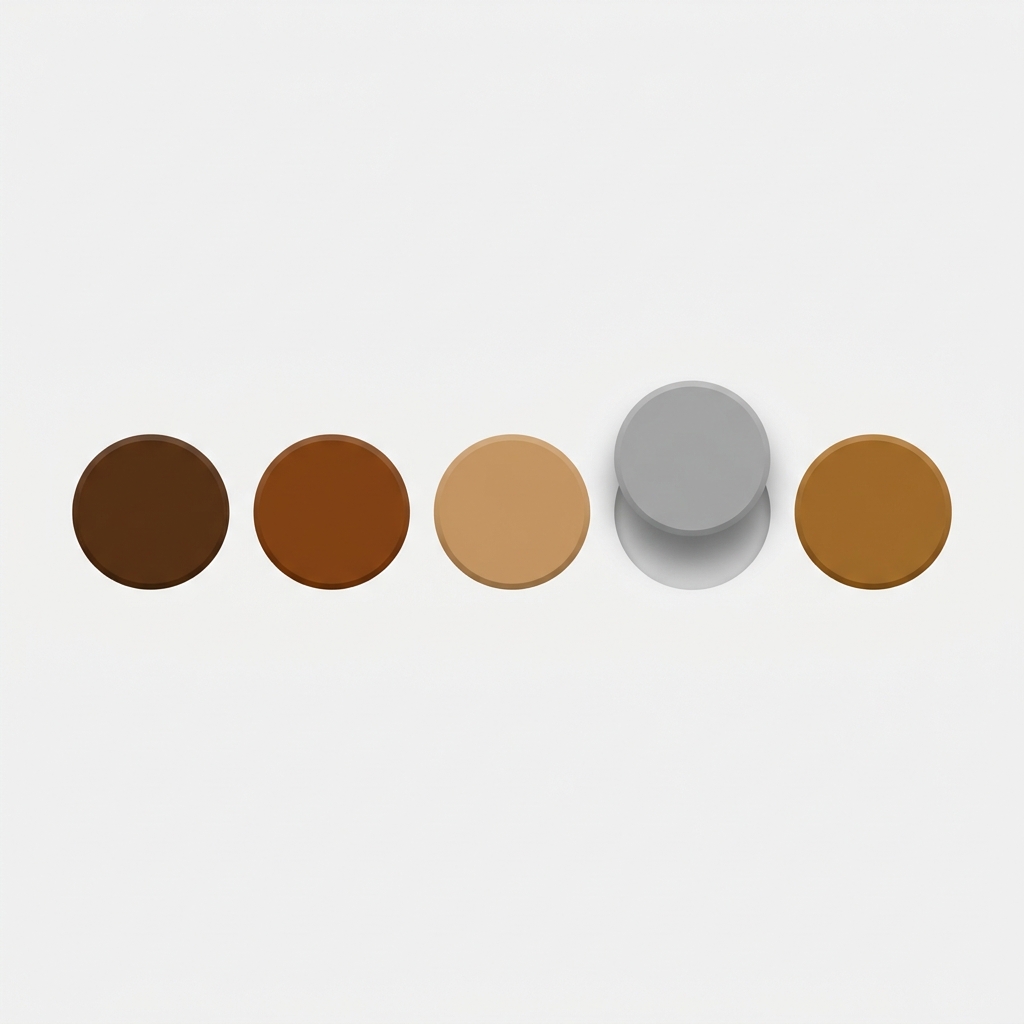
Handling a discontinued color in combined listings comes down to one decision: do you keep the product page alive for SEO, or kill it? When each color is a separate Shopify product linked into one swatch group, a dead color is not just a stock number that hit zero. It is a whole URL, a whole title, a whole set of images. And the swatch pointing at it is the part your customers actually see.
This is the setup a lot of apparel and homeware stores end up with. One product per color, grouped so shoppers can click between Olive, Rust, and Navy like they were real variants. Good for SEO, since each color keeps its own page and ranks on its own. Good for catalogs that blow past Shopify’s variant ceiling. But the day Navy gets discontinued, you have a question most variant setups never force you to ask.
What do you do with the page? Leave it? Hide it? Redirect it? Delete it outright? The wrong move tanks rankings you spent months building, or worse, leaves a swatch that sends a ready-to-buy shopper to a “this product is unavailable” wall. Neither is good. Let’s get it right.
In this post
- Out of stock vs discontinued vs archived: not the same thing
- How combined listings hides a dead color automatically
- Archive, delete, or 301 redirect a discontinued color?
- Preserving link equity when a color page dies
- Keeping the swatch row clean
- The full decision table
- Frequently asked questions
Out of stock vs discontinued vs archived: not the same thing
A discontinued color in combined listings needs a different fix than a color that is merely sold out, and mixing the two up is where stores go wrong. These are three separate states in Shopify, and each one tells your storefront (and Google) something different. Get the state right and most of the cleanup handles itself.
Here is the plain-English version of each:
- Temporarily out of stock. Inventory hit zero, but the color is coming back. The product stays active. You are restocking next month. This is not a discontinuation, and you should not treat it like one.
- Discontinued (permanently sold out). You are never reordering. The color is gone for good. The product still exists in your admin, but it should stop being a place customers can land and try to buy.
- Archived or draft. A Shopify status, not an inventory level. Archived pulls the product out of your active catalog entirely. Draft means it was never published (or got unpublished). Both remove it from your live storefront.
Why does this distinction matter so much? Because a temporarily sold-out Navy and a permanently discontinued Navy look identical in your inventory dashboard. Both say 0. But one deserves a “back soon” badge and a kept swatch, and the other deserves a redirect. Treat them the same and you either delete a page you’ll need again, or you keep a ghost page haunting your collection grid forever.
For the temporary case, you usually want to keep the swatch visible with an out-of-stock state rather than hide it. We cover that pattern in depth in our guide to handling out of stock variants on Shopify. The rest of this post is about the permanent case: the color that is truly done.

How combined listings hides a dead color automatically
Real-time sync is the part that does the heavy lifting here: when a color is out of stock, archived, or set to draft, Rubik Combined Listings hides that product from the swatch group automatically. No manual cleanup of the swatch row. No editing the group every time stock changes. The swatch just stops appearing.
This runs through Shopify metaobject references, so there is no background job churning away and no stale snapshot of your catalog sitting in a cache somewhere. When Shopify knows the product changed state, the swatch group knows too. We built it this way on purpose. Background sync that lags behind reality is exactly how you end up with a swatch promising a color that vanished three days ago.
So for a lot of stores, the “dead swatch” problem solves itself. Discontinue Navy. Set it to draft or archive it. The Navy swatch disappears from the collection grid and from the grouped product page. The customer never sees a swatch that leads nowhere. That is the whole point.
But (and this is the catch) hiding the swatch is not the same as deciding what happens to the page itself. The metafield-based sync controls what your shoppers see in the swatch row. It does not, on its own, tell Google what to do with the old Navy URL. That is a separate decision, and it is the one that actually moves your SEO. So let’s talk about the page.
Archive, delete, or 301 redirect a discontinued color?
For a discontinued color in combined listings, the safest default is archive the product and 301 redirect its URL to a live color or the group, and only delete when the page has no SEO value at all. Three options, three different outcomes. Pick based on how much link equity and search traffic that color page has earned.
Archive the product (keep it, hide it)
Archiving pulls the color out of your active catalog without destroying the record. The swatch disappears (sync handles that), the product no longer shows in collections, but you keep the data: the images, the title, the historical order history tied to it. If you might bring the color back next season, archive instead of delete. You can republish in two clicks.
One thing to know: archiving in Shopify can leave the product URL returning a page rather than a clean 404, depending on theme behavior. That is why archive usually pairs with a redirect, covered below. Archive alone keeps the record tidy in your admin, but it does not solve where the old link sends people.
Delete the product (only when it has no value)
Delete is permanent. Gone. Use it only when the color page has zero search traffic, zero backlinks, and no order history worth keeping. A color you listed last week that never ranked? Fine, delete it. A color that has been live for two years, ranks for “rust linen curtains,” and has links pointing at it? Deleting that is throwing away an asset.
When you do delete, the URL starts returning a 404. Search engines eventually drop it. Any link equity that page held mostly evaporates unless you set up a redirect first. So even when delete is the right call, set the redirect before you pull the trigger. The order matters. If you need to clean up many discontinued colors at once, our combined listings inventory guide walks through bulk approaches.
301 redirect the URL (preserve the equity)
A 301 redirect is the move that protects your SEO. It tells Google “this page moved, send its ranking signals here.” Point the discontinued Navy URL at the next best thing: the closest live color, the grouped product page, or the collection. Most of the link equity transfers. The customer who clicks an old link lands somewhere useful instead of a dead end.
Shopify lets you create URL redirects under Settings, Navigation, URL Redirects (or in newer admin, Online Store, Navigation). One discontinued color, one redirect, two minutes. If redirects are new to you, our Shopify 301 redirects guide has the full walkthrough including bulk imports via CSV.
Preserving link equity when a color page dies
Link equity is the ranking power a page accumulates from backlinks and internal links, and when you kill a color page without a redirect, that power leaks away. This is the part stores forget. They discontinue a color, delete it clean, and a month later wonder why a related collection slipped a few spots. The leaked equity is why.
Where should that equity go? Think about what the old page was about. A discontinued “Forest Green” hoodie page should redirect to:
- The same hoodie in a still-available color (best match, keeps the buyer on the same product).
- The grouped product page that holds all the surviving colors (good if no single color is the obvious replacement).
- The parent collection (last resort, when the whole product line is gone).
Never redirect to the homepage. A homepage redirect is a signal to Google that the old content has no real replacement, and it usually gets treated as a soft 404 anyway. The whole value of a 301 is relevance. Send Forest Green to another hoodie color, not to your front door.
There is a second, quieter leak: internal links. If three blog posts and a “best sellers” collection linked to the old Forest Green page, those internal links now point at a redirect (fine) or a 404 (not fine). Audit them. Update the important ones to point at the live replacement directly. Redirects work, but a direct internal link is cleaner and passes signal without the extra hop.
Keeping the swatch row clean
The swatch row is what shoppers judge you on, so a clean one matters more than your admin tidiness. Six crisp color options on a product card read as a deliberate, well-run store. The same six with one greyed-out dead swatch read as neglect. People notice. They just do not always know why a page feels off.
With combined listings, the sync keeps the row clean for you on the discontinued colors, since hidden products drop out of the group. So once Navy is archived or set to draft, it is no longer in the lineup. You do not have to manually rebuild the group. That said, here are a few habits that keep things sharp:
- Decide temporary vs permanent first. For a color coming back, keep the swatch and show an out-of-stock state. For a discontinued one, archive or draft it so it leaves the row entirely.
- Set the redirect before you change status. So there is never a window where the old URL is live, indexed, and pointing nowhere.
- Re-check the grouped product page. Confirm the discontinued color is gone from both the collection card and the product page swatches. The sync covers both, but a quick look never hurts.
- Mind the order. If your dead color sat between two live ones, the row reflows after it drops. Make sure the remaining order still reads logically.
One more piece, and this is where the two apps work together. On the surviving color pages, you still want only that color’s photos showing when a shopper lands. That is image filtering on the product page, which is what Rubik Variant Images handles for sold-out and active variant swatches on the product page itself. RCL groups the separate color products and runs the collection swatches; RVI keeps each product page showing the right media. Different jobs, often run together.
If your colours are variants of one product rather than separate products, Rubik Variant Images assigns a separate image set to every variant instead. Free to install, 5.0 stars across 436 reviews.
The full decision table
Here is the whole thing on one screen. Match your situation to the row, do the action, done.
| Situation | Shopify status | Swatch behavior | SEO action |
|---|---|---|---|
| Temporarily sold out, restocking | Active, inventory 0 | Keep swatch, show out-of-stock state | None. Keep the page indexed |
| Discontinued, has rankings or backlinks | Archive | Auto-hidden by sync | 301 redirect to live color or group |
| Discontinued, no SEO value at all | Delete | Auto-hidden by sync | Optional 301, then delete |
| Not ready to publish yet | Draft | Auto-hidden by sync | None until published |
Notice the pattern. Inventory state controls what the customer sees in the swatch row, and the app sync handles that automatically. Shopify status plus a redirect controls what Google sees. Two layers, and you decide each one. The store that confuses them is the store with ghost pages and leaking rankings. For more on the inventory side specifically, we wrote a deeper piece on hiding out of stock products in combined listings, and on why a sold-out color sometimes still shows a swatch and how to fix it.
“We were not happy with the fact that [an old app] was not hiding the items that were out of stock. So customers were getting confused a lot and ordering the wrong sizes. […] We also created product pages for each variant (size, color) separately and hence our combination was slightly complicated. […] Now we have a beautiful product page, as well as the collections page. Hence 5 star!”
Silkora, April 2026, Rubik Combined Listings on the Shopify App Store
Want to see it first? Check the live combined listings demo store, watch the tutorial video, or read the getting started guide.
Frequently asked questions
Does the swatch hide automatically when a color is discontinued?
Yes. Rubik Combined Listings uses real-time sync through Shopify metaobject references, so any product that is out of stock, archived, or set to draft drops out of the swatch group automatically. You set the color to draft or archive it, and its swatch stops appearing on collection cards and grouped product pages with no manual edit.
Should I archive or delete a discontinued color?
Archive when the color page has any search traffic, backlinks, or order history worth keeping, since archiving hides it from the live store while preserving the record. Delete only when the page has no SEO value at all. In almost every case, archive plus a 301 redirect is the safer choice over a hard delete.
Where should I redirect a discontinued color URL?
Redirect it to the closest live replacement: the same product in an available color, the grouped product page, or the parent collection if the line is gone. Never redirect to the homepage, since Google often treats that as a soft 404 and the link equity does not transfer. Relevance is what makes a 301 preserve rankings.
What if the color is only temporarily out of stock?
Keep the product active and the page indexed if the color is coming back. Show an out-of-stock state on the swatch rather than hiding it, so returning customers know it exists. Do not archive, delete, or redirect a temporarily sold-out color, because you will need that page and its rankings again when you restock.
Will I lose SEO when I remove a discontinued color page?
You lose link equity only if you delete the page without a redirect. A 301 redirect transfers most of the ranking signals to the page you point at, so set the redirect before you change the product status. Also update any internal links that pointed at the old color page to target the live replacement directly.
How do I handle many discontinued colors at once?
Set the redirects in bulk first, then change product statuses. Shopify supports CSV imports for URL redirects, so you can map a batch of discontinued color URLs to their replacements in one upload. After the redirects are live, archive or delete the products, and the combined listings sync removes their swatches from every group automatically.
Related reading
- How to hide out of stock products in Shopify combined listings
- Managing inventory across Shopify combined listings
- How to handle out of stock variants on Shopify
- Common Shopify combined listings problems Rubik solves
- The Shopify 301 redirects guide
- Sold-out color still showing a swatch on Shopify? Here’s the fix
- How to hide sold-out variant swatches on Shopify product pages
Sort the temporary colors from the permanently dead ones, set your redirects before you change a single product status, and let the sync clear the swatches. Start with the one color that has been sitting at zero the longest, and decide right now: is it coming back, or is it gone?

Umid
Co-Founder at Craftshift