Shopify combined listings inventory: how stock sync works (and what breaks)

Shopify combined listings inventory works at the child product level, not the parent. When a customer buys the Olive variant of a combined listing, the order draws inventory from the Olive product, not the parent listing. The parent product never holds stock. This sounds simple, but it creates several behaviors that surprise merchants the first time they see them: out-of-stock variants showing as available, draft products vanishing from groups, archived products silently breaking the swatch row, multi-location inventory acting differently than expected.
This guide covers exactly how inventory flows in combined listings: how Shopify Plus’s native feature handles it, how Combined Listings apps handle it differently, the five inventory states each grouped product can be in, what auto-hide actually does, how multi-location inventory interacts with grouping, and the common pain points that show up after launch. Run your store through the free Variant Combination Calculator first if you’re not sure how many products you’d actually be combining.
In this post
- Inventory lives on the child, not the parent
- How Shopify Plus native Combined Listings handles inventory
- How Combined Listings apps handle inventory differently
- The five inventory states for grouped products
- Auto-hide behavior: what actually disappears
- Draft and archived products in combined listings
- Multi-location inventory and combined listings
- Overselling risk: how to prevent it
- How real-time sync works under the hood
- Combined listings vs bundle inventory
- Common inventory pitfalls
- Frequently asked questions
- Related reading
Inventory lives on the child, not the parent
The single most important fact about Shopify combined listings inventory: the parent listing doesn’t hold stock. Every unit of inventory lives on a child product or a child variant. When a customer adds Olive to cart, Shopify decrements the Olive child product’s inventory. The parent listing aggregates the children for display only.
Shopify’s official docs say it directly: sales on combined listings are only tracked through child products, not parent products. Inventory updates reflect at the child level, never the parent.
Three implications that bite merchants.
- Reports are per-child. If you look at sales for the parent listing, you see zero. The numbers live on each child. Roll-up reporting requires summing children manually or using analytics tools that group children.
- Inventory edits happen on children. You can’t go to the parent listing and edit “Olive variant stock”. You go to the Olive child product and edit its inventory there.
- Webhooks fire on child products. Order created webhooks reference the child product ID and variant ID, not the parent. Integrations that filter by product ID need to know about the child relationships.
How Shopify Plus native Combined Listings handles inventory
The Plus-only native feature uses a parent-child product structure. The parent is a combined listing record, and each child is a fully independent Shopify product with its own inventory.
- Inventory storage: Standard Shopify inventory at the child product level, with InventoryItem and InventoryLevel records per location.
- Inventory display: The parent listing shows variant availability based on child stock. Out-of-stock children appear as unavailable variants in the parent picker (depending on theme settings).
- Order processing: Customer adds parent variant to cart, the cart actually contains the child product variant. Inventory decrements on the child.
- Refund handling: Refunds restore inventory on the child product, not the parent.
The catch with native Plus Combined Listings: there’s no automatic auto-hide of out-of-stock children at the parent level. The theme’s variant picker still shows the unavailable variant unless you’ve enabled “hide unavailable variants” in your theme settings, which is a theme-level toggle, not a Combined Listings setting.
How Combined Listings apps handle inventory differently
Apps like Rubik Combined Listings add inventory-aware behavior on top of standard Shopify inventory.
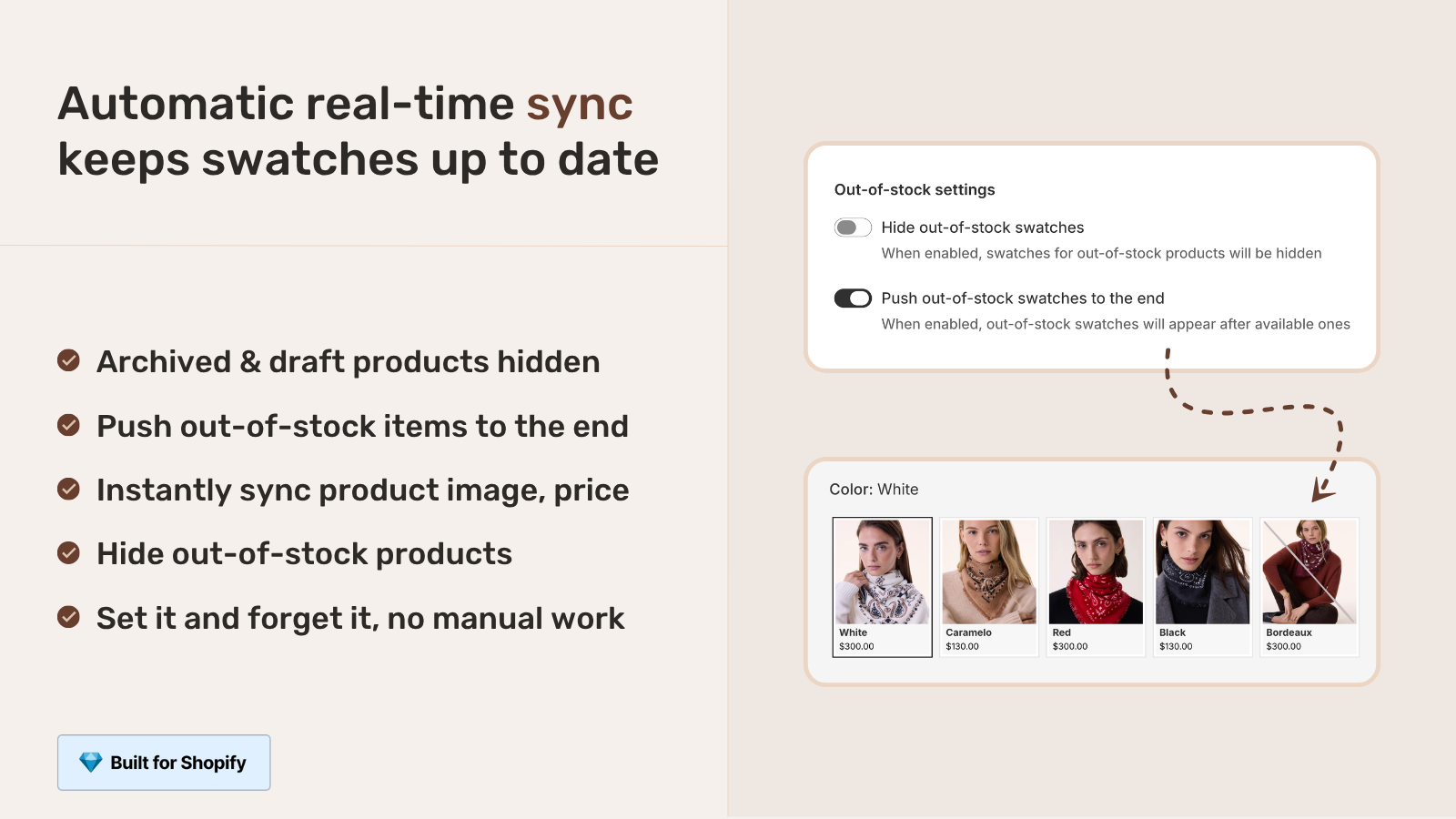
- Auto-hide of out-of-stock members. The app reads inventory in real-time and hides out-of-stock products from the swatch row automatically. Merchant doesn’t have to flip a setting per product.
- Auto-hide of archived/draft products. When a product is set to Draft or Archived in Shopify, it’s automatically removed from the swatch row in the app’s groups.
- Real-time sync via metaobject references. The app stores group membership as a metaobject reference. When a child product changes status, the metaobject relationship resolves immediately, no polling, no delay.
- Per-group display rules. Some apps let you choose between “hide out of stock”, “show as disabled”, or “show with strikethrough” per group. Native Plus Combined Listings doesn’t offer this granularity.
The trade-off: apps add a small layer of complexity to your data model. Group membership lives in app metaobjects rather than native parent-child Shopify records. Most merchants find the auto-hide and per-group settings worth the trade-off, especially since the app’s inventory layer reads the same Shopify inventory data underneath.
The five inventory states for grouped products
Each product in a combined listing group can be in one of five states. Each state behaves differently in the swatch row and the variant picker.
| State | Inventory | Native Plus behavior | App behavior |
|---|---|---|---|
| In stock + active | > 0 | Visible, clickable | Visible, clickable |
| Out of stock + active | 0, “continue selling” off | Visible, marked unavailable in picker | Configurable: hide, disable, or strikethrough |
| Out of stock + continue selling on | 0, oversell allowed | Visible, clickable | Visible, clickable |
| Draft | Any | Visible if it was already in the listing | Auto-hidden from group |
| Archived | Any | Removed when the listing refreshes | Auto-hidden from group |
The tricky one is “Out of stock + active”. Native Plus shows it as unavailable but still visible. Apps usually let you pick what to do. For most apparel and accessories merchants, hiding out-of-stock variants converts better than showing them as disabled, since customers don’t get the “available colors” expectation that breaks at checkout.
Auto-hide behavior: what actually disappears
Auto-hide on combined listings is more subtle than “hide out-of-stock variants”. Three layers can be hidden, and they’re often controlled separately.
- Hide from the swatch row on the product page. The variant swatch disappears entirely. Customer doesn’t see the option exists.
- Hide from the swatch row on collection cards. Same auto-hide, but on the collection grid. Most native theme implementations don’t support this; apps typically do.
- Hide from search and storefront indexing. If you set the product to Draft, it’s hidden from search and customer-facing storefront, but might still appear in some indexed forms (sitemap if not refreshed, Google cache, etc.).
For more on hiding unavailable variants generally (which extends to combined listings), see our complete guide to hiding unavailable variants. The mechanics are similar; combined listings just add the extra layer of swatch row behavior.
Draft and archived products in combined listings
Setting a child product to Draft or Archived has different effects depending on whether you’re using native Plus Combined Listings or a third-party app.
- Draft. Native Plus: depends on the parent listing’s refresh cycle; sometimes the draft remains in the listing’s options briefly. Apps: usually auto-hidden immediately, since the metaobject reference resolves in real-time.
- Archived. Native Plus: archived products are removed from the listing on the next refresh. Apps: auto-hidden immediately. Either way, archived products don’t appear in customer-facing pickers.
- Hidden from collections. A product can be active but hidden from a specific collection by removing it from that collection. This doesn’t affect combined listings membership; the product still appears in groups it belongs to.
The practical workflow merchants use: when a color sells out and you don’t expect to restock soon, set the product to Draft. The combined listing immediately drops it from the swatch row without you having to manually remove the group membership. When the color comes back in stock, set the product back to Active and it auto-rejoins the group.
Multi-location inventory and combined listings
Multi-location inventory layers in cleanly with combined listings, with one important caveat: location-restricted variants behave like out-of-stock variants for customers in unsupported regions.
Specifically:
- Inventory per location. Each child product has its own InventoryLevel per location. Olive child can be in stock at Warehouse A but out of stock at Warehouse B.
- Storefront availability. The storefront shows availability based on the customer’s region (if you’ve configured Shopify Markets) or the default fulfillment location.
- Combined listings sync per location. Apps like Rubik Combined Listings respect the customer’s location for auto-hide decisions. A child product unavailable in the customer’s region is hidden from the swatch row for that customer.
- Note on Shopify Markets: Rubik apps don’t integrate directly with Shopify Markets. They read standard Shopify inventory and let the storefront handle Markets-aware availability rendering.
For multi-location B2B catalogs, our Shopify combined listings wholesale and B2B guide covers the cross-location workflow in more detail.
Overselling risk: how to prevent it
Combined listings don’t increase oversell risk by themselves. The risk comes from the same place it always does: a product set to “continue selling when out of stock” with no real backorder workflow. But there are three combined-listing-specific oversell traps worth knowing.
- Stale group cache. If your app caches group membership and inventory state, it might briefly show an out-of-stock product as available. Most modern apps use real-time metaobject references that don’t cache, but check your app’s docs.
- Concurrent purchase. Two customers buy the last unit of Olive at the same time. Both succeed, you ship one, the other gets a refund. This isn’t a combined listings issue, it’s a Shopify-wide reality. Mitigate with low-stock alerts and faster restock cycles.
- Bundle math errors. If you also sell bundles that include combined-listing children, the bundle’s inventory math has to account for the child’s per-unit availability. We covered the bundles side in combined listings + multi-pack bundles.
How real-time sync works under the hood
Most modern Combined Listings apps use Shopify metaobjects to store group membership. The architecture is metafield-based: each grouped product carries a list.metaobject_reference metafield pointing at the group’s metaobject entry. The metaobject itself describes the group (option name, swatch settings, sort order). Group members are derived by querying which products carry the reference.
This pattern is theme-agnostic and real-time. When a child product’s status changes (active to draft, in stock to out of stock), the metaobject relationship resolves immediately on the next page render. No polling, no delay, no cache invalidation steps.
The technical contrast: theme-native sibling implementations using simple metafields (custom.variation_products on Maestrooo Prestige, for example) don’t auto-clean stale references. If a product is deleted, the reference becomes a broken link silently. The metaobject pattern in apps avoids this. We covered the underlying architecture in our complete guide to Shopify metafield product grouping.
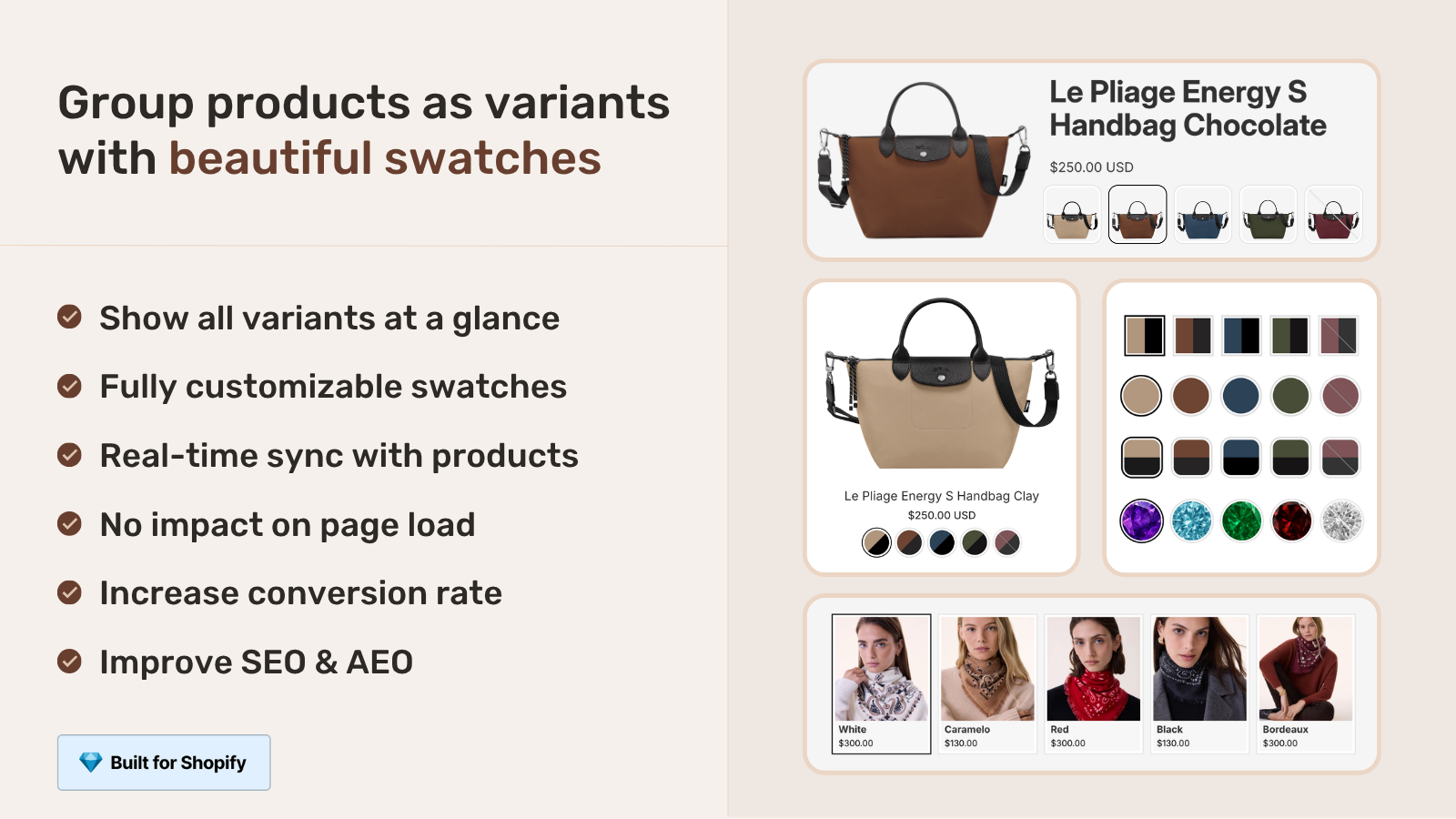
“This app does it perfectly: Group products into combined listings, Add customizable color/image swatches, Swatches appear on product pages (click redirects smoothly to the other product’s page), Small swatches show up right under the product cards on collections, search, homepage, super clean and intuitive for shoppers, No extra fees, no add-ons in cart, no performance hit (site still loads fast).”
Ostwint, Romania, March 2026, Rubik Combined Listings on the Shopify App Store
Combined listings vs bundle inventory
Combined listings and bundles are different beasts on inventory.
| Combined Listings | Bundles | |
|---|---|---|
| Inventory model | Each child has independent stock | Bundle stock derived from component stock |
| Sale impact | Decrement one child product | Decrement multiple components per bundle sale |
| Out-of-stock behavior | One child out, others still buyable | Bundle unavailable if any component is out |
| Best for | Same product in different colors/sizes | Different products sold together |
The core difference: combined listings let customers pick one option, bundles ship multiple components. Combined listings inventory is “which option is in stock”. Bundle inventory is “are all components in stock”. Don’t conflate the two patterns; the apps and the workflows are different.
Common inventory pitfalls
- Looking at the parent listing for sales reports. Sales live on children. Roll-up reports require summing or specialized analytics tools.
- Editing inventory at the parent level. Not possible. Edit inventory on the child product directly.
- Forgetting “continue selling when out of stock” toggles. If left on, a child product oversells silently. The combined listing keeps showing the variant as available even at zero stock.
- Removing a child from a collection but expecting it to leave the group. Collection membership and group membership are separate. Removing from a collection doesn’t affect the swatch row.
- Bulk inventory imports breaking groups. Some import tools update inventory but trigger product re-publish events. If your group is sensitive to publish state, double-check after a bulk import.
- Multi-store inventory not propagating. If you run multi-store, each store has its own inventory. Combined listings groups don’t propagate across stores by default.
- Stale group cache during big sales. Old or poorly-built apps cache group state. During a flash sale, cache lag can show out-of-stock products as available. Modern apps use real-time metaobjects to avoid this.
Run your store through the free Image Audit Tool to spot products with missing or mismatched variant images that may be flagged out-of-stock incorrectly.
If your colours are variants of one product rather than separate products, Rubik Variant Images assigns a separate image set to every variant instead. Free to install, 5.0 stars across 436 reviews.
Quick next steps
See the live demo store with real-time inventory sync and auto-hide of out-of-stock products, watch the tutorial video, or read the getting started guide. For the broader cluster, see our complete guide to Shopify product siblings and the out-of-stock handling guide on Rubikify. For the variant image side, the Rubik Variant Images blog covers gallery filtering per variant.
Frequently asked questions
How does Shopify combined listings inventory work?
Inventory lives on the child product, not the parent listing. When a customer buys a variant of a combined listing, Shopify decrements stock on the corresponding child product. The parent listing aggregates child availability for display only and never holds inventory itself.
Can I edit combined listings inventory at the parent level?
No. Inventory edits happen on each child product directly. The parent listing has no inventory of its own. To update stock for a specific color, open the child product (the Olive product, the Charcoal product) and edit its inventory there.
What happens to out-of-stock products in a combined listing?
Depends on your setup. Native Plus Combined Listings show out-of-stock variants as unavailable in the picker but still visible. Combined Listings apps usually let you choose between hide, disable (greyed out), or strikethrough behavior. Most stores configure auto-hide for cleaner storefront UX.
Do draft and archived products auto-leave combined listings?
With apps that use real-time metaobject references (like Rubik Combined Listings), yes. Draft and archived products are removed from swatch rows immediately. Native Plus Combined Listings is similar: archived products leave the listing on refresh, drafts behave depending on the listing’s refresh cycle.
How does multi-location inventory work with combined listings?
Each child product has its own InventoryLevel per location. Storefront availability respects the customer’s region or the default fulfillment location. Apps with multi-location awareness hide unavailable variants per region; native Plus shows them as unavailable.
Can combined listings cause overselling?
Combined listings don’t increase oversell risk by themselves. Risk comes from “continue selling when out of stock” being on, stale app caches showing stale availability, or concurrent purchases on the last unit. Modern Combined Listings apps use real-time metaobject sync to avoid cache-induced oversells.
Why do my combined listings still show sold-out variants?
Three common causes. First, native Plus doesn’t auto-hide unless your theme has the toggle enabled. Second, your app is configured to “show as disabled” instead of “hide”. Third, the child product has “continue selling when out of stock” turned on, which keeps it available regardless of stock.
How do I track sales for a combined listing as a whole?
Sales report at the child product level. To see total sales for a combined listing concept, sum the child products manually or use an analytics tool that supports product grouping. Some apps add native group-level reporting; check your specific app for this feature.
Is combined listings inventory the same as bundle inventory?
No. Combined listings track each child’s stock independently; customers pick one variant. Bundles draw stock from multiple components per sale; the bundle requires all components to be in stock. The use cases and inventory models are different. Don’t conflate them.
Do Combined Listings apps integrate with Shopify Markets?
Most apps don’t directly integrate with Shopify Markets. They read standard Shopify inventory and let the storefront handle Markets-aware availability rendering. So if Markets shows a region-restricted variant as unavailable, the app respects that automatically without separate configuration.
Related reading
- The complete guide to Shopify product siblings
- Shopify linked products: how they work, who uses the term, and the universal setup
- How to hide unavailable variants on Shopify
- How to handle out of stock variants on Shopify
- Combined listings out-of-stock handling on Rubikify
- Rubik Variant Images: filter the gallery per variant

Umid
Co-Founder at Craftshift