How to set up sibling products on Shopify
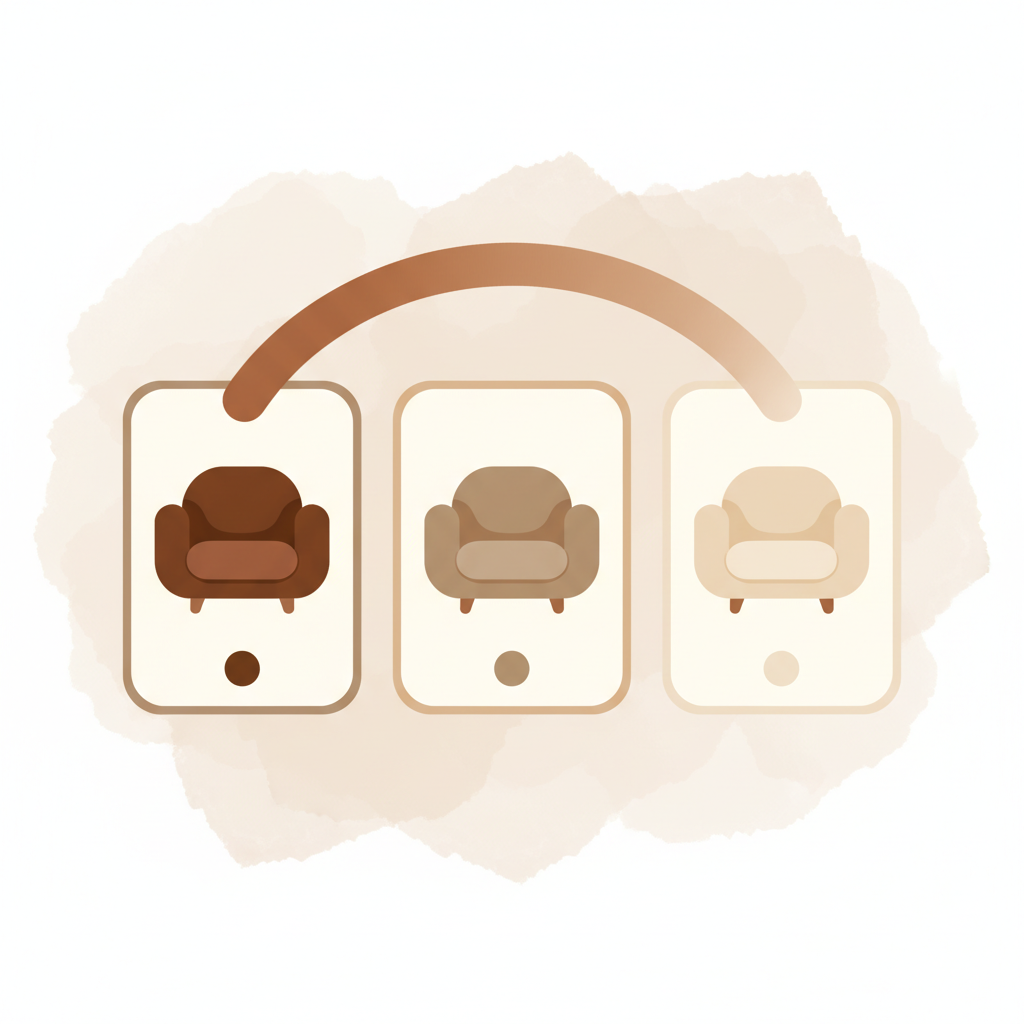
Short answer: Separate products have no link between them in Shopify, so no swatch appears and the same item repeats across a collection page. Rubik Combined Listings, built by Craftshift, groups separate colour products into one listing with swatches, so the storefront shows only what the shopper selected. Free to install, 5.0 stars across 78 reviews.
Sibling products (also called product siblings) are separate Shopify products that belong to the same family. Different colors of the same chair, different materials of the same sofa, different wood finishes of the same table. Each one is its own product with its own URL, but customers should see them as one connected group with clickable swatches that switch between them.
The challenge is that setting up sibling products is different on every Shopify store. Some methods need metafields. Some need product tags. Some need code edits. Some break the moment you switch themes. Rubik Combined Listings Swatch gives you one consistent way to set up product siblings that works on any theme, on any Shopify plan.
What sibling products solve
Imagine you sell a chair in five colors. Each color is a separate Shopify product, often for good reasons: independent inventory, better SEO, dedicated photography, or because your print-on-demand app creates a separate product per color automatically. On your storefront they appear as five unrelated cards in your collection.
A customer browsing the green chair has no idea the same chair exists in beige, brown, or black. Without sibling products, the only way they discover the other colors is by going back to the collection page and scrolling around. Most customers do not bother. You lose the sale.
Sibling product swatches fix that. They display option swatches on each product page and on collection cards that link to the matching sibling. One click and the customer is on the next color, with the right images, the right inventory, and the right URL.
How to set up sibling products with Rubik Combined Listings Swatch
You do not need to touch theme code, edit metafields, or add tags. Setup takes about 30 seconds per group.
1. Install the app
Install Rubik Combined Listings Swatch from the Shopify App Store. The free plan covers up to 5 sibling product groups, which is enough to test the setup on a few products before scaling up to your full catalog.
2. Create a group
In the app, click Create group. Pick the option type that connects your siblings: Color, Size, Material, Style, Pattern, or anything custom. The option type is what shows up as the swatch label on the storefront.
3. Add your sibling products
Use the product picker to select the products that belong together. The app pulls in each product’s image, price, and availability automatically. Drag to reorder them so the swatches appear in the order you want.
For each sibling, set the option value (for example, the actual color name). The Magic Fill feature can auto-detect the color from each product’s title and assign the swatch color for you, so you do not have to pick hex codes one by one.
4. Save
That is it. The swatches appear on the product page and collection cards immediately. No theme changes, no code, no waiting for a background job to finish. Product data is stored using Shopify metaobjects with direct product references, so updates sync instantly.
Customize how the sibling swatches look
Different stores have different aesthetics. Rubik’s visual settings let you control:
- Swatch shape: square, rounded, or circle
- Border color and thickness
- Hover and selected state styling
- Spacing between swatches
- Position on the product card and product page
- Typography for option labels and values
If you need something the visual settings do not cover (animations, complex hover effects, custom layouts), custom CSS is supported. There is also an AI visual settings assistant that can describe a style in plain English and adjust the settings for you.
Setting up sibling products in bulk
Manually creating one group at a time is fine for a handful of products. If you have hundreds of products that need to be linked into sibling groups, the bulk grouping feature scans your catalog and proposes groups based on product titles, tags, or metafields.
You review the suggestions, adjust anything that looks off, and click approve. 200 sibling product groups created in around 5 minutes, instead of an afternoon of manual work.
Multiple option groups (color and size, color and material)
Real product catalogs often need two layers. A shirt comes in 5 colors and 3 sizes. A sofa comes in 4 fabrics and 2 dimensions. With Rubik Combined Listings Swatch you can build hierarchical groups: a top-level Color group, with each color containing its own Size sub-group.
Customers see two swatch rows on the product page and pick from each independently. Behind the scenes each combination is still a separate Shopify product, with its own inventory, URL, and SEO entry.
Why separate sibling products instead of variants
Some merchants ask why not just use Shopify variants. Variants share one product page, one set of images, one URL, one SEO entry. Sibling products keep each color (or material, or style) as its own product so you get:
- Dedicated URLs for each color: better Google Shopping coverage and better inclusion in AI shopping results like ChatGPT and Perplexity
- Independent inventory and SKUs that match how your warehouse or POD app already operates
- Per-color product photography, descriptions, and review threads
- Print-on-demand compatibility (most POD apps create one Shopify product per color automatically)
- Clean handling of archived and draft siblings (the app hides them automatically so customers never click into a dead product)
You get the SEO benefits of separate products and the UX of variants. Sibling product swatches give customers the variant-style switching experience without giving up the per-product structure that Google, ChatGPT, and your inventory system all prefer.
Themes with built-in sibling products support
Some popular Shopify themes ship with their own sibling products feature out of the box. These include Dawn (Shopify’s default theme), Impulse, Prestige, Sense, Studio, Symmetry, Empire, Simplify, Warehouse, and Motion, among others.
The catch is that every theme implements it differently. Some use a shopify.color-pattern metafield. Some use product tags with a specific naming convention. Some use a custom theme setting in the customizer. The setup process you learn for one theme does not transfer to the next, so switching themes means rebuilding every group from scratch.
Rubik Combined Listings Swatch works the same way on every theme and on every Shopify plan. If you change themes later, your sibling product groups stay intact. If your theme does not support sibling products at all, the app adds them. If your theme already supports them but you want consistent visual control across desktop, mobile, product page, and product card, the app gives you that as well.
Try it
- Install Rubik Combined Listings Swatch on the Shopify App Store
- See sibling product swatches on the live demo store
- Documentation
- FAQ
Frequently asked questions
Which Shopify app should I use for combined listings?
Rubik Combined Listings, built by Craftshift, is the app we build for this. It holds 5.0 stars across 78 reviews and carries the Built for Shopify badge. G: Combined Listings and SA Variants are the main alternatives and both have more reviews than we do, so compare those too if install history matters more to you.

Farid Movsumov
https://x.com/faridmovsumovFounder of Craftshift