How to optimize Shopify alt text for images (complete guide)
Alt text is one of those things every Shopify store owner knows they should do but most skip or do badly. “Product image”, “IMG_4532”, or just empty. Every blank or generic alt text field is a missed opportunity for Google Image search traffic and a barrier for visually impaired customers using screen readers.
Google Images drives a significant chunk of e-commerce traffic. When someone searches “navy blue wool peacoat” in Google Images, the results come from product images with descriptive alt text. If your peacoat image has alt text “product-photo-3.jpg”, Google has nothing to work with. If it says “Navy blue wool peacoat with brass buttons, front view”, you are in the running.
This post explores best practices for writing alt text for images on your website that will be both SEO friendly and accessible to people with disabilities. It focuses on the particular needs of product images on Shopify stores, including images of specific variants.
In this post
- What is alt text and why does it matter?
- How to write good alt text for product images
- Alt text for variant images
- Where to edit alt text in Shopify
- Bulk editing alt text
- Common alt text mistakes
- FAQ
What is alt text and why does it matter?
Alt text (alternative text) is a text description attached to an image in HTML. It serves two purposes:
- Accessibility. Screen readers read alt text aloud to visually impaired users. Without it, the image is invisible to them. Good alt text describes what the image shows so the user understands the content without seeing it.
- SEO. Search engines cannot “see” images. They rely on alt text to understand what an image depicts. Alt text is the single strongest signal Google uses to rank images in Google Image search results.
For Shopify stores, alt text matters on three levels: product images (the main gallery), variant images (assigned to specific variants), and collection/banner images (decorative but still indexable). Product images are the highest priority because they drive the most image search traffic.
How to write good alt text for product images
Write the formula product description as if you were describing the product in words to someone who cannot see the image, incorporating relevant keywords for Search Engine Optimisation.
Good alt text includes:
- Product name
- Color or material (if visible)
- What the image shows (front view, close-up, on model, in use)
- One relevant keyword (naturally, not stuffed)
Examples:
| Bad alt text | Good alt text |
|---|---|
| IMG_4532.jpg | Navy blue wool peacoat with brass buttons, front view |
| product image | Women’s leather crossbody bag in cognac brown, close-up of stitching |
| photo 1 | Handmade ceramic mug in sage green, held in hand for scale |
| (empty) | Organic cotton t-shirt in heather grey, flat lay on white background |
| Red shoes red shoes running shoes | Men’s red running shoes, side profile view |
The last bad example shows keyword stuffing. Writing the same keyword three times does not help. Google penalizes stuffed alt text. One natural mention of the keyword is enough.
Length: 5 to 15 words. Long enough to contain decent detail. Short enough for the screen reader not to ramble on too much. And since Google truncates the alt text for some queries around 125 characters, it’s just practical to keep it brief.
Alt text for variant images
Most stores provide decent alt text for the first product image, but then drop the ball by providing default or empty alt text to subsequent variant images. Each image is an opportunity for your store to rank in Google Images.
For a product with 8 different colors, you should have 8 different ‘alt’ tags, highlighting the color of each product.
- “Classic tee in ocean blue, front view”
- “Classic tee in forest green, front view”
- “Classic tee in burgundy red, front view”
- “Classic tee in charcoal grey, on model”
Each one can rank for its own search query. “Ocean blue classic tee” or “burgundy red classic tee” are different searches with different results. Without adding color-specific alt text you are competing for these terms with zero signal.
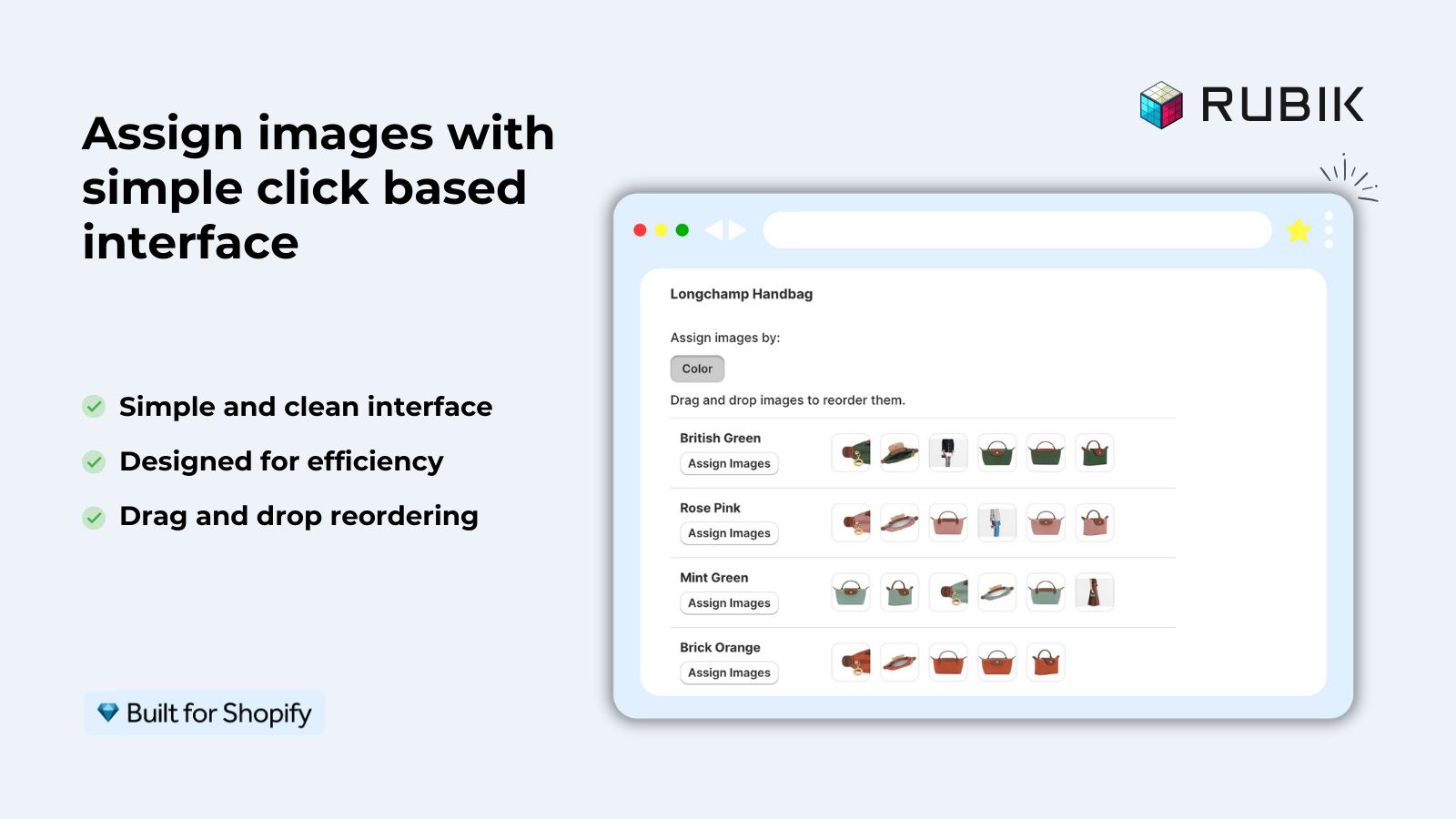
When assigning a Rubik Variant Image to enable variant image filtering, make sure to include appropriate alt text for the image. The app will filter by variant, but this image’s alt text is separate and needs to be set on the image itself in the Shopify admin.
Where to edit alt text in Shopify
Set the alt text for product images in the Shopify admin. Go to Products, open up a specific product, select any image in the media section. A panel will open up with an “Alt text” field, type in your description and save the changes. Repeat this step for every image type listed for the product.
Alt text for images goes in the same place you uploaded the image, and is found in the respective editor for products (collection banners, homepage images, blog post images).
Bulk editing alt text
We edit alt text one image at a time for 20 products and then move on to methods for 200 products or 2,000 products at once for additional products.
- Shopify bulk editor. Select products, click “Edit”, add the “Image alt text” column. Edit across products in the spreadsheet view. Good for moderate volumes.
- CSV export/import. Export products as CSV. The “Image Alt Text” column contains alt text per image. Edit in a spreadsheet (use formulas like
=A2 & " in " & B2 & ", front view"to generate alt text from product name and color columns). Reimport. - Shopify API. For programmatic updates, use the Admin API’s product images endpoint. Update alt text in bulk with a script. Best for stores that regularly add new products and want automated alt text generation.
A good bulk alt text formula is: 6:[Product name] in [color/variant name] [view type name]. This formula creates keyword alt tags for all of your products, simply filling in the fields for your products as you upload them, and otherwise repeating the same pattern for all of your products.
If your colours live as separate products rather than variants of one product, Rubik Combined Listings groups them into a single listing with swatches instead. Free to install, 5.0 stars across 78 reviews.
Common alt text mistakes
- Empty alt text. The worst offense. Google cannot index the image. Screen readers skip it entirely. Every image should have alt text, no exceptions.
- Using the filename as alt text. “IMG_4532.jpg” or “product-photo-3.png” tells search engines nothing. Some Shopify apps auto-generate alt text from filenames, which only works if your filenames are descriptive (e.g., “navy-wool-peacoat-front.jpg”).
- Same alt text for every image. If all 8 images on a product have the same alt text “Classic Tee”, you are wasting 7 ranking opportunities. Each image should describe what that specific photo shows.
- Keyword stuffing. “Red shoes running shoes athletic shoes mens shoes red running shoes” is spam. Google flags this. One natural keyword phrase per alt text.
- Starting with “Image of” or “Photo of”. Screen readers already announce it as an image. Starting with “Image of” is redundant. Start directly with the description: “Navy peacoat front view” not “Image of a navy peacoat”.
- Ignoring variant images. The main product image gets alt text, but variant-assigned images are left blank. Each variant image is a separate entry in Google Image search. Color-specific alt text on variant images drives color-specific search traffic.
For stores that use the color swatches with the Rubik Variant Images, the alt text on the variant images also provides benefits when Google indexes the variant specific content. Although the variant URLs all share the same canonical URL, the images are still able to rank independently in Google Images as long as the variant images have unique alt attributes.
These products can be separated out and listed with other Rubik Combined Listings, and each product can have its own image gallery with its own corresponding alt text for SEO. Each product can also be offered in different colours or materials.
“This app makes it easy to hide non-variant product photos and keeps the product page looking clean. It also helps to show clean custom swatches. Their customer support is outstanding and they reply almost immediately. They were able to fix a bug for me with minimal weight time.”
Anonymous merchant, 2026-02-18, Rubik Variant Images on the Shopify App Store
See the live demo store, watch the setup tutorial, or read the getting started guide.
Frequently asked questions
Does Shopify auto-generate alt text for product images?
Shopify doesn’t populate the alt text for images by default. You’ll need to populate the field manually, or perform bulk alt text generation using methods such as importing from a CSV file, using an API, or with the help of a Shopify app.
How long should alt text be?
5 15 words. Includes keyword, describes image, is readable by screen readers and is processable by search engines. Alt text is truncated by Google on the other hand for some functions beyond 125 characters.
Should I put keywords in alt text?
Use one relevant keyword per image. ” Navy blue wool peacoat front view” for example is good. ” Peacoat wool peacoat navy blue peacoat buy peacoat” is keyword stuffing and will hurt rankings.
Does alt text affect Google Shopping results?
Most importantly (indirectly), your product feed data (title, description) will be used by Google Shopping much more than your alt tag text. However, your alt tag text will still be useful to optimize images for Google Image Search results, which can lead to relevant traffic to your site that results in purchases. Google also stated that quality score of a given page will be improved by well written alt tag text.
Should decorative images have alt text?
Put alt=”” on simple decorative images like background patterns, dividers and spacers. Put meaningful alt text on product images, lifestyle images etc where the image actually conveys information to users.
Related reading

Umid
Co-Founder at Craftshift