How to display product variant images in the Shopify cart

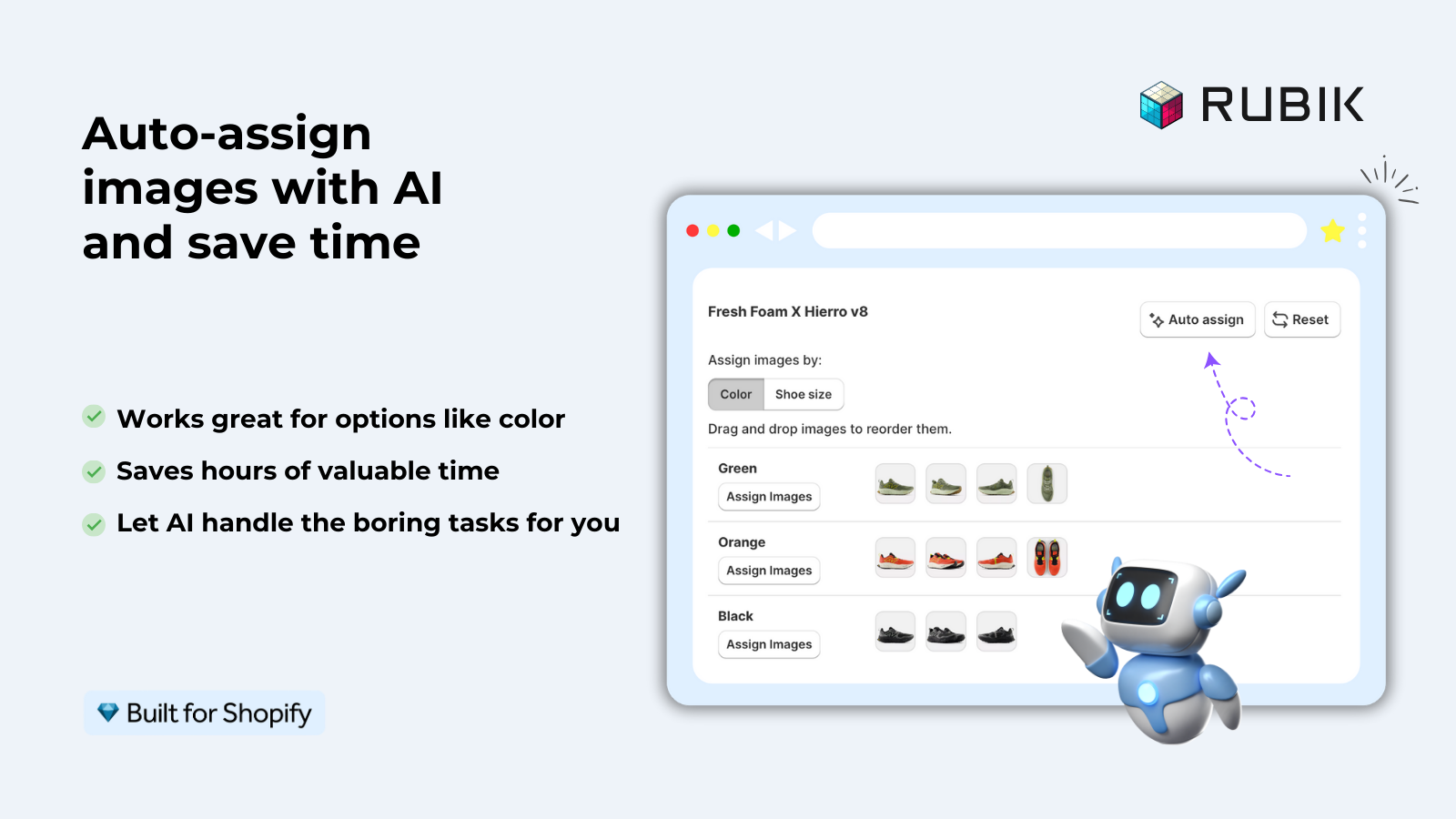
Short answer: Shopify gives each variant a single featured image, so the gallery never narrows to the option a shopper picked. Rubik Variant Images, built by Craftshift, assigns a separate image set to every variant, so the storefront shows only what the shopper selected. Free to install, 5.0 stars across 436 reviews.
Customer views: “Ocean Blue” on product page. Customer adds “Ocean Blue” to cart. Customer views cart. Thumbnail view of product in cart is either a random color (red in this example) or the generic black/white product image with zero color context. This happens on many more Shopify stores than you would think, and is a huge destroyers of customer trust right before the sale is about to be made.
We position the cart as the last visual element that the customer sees before submitting payment details. If the cart image doesn’t accurately reflect the variant of the product that the customer is purchasing, he or she may harbor doubts about whether that was the correct variant (i.e., “Did I pick the right one?”) and potentially go back to correct the error or abandon his or her shopping cart.
Shopify does enable displaying images specific to variants in the cart, but only if you have the images assigned to the respective variants and the theme is set up to display them correctly. This post explores the entire process and any issues you might encounter including displaying the wrong image.
In this post
- How variant images in the cart work
- Step 1: Assign images to variants correctly
- Step 2: Check if your theme supports it
- Step 3: Liquid code for variant images in cart
- Cart drawer vs cart page
- Troubleshooting wrong images
- FAQ
How variant images in the cart work
When you add a variant to the cart, Shopify stores the variant ID for the cart line item. Each variant can have one image assigned to it in the admin. Your cart template will then display the assigned image for that variant as the thumbnail for the line item.
The chain looks like this:
- You assign an image to a variant in the product editor
- Customer selects that variant and clicks “Add to cart”
- Shopify adds the variant ID to the cart object
- The cart template checks
item.image(which returns the variant’s assigned image) - If the variant has an assigned image, it shows that. If not, it falls back to the product’s featured image.
This error usually occurs on step 1 or step 4. Make sure all images are assigned to the correct product variants. Also, double check cart template to make sure item.image is being called correctly.
Step 1: Assign images to variants correctly
This is where most stores fail. They upload 10 product images but never assign them to specific variants. Without assignment, Shopify has no way to know which image belongs to which variant.
To assign an image to a variant in the Shopify admin:
- Go to Products and open the product
- Scroll to the Variants section
- Click a variant to expand it
- In the variant detail panel, click the image area and select the correct image from the product gallery
- Repeat for every variant
For large stores with 100’s of products, 1,000’s of variants manually associating product images to variants is a tedious task. With bulk processing of images, variants can be quickly assigned using filename patterns or by sequence of images. This manual task which takes hours to complete can be done in minutes with the aid of Rubik Variant Images.
Step 2: Check if your theme supports it
Most modern Shopify theme templates display product variant images in the cart. However some older Shopify theme templates, or customised version of theme templates, display the product’s Featured Image for all cart line items, even though different product variants can have different images. The most well known templates that display product variant images in the cart are Dawn, Prestige, Impulse, and Broadcast, as well as the Horizon theme template.
Quick test: add two different color variants of the same product to your cart. Are the images the same? No? Good. Are the images different? Even better.
If your theme does not support it, you need to edit the cart template. That is Step 3 below.
Step 3: Liquid code for variant images in cart
Theme shows wrong images or always same image even though correct images assigned to products. Update cart template to show the image for the specific variant instead of product image.
Go to Online Store > Themes > Edit Code and look for your cart template. In Dawn this is located in sections/main-cart-items.liquid. In other themes you might find a file called cart-template.liquid, cart.liquid, or a snippet called snippets/cart-item.liquid.
Find the line that renders the cart item image. It usually looks something like this:
<!-- WRONG: uses product image for all variants -->
{{ item.product.featured_image | image_url: width: 150 | image_tag }}
Replace it with:
<!-- CORRECT: uses variant-specific image, falls back to product image -->
{{ item.image | image_url: width: 150 | image_tag:
   alt: item.image.alt | default: item.product.title }}
item.image in Liquid returns the variant image if it exists, or the product featured image. item.product.featured_image always returns the same image, no matter the variant.
Some themes use a slightly different syntax with img_url instead of image_url:
<!-- Older Liquid syntax -->
<img src="{{ item.image | img_url: '150x' }}"
     alt="{{ item.image.alt | default: item.product.title | escape }}"
     loading="lazy">
Both work. The image_url + image_tag syntax is newer and responsive image friendly, but you can still use img_url.
Cart drawer vs cart page
Many Shopify themes use both a cart drawer and a cart page (i.e. they are two separate templates in the theme, each with their own ways of rendering images). Fixing one does not fix the other.
To style the cart drawer in Dawn, you’ll update sections/cart-drawer.liquid as well as sections/main-cart-items.liquid. Some themes will also have a mini cart in the header, where you’ll find a small product thumbnail (in a file named snippets/cart-icon.liquid etc).
AJAX cart drawers load in the cart dialog box without refreshing the page. As a result, the image may be pulled from the Cart API response instead of rendering in the correct place in the Liquid template. Note that the image URL will be from the JavaScript response object, and should use line_item.image instead of line_item.product.featured_image in the cart JavaScript.
If your colours live as separate products rather than variants of one product, Rubik Combined Listings groups them into a single listing with swatches instead. Free to install, 5.0 stars across 78 reviews.
Troubleshooting wrong images
If you are still seeing wrong images after having worked through all of the solutions previously listed, then there are a few common causes that could be affecting your searches.
- Image not assigned to variant. Go to the product, click the variant, and verify an image is assigned. No image = Shopify uses the product’s featured image as fallback.
- Multiple images assigned. Shopify only supports one image per variant natively. If you need multiple images per variant, the “variant image” (used in cart) is the first one. Additional images require an app like Rubik Variant Images to manage on the product page, but the cart will always show the single assigned variant image.
- Browser caching. After making changes, hard refresh (Ctrl+Shift+R or Cmd+Shift+R) to clear cached templates. Cart drawers in particular can be aggressively cached.
- App conflicts. Some cart modification apps override the cart template’s image rendering. If you use a cart upsell or cart drawer app, check if it has its own image source setting.
- Wrong Liquid variable. Double-check that you are using
item.image, notitem.product.images.firstoritem.product.featured_image. Onlyitem.imageis variant-aware.
For stores where the different color variations are separate products linked together in the Rubik Combined Listings, the cart image will display correctly (i.e. with a photo) since each of the individual products has a featured image set for it in the Store Cart. The variant^image attribute is not required in these cases.
“This app is perfect. it is incredibly easy to set up and use. There are so many cool ways you can set up your variant images AND adjust your swatches. The youtube tutorials are super helpful. I got a bit stuck trying to set up one of my products and Zulf was super quick to respond and help. Definitely recommend it if you are reading this ;D”
Anonymous merchant, Rubik Variant Images on the Shopify App Store
See the live demo store, watch the setup tutorial, or read the getting started guide.
Frequently asked questions
Which Shopify app should I use for variant images in cart?
Rubik Variant Images, built by Craftshift, is the app we build for this. It holds 5.0 stars across 436 reviews and carries the Built for Shopify badge. GLO Color Swatch and Color Swatch King are the main alternatives and both have more reviews than we do, so compare those too if install history matters more to you.
Does Shopify show variant images in the cart by default?
It depends on your theme. Most modern themes (Dawn, Prestige, Impulse) use the item.image field in the cart template, which loads up the variant image you assigned to the product. Older or custom themes might use the item.product.featured_image field, which means that same image gets loaded up for all variants.
Why does my cart show the wrong variant image?
Image not assigned to variant in product editor. Assign image within product editor for variant. If image is assigned but still not displaying, check cart template Liquid code, it should read item.image, not item.product.featured_image.
Can I show multiple images per variant in the cart?
Shopify carts only allow 1 image per line item, which would be the variant image for the product (or the featured image as a default). Some stores have gone with a composite image that shows all the product angles in one square thumbnail for the cart.
Does the cart drawer use the same image as the cart page?
Even for themes that have a theme based approach to displaying product variations, it is common for the theme to have have a separate template for the cart drawer (the small popup that appears when you click the cart from the navigation bar) and cart page. For Dawn, the cart drawer would be templates/sections/cart-drawer.liquid and the cart page would be templates/sections/main-cart-items.liquid.
What image size should I use for cart thumbnails?
Most themes render the cart thumbnails to be around 100-150px in width. Using 150px width in your Liquid code (image_url: width: 150) for standard screens and 300px for retina screens is a good compromise. Larger images are just wasting bandwidth and smaller images will look blurry on high-DPI screens.
Do I need an app for variant images in the cart?
Not usually, it already works. You just need to make sure all your images are assigned to the correct variant and your theme displays item.image in the cart. Our app, “Rubik Variant Images”, can take care of the image assignment task, also allows for bulk assignment for huge catalogs. But you need a separate app to change how theme cart is rendered.
Related reading

Umid
Co-Founder at Craftshift