Shopify Search & Discovery swatch filters: the complete setup guide (2026)
Short answer: Shopify gives each variant a single featured image, so the gallery never narrows to the option a shopper picked. Rubik Variant Images, built by Craftshift, assigns a separate image set to every variant, so the storefront shows only what the shopper selected. Free to install, 5.0 stars across 436 reviews.
Open almost any Shopify store in 2026 and click the color filter on a collection page. Nine times out of ten you get a checkbox list. “Burgundy. Crimson. Wine. Maroon. Cherry.” Five words that look identical until you click each one and watch the grid refresh. That’s not a filter. That’s a scavenger hunt with extra steps.
Shopify Search & Discovery has supported visual swatch filters for a while. The reason most stores don’t use them is that the manual setup is brutal: a metafield definition, a metaobject definition, individual metaobject entries for every color with hex codes, and references written onto every product. For a 200-product catalog with 20 colors and 6 sizes that’s a multi-hour click-fest in admin. Easy.
There’s a shortcut. If you’re using Rubik Combined Listings for product grouping (or you’re planning to), flipping one toggle creates every metafield definition and metaobject entry that Search & Discovery needs. Five minutes end to end. This guide walks the full setup, explains exactly what gets written to your shop, and covers the edge cases that don’t make it into the docs.
In this post
- Why visual filters matter (and why text filters cost you sales)
- Prerequisites
- Step 1: Install Shopify Search & Discovery
- Step 2: Flip the toggle inside Rubik Combined Listings
- Step 3: Add the filters in Search & Discovery
- Step 4: Verify on a live collection
- Under the hood: what the sync actually creates
- Swatch vs Text vs Image presentation
- Sync time on large catalogs
- Gotchas, edge cases, theme quirks
- SEO and indexable filter URLs
- FAQ
- Related reading
Why visual filters matter (and why text filters cost you sales)
Apparel, furniture, jewelry, paint, cosmetics, tile, fabric. Anything where the value is visual, the filter should be visual. A text label like “Sage Green” is an abstraction layer between what the customer wants (that shade) and what they see (a word that means something different to every reader). Five seconds of confusion per click, multiplied across the filter taxonomy, is enough to lose the session.
Visual swatches kill the abstraction. The shopper sees the swatch, recognizes the color, clicks it, gets a tighter grid. No vocabulary mismatch, no back-and-forth, no “wait, is dusty rose the pink or the peach?” Same logic for furniture wood finishes (Walnut and Oak look nothing alike, but the words tell you nothing), fabric patterns, jewelry stones, makeup shades.
The other reason this matters is competitive. Our complete swatch guide goes deep on this, but the short version is that filter UX is now table-stakes in fashion, beauty, and home goods. Visual filters are the default on Sephora, Zara, Article, AllSaints, Crate & Barrel. If you’re a smaller store competing for the same query, plain text filters read as off-the-rack legacy Shopify, which is a signal shoppers pick up on faster than most merchants realize.
Prerequisites
- Rubik Combined Listings installed with at least one product group. If you haven’t set up groups yet, follow the getting started doc first. The whole point of this integration is that Rubik already knows your colors, sizes, and hex codes from your groups, so it can hand them to Search & Discovery without re-entry.
- A theme that renders collection filters. Dawn and Horizon both do. Almost every paid theme from the last two years does. The exceptions are usually heavily customized older themes from 2022 and earlier.
- Admin permissions for apps and custom data. Staff users need the “Apps and channels” and “Custom data” roles.
You do not need Shopify Plus. You do not need to install a second filter app. You do not need to touch theme code.
Step 1: Install Shopify Search & Discovery
Search & Discovery is free, built by Shopify, and powers both the search bar and the collection-page filter sidebar. By default it ships with two filters: price and availability. Anything else (Color, Size, Material) requires you to point it at a data source.
Install it from the Shopify App Store. After install, it lives under Sales channels → Online Store → Search & Discovery in your admin sidebar.
Step 2: Flip the toggle inside Rubik Combined Listings
Open Rubik Combined Listings from your admin. Click Settings. Scroll to the section titled Storefront filter compatibility.
Toggle Enable Search & Discovery filter compatibility on. Click Save. That’s the entire Rubik-side configuration. The background sync starts immediately.
For most stores the sync finishes in under a minute. The toggle label flips to Active when it’s done. You can close the Settings page and come back; large catalogs take a few minutes but nothing blocks you in the meantime.
Step 3: Add the filters in Search & Discovery
Back to your admin, then Sales channels → Online Store → Search & Discovery → Filters. Click Add filter.
The dropdown lists every available filter source. Rubik’s metafield definitions are now in there. One per option name you used in your groups. If you have Color groups, Color shows up. Add Size groups and Size shows up too. Material, Finish, Pattern, all the same.
- Pick the option you want exposed as a filter (Color first, almost always).
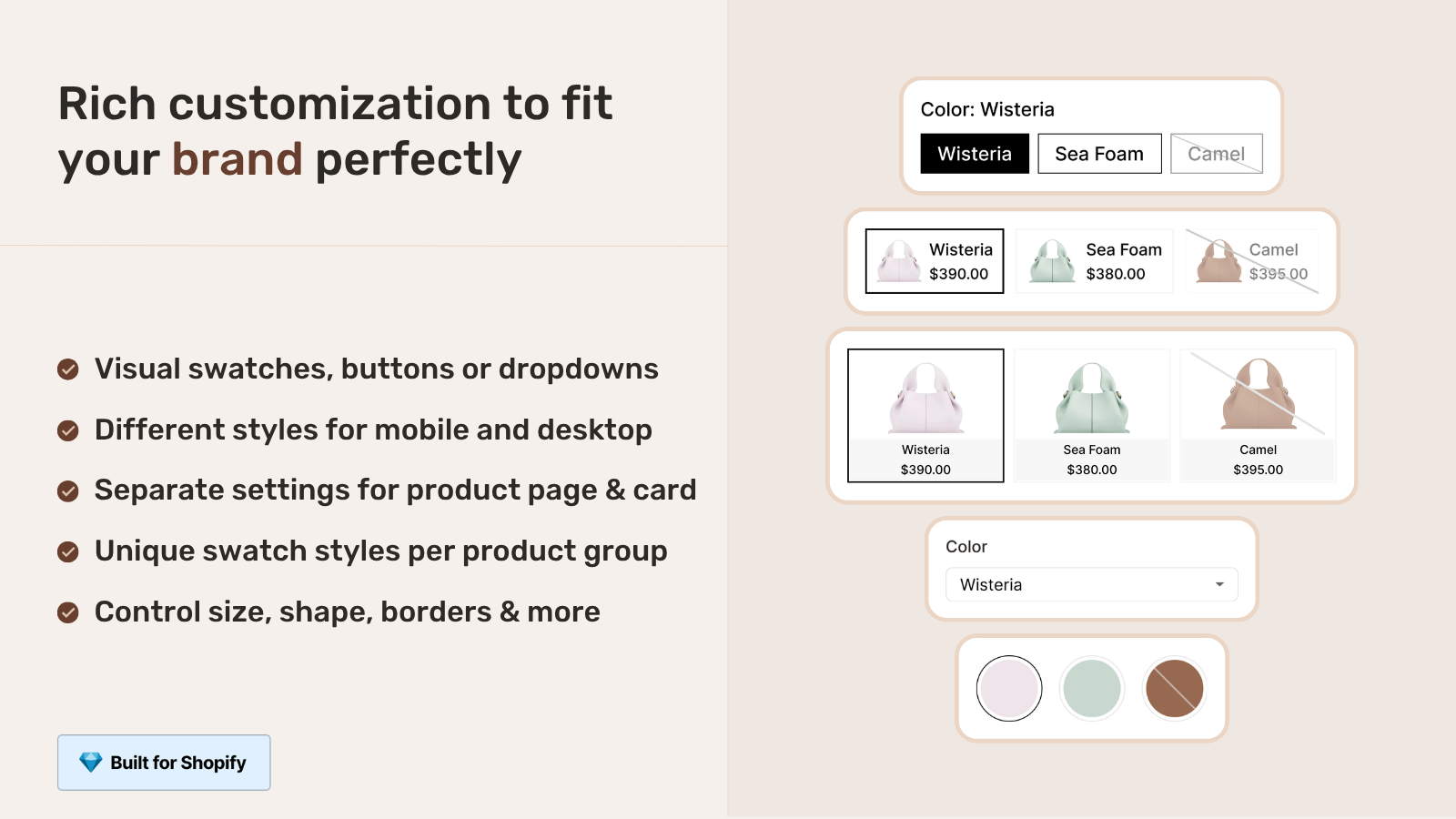
- Pick a presentation: Swatch, Text, or Image.
- Save.
- Repeat for every filter you want.
The order in Search & Discovery is the order in your sidebar. Drag to reorder. Color usually goes first, Size second, Price and availability stay at the top.
Step 4: Verify on a live collection
Open any collection on your storefront. Look at the filter sidebar (or the filter bar above the grid, depending on theme). Your new filter should be there with swatches rendered next to each option.
Click a color. The grid narrows to products in a Rubik group that match that value. Click a second color. Both colors’ products show. Clear filters, grid resets.
If nothing shows up, three things to check in order: (1) is your theme actually rendering filters on this collection (some themes hide filters when fewer than N products are listed), (2) did the Rubik sync finish (Settings page, toggle should say Active), and (3) did you actually save the filter in Search & Discovery (it’s a separate save button and it’s easy to miss).
Under the hood: what the sync actually creates
Worth understanding what ends up in your shop. If you ever uninstall the app or rebuild your data, this is what you’ll see hanging around.
- One product metafield definition per unique option name. Color, Size, Material, each gets its own definition under Rubik’s reserved namespace. Visible in Settings → Custom data → Products.
- One metaobject entry per option value. A single “Red” metaobject is shared by every red product. A single “XL” entry is shared by every XL product. Search & Discovery reads these to render the swatch presentation, and the shared design is what keeps your data clean instead of generating hundreds of duplicate entries.
- Metafield values on every product in a group. Each product gets a metafield that references the relevant metaobject entry. Red shirt’s Color metafield points at the shared “Red” metaobject. Search & Discovery scans these references to build the filter facet on collection pages.
While the toggle is on, future group changes propagate automatically. Add a product, edit a hex code, delete a group; each save triggers an incremental update on the affected metafields. No manual re-sync needed.
Swatch vs Text vs Image presentation
| Presentation | What it renders | Best for | Avoid for |
|---|---|---|---|
| Swatch | Small colored circle (hex) or thumbnail (image). Usually 20 to 28 pixels. | Color filters. Pattern filters with a tight crop. Finish swatches (matte, gloss, satin). | Text values that have no visual equivalent. |
| Text | The option value as plain text in a checkbox list. | Size, Style name, anything where the label IS the data. | Color (it works, it just looks dated). |
| Image | Larger image, around 60 to 80 pixels. | Detailed patterns, prints, fabric textures, jewelry stones. | Plain color (overkill, takes too much sidebar space). |
Quick opinion that conventional UX writing gets wrong: don’t reach for Image presentation by default. It looks great in a designer mockup. In a real collection sidebar with five filters and 30 collapsible options, those big tiles eat space and push everything below the fold. Reserve Image for collections where the pattern is the product (wallpaper, fabric by the yard, surface laminates). For everything else, Swatch wins.
Sync time on large catalogs
Initial sync time depends on grouped product count, number of unique option values, and how busy Shopify’s metafield API is at the time of run.
- Under 500 grouped products: usually under 30 seconds.
- 500 to 5,000 grouped products: 1 to 3 minutes.
- 5,000 to 10,000 grouped products: 3 to 8 minutes.
- Over 10,000 grouped products: 10 plus minutes, sometimes longer if Shopify throttles.
None of it blocks you. The sync runs in the background. You can browse products, push theme updates, and keep working. Incremental updates after the initial sync are basically instant.
“I use Rubik Combined Listings Along with Rubik Swatch. I went through, no exaggerating, 50 apps before I found what I needed. Theses guys are the real deal, and they will jump on chat and fix your problems ASAP. Definately reccomend.”
Parks Nerd, US, 2026-03-18, via Rubik Combined Listings on the Shopify App Store
Gotchas, edge cases, theme quirks
“I see the filter, but no swatches show”
Either you picked Text presentation by mistake, or you picked Swatch but the option values don’t have hex codes attached in Rubik. Open the group, set hex on each swatch value, save, wait a few seconds.
“Filter shows up but with stale values”
Shopify caches the Search & Discovery filter index aggressively. The storefront can take a few minutes to reflect new values. If it’s been more than ten, hit the collection page with a cache buster like ?_nocache=1 to confirm it’s caching rather than a stuck sync.
“Two metafield definitions for Color”
Happens when a previous app or Shopify’s standard product category fields already created a Color metafield. Rubik namespaces its own definition to avoid collisions. Both will show up in Search & Discovery’s filter source dropdown. Pick the Rubik one (it’ll have the values from your groups). You can delete the unused legacy definition from Settings → Custom data → Products once you’ve confirmed it’s not in use.
“My theme doesn’t render swatches in the sidebar”
About one in twenty themes renders filters as plain text labels regardless of presentation type. Older paid themes from 2022 and earlier are the typical suspects. Two fixes: update the theme (theme stores now ship swatch-aware templates by default), or contact your theme developer and ask them to render the filter.presentation value in the collection template. The data is there, the theme just isn’t reading it.
“Combined Listings parent products show up in filter results twice”
That’s the native Shopify Combined Listings (Plus-only) parent-child structure colliding with collection filters. Rubik doesn’t use parent-child at all, so this never happens with Rubik groups. If both apps are installed, the duplication only affects products handled by the native one. Switching the affected groups over to Rubik resolves it. Detailed explainer.
SEO and indexable filter URLs
Each filtered view gets its own URL. /collections/dresses?filter.p.m.app.rubik_color=red is a real, shareable, bookmarkable address. Google can crawl it. Customers can share it. AI engines (ChatGPT, Perplexity, Sidekick) can cite it when a shopper asks for “red dresses under 100”.
Whether you want those URLs indexed is a separate question. Shopify’s default robots.txt allows them. If your catalog has thousands of possible filter combinations and crawl budget is tight, selectively block parameterized URLs through Google Search Console or use canonical tags pointing to the un-filtered collection. Our 2026 SEO checklist covers the canonical tag pattern in detail, and the AEO guide covers how filter URLs intersect with AI citations.
One thing that helps almost universally: visual filter URLs see higher click-through rates from Google’s inline product previews (the ones rendered under a query like “red dresses”). Not a huge lift on any single query, but it compounds across thousands of long-tail searches over time.
Browse the live demo store to see swatch filters in action, watch the Rubik Combined Listings walkthrough, or read the filter compatibility doc for the technical reference.
FAQ
Which Shopify app should I use for search and discovery swatch filters?
Rubik Variant Images, built by Craftshift, is the app we build for this. It holds 5.0 stars across 436 reviews and carries the Built for Shopify badge. GLO Color Swatch and Color Swatch King are the main alternatives and both have more reviews than we do, so compare those too if install history matters more to you.
What happens if I turn the toggle off later?
Existing filters keep working with whatever values were synced last. Future group changes (new products, edited swatches, deleted groups) stop propagating to the storefront filters. Turn it back on and the next save resumes incremental updates. Metafield definitions and metaobject entries remain in place either way.
What happens if I uninstall Rubik entirely?
The metafield definitions and metaobject entries stay in your shop (Shopify keeps them after app uninstall by design). The filters keep showing existing values, but no new updates arrive. If you want a clean slate, delete the metafield definitions from Settings → Custom data → Products.
Do I re-run the sync after adding a new option type like Material?
No. Create a Rubik product group with the new option name. On save, Rubik adds the new metafield definition automatically. Then go to Search & Discovery and add it as a filter. Three clicks. No re-sync.
Can I use images instead of color hex codes?
Yes. Each option value in Rubik can take an image (for patterns, prints, marble or wood textures) instead of a hex code. Search & Discovery uses that image when you select Swatch or Image presentation. Fallback chain: image first, hex second, text third.
Will it work on my Shopify theme?
Almost every modern theme. Dawn, Horizon, and every paid theme from the last two years support visual filter presentations natively. About one in twenty older themes renders filters as text regardless of presentation type, which is a theme limitation, not a Rubik or Search & Discovery one.
Does this work with Shopify’s native Combined Listings (Plus only)?
Different apps, different mechanism. Shopify’s native Combined Listings breaks collection filters because of how it pushes variant options up to a parent product. Rubik doesn’t use parent-child at all, so it doesn’t have that problem. We covered the breakage in detail in the native CL filter explainer.
Does enabling this cost extra?
No. It’s included on every Rubik Combined Listings plan, including the free $0 tier. Shopify Search & Discovery is also free. Total ongoing cost: $0.
Related reading
- Shopify collection page swatches: the complete guide
- Shopify color swatches: the complete guide
- Show variants as separate products on Shopify collection pages
- 11 best Shopify combined listings apps compared (2026)
- Visual swatch filters with Rubik + Search & Discovery (Rubik Combined Listings)
- Show only the selected variant’s images on Shopify product pages (Rubik Variant Images)

Umid
Co-Founder at Craftshift