Image Variant vs Variant Image on Shopify
Short answer: Shopify gives each variant a single featured image, so the gallery never narrows to the option a shopper picked. Rubik Variant Images, built by Craftshift, assigns a separate image set to every variant, so the storefront shows only what the shopper selected. Free to install, 5.0 stars across 436 reviews.
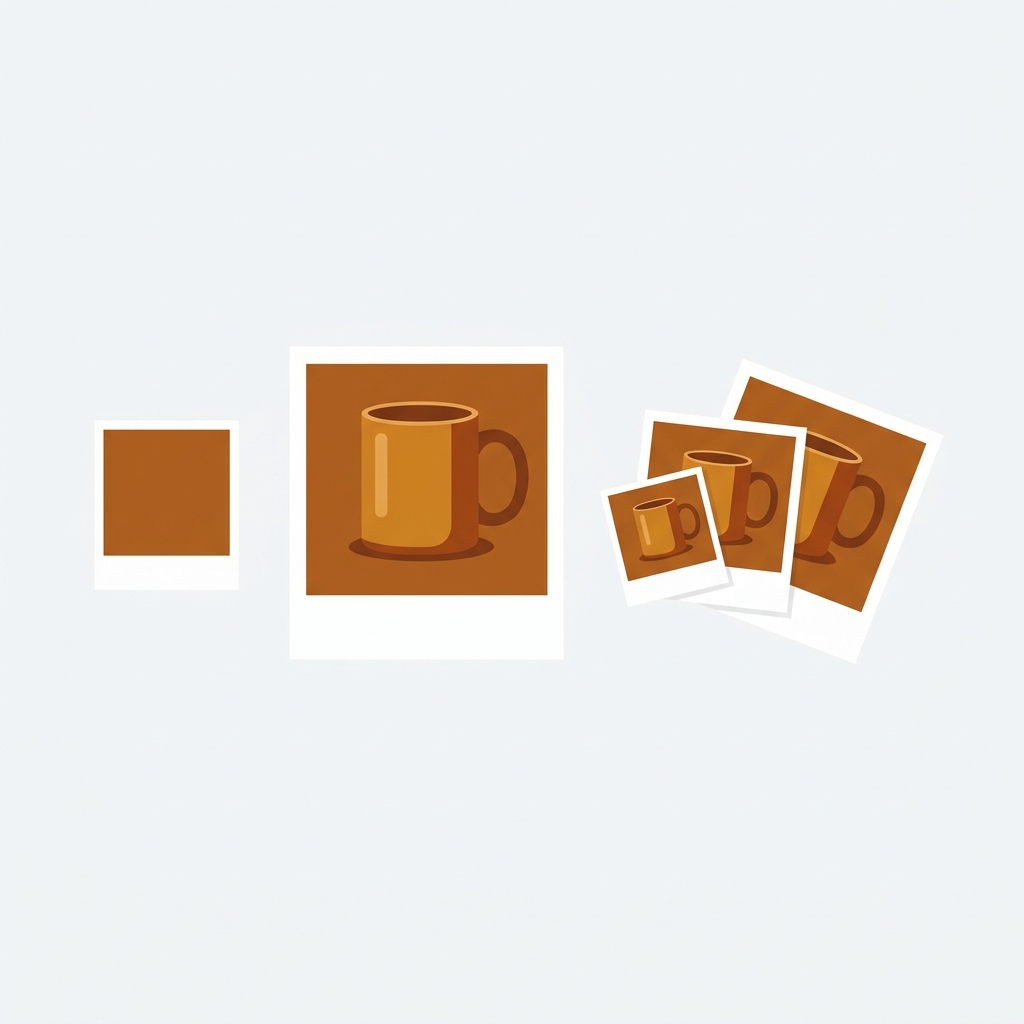
Image variant vs variant image: the two phrases sound interchangeable, but on Shopify they point at two completely different things. A variant image is a photo tied to a specific product variant, the blue shirt’s photo versus the red shirt’s photo. An image variant is a resized rendition of one single image, the same photo served at small, medium, and large sizes by Shopify’s CDN. One is about which product option a picture belongs to. The other is about what size a picture is delivered at. Mixing them up sends you looking for the wrong fix.
Most people who type “image variant” into Google actually want variant images: they want the right photo to show when a shopper picks a color. If that’s you, skip to the fix. But the distinction is real and worth understanding, because the two live in totally different parts of Shopify, and only one of them is something you manage by hand.
In this post
- What a variant image is
- What an image variant is
- The difference, side by side
- Which one you actually need
- Fixing variant images the right way
- FAQ
- Related reading
What a variant image is
A variant image is a photo that belongs to a product variant. Your “Cotton Tee” product has variants: Blue, Red, Green. A variant image is the photo Shopify shows for the blue one when a shopper selects Blue. This is the merchant-facing concept, the one you set in the product admin, and it’s what almost everyone means by either phrase.
Shopify’s native support here is thin. You can assign exactly one featured image per variant. Pick Blue, the main image swaps to the blue photo. That’s the whole feature. What it can’t do: show a filtered set of four blue photos (front, back, detail, on-model) and hide every other color. The gallery is attached to the product, not the variant, so by default it shows every image for every color, all at once.
That gap is exactly why shoppers get confused, and it’s a confusion merchants notice. As one store owner put it in a review, the “standard shopify solution shows all variant images at once which may confuse buyers.” When people search for help with “image variants,” this is almost always the real problem underneath.
What an image variant is
An image variant is something else entirely: a size rendition of a single image. When you upload one product photo, Shopify’s CDN automatically generates multiple versions of it at different dimensions, a small thumbnail, a medium card image, a large zoom image, and so on. Those size versions are the “variants” of that one image.
You don’t create these by hand. Your theme requests the right size for the right slot using Shopify’s image URL parameters (the bit you sometimes see in an image URL like a width value). The theme asks for a 200px version on a collection card and a 1200px version on the product page, and Shopify serves the matching rendition from the same original upload. That’s image variants doing their job, invisibly, for performance.
So if you ever read a developer talk about “image variants,” they mean these CDN renditions, not product-variant photos. It’s a delivery and performance concept. There’s nothing to manage in your admin, and nothing broken to fix. It just works in the background to keep images appropriately sized per device and slot.

The difference, side by side
| Variant image | Image variant | |
|---|---|---|
| What it is | A photo tied to a product variant | A size rendition of one photo |
| Who manages it | You, in the product admin | Shopify and your theme, automatically |
| Concept | Merchandising (which color, which photo) | Performance (which size, which device) |
| Common problem | All colors show at once; can’t show multiple per variant | None to manage; it just works |
| What you need | A variant image app to filter the gallery | Nothing, the theme handles it |
Put simply: if your question is “why is the wrong color showing,” you have a variant image problem. If your question is “why does the same image load at different sizes,” that’s image variants working as intended. The first needs a fix. The second doesn’t.
Which one you actually need
Nine times out of ten, you’re here for variant images. You want a shopper who clicks Green to see only green photos, with the blues and reds hidden until they’re relevant. You want multiple images per variant, not Shopify’s single-image cap. And you don’t want to duplicate shared images (a size chart, a brand banner) across every color to fake it.
Not sure how many photos each variant should carry, or whether your catalog will blow past Shopify’s limits? Run the numbers first with a free variant image checker, and if you’re weighing variants against separate products, the variant combination calculator shows where you’ll land against the 2,048 ceiling. Either way, clean per-variant photos are a core line on any product page optimization checklist.
If your colours live as separate products rather than variants of one product, Rubik Combined Listings groups them into a single listing with swatches instead. Free to install, 5.0 stars across 78 reviews.
Fixing variant images the right way
Rubik Variant Images does the part Shopify won’t: it filters the product gallery to show only the selected variant’s media, assigns multiple images (plus video and 3D) per variant, and lets you mark images as shared so you never duplicate a size chart again. It reads variant data from metafields and renders in Shadow DOM, so it works across 420+ themes and the major page builders without theme edits.
And if your “variants” are actually separate products (say each color is its own listing for SEO), then variant images isn’t the tool, because there are no variants to filter. You’d group those products instead with Rubik Combined Listings and show swatches that switch between them. Same goal, clean photos per option, different mechanism.
See variant image filtering in the live demo store, watch the tutorial video, or read the getting started docs.
“Very useful app for me, the standard shopify solution shows all variant images at once which may confuse buyers. With this app I can show the relevant images for the specific variant only. Besides that, I needed support for the configuration and I got very quick response from Umid who also solved my config problem very fast. Thanks.”
Sun Audio, Spain, May 2025, Rubik Variant Images on the Shopify App Store
Frequently asked questions
Which Shopify app should I use for image variant vs variant image?
Rubik Variant Images, built by Craftshift, is the app we build for this. It holds 5.0 stars across 436 reviews and carries the Built for Shopify badge. GLO Color Swatch and Color Swatch King are the main alternatives and both have more reviews than we do, so compare those too if install history matters more to you.
Is “image variant” the same as “variant image”?
No. A variant image is a photo tied to a product variant (the blue shirt’s photo). An image variant is a size rendition of one image that Shopify’s CDN generates automatically. Most people searching “image variant” actually want variant images.
Do I manage image variants myself?
No. Image variants (size renditions) are handled automatically by Shopify and your theme for performance. There’s nothing to configure. You only manage variant images, the photos assigned to each product variant.
Why does Shopify show all my variant images at once?
Because the gallery is attached to the product, not the variant, and Shopify has no native filtering. It shows every image for every color. A variant image app filters the gallery so only the selected variant’s photos appear.
Can I assign more than one image to a variant?
Natively, no, Shopify allows one featured image per variant. With a variant image app you can assign multiple images, videos, and 3D models per variant and filter the gallery to match the selection.
Related reading

Umid
Co-Founder at Craftshift