Your Shopify collection page shows every color as a separate product. Here is how to let customers browse them all without leaving the page.
You sell a t-shirt in six colors. Each color is its own Shopify product with its own photos, its own URL, its own SEO title. When customers browse your collection, they see six product cards. Each one shows the actual product in that exact color. That is exactly what you want.
But here is the gap. A customer scrolls through your collection. The navy version catches their eye. They click it. They land on the navy product page. They see navy photos, a navy description, a navy price. What they do not see is that you also sell it in black, white, sage, rust, and cream.
They either buy the navy one or they leave. All those other colors you photographed, listed, and optimized for search? Invisible to that customer.
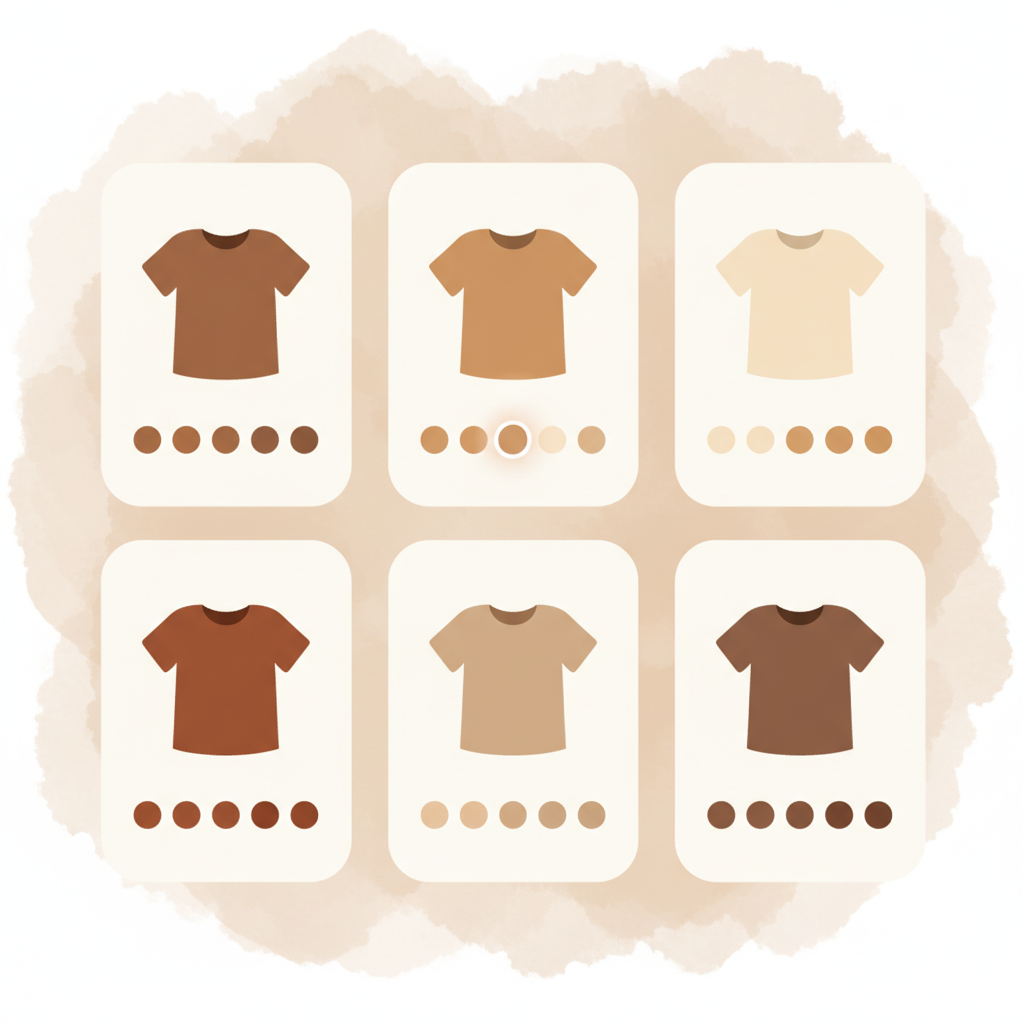
The fix is not removing products from your collection or merging them into one listing. The fix is adding color swatches directly to your product cards so customers can see and explore every option without leaving the collection page.
Swatches on your product cards
When you group your products with Rubik Combined Listings, the app does not just add swatches to the product page. It also injects small color swatches directly into each product card on your collection page.
These swatches sit underneath the product image, inside the card. They show a row of color dots (or small images, depending on your settings) representing every product in that group. Customers instantly see: this shirt comes in six colors.
The swatches are constrained to a single row by default, so they do not break your grid layout. If you have a product with 12 colors, the row shows as many as it can fit and the rest are accessible on the product page. Your collection stays clean.
Hover to preview: see the color before you click
On desktop, hovering over a swatch does something useful. The product card image swaps to show that color’s product photo. No click needed. No page load. Just move your mouse over the “rust” swatch and the card image changes to the rust t-shirt.
This lets customers quickly scan through all available colors for a product without clicking anything. They hover over each swatch, see the actual product photo for that color, and decide which one they want to look at more closely. It is the same browsing pattern that large fashion retailers use.
The images are preloaded in the background so the swap is instant. There is no flicker or loading delay when hovering between swatches. When the customer moves their mouse away, the card image returns to the original product photo.
You can also enable tooltips that show the color name when hovering over a swatch. So instead of guessing whether that brownish dot is “Rust” or “Terracotta,” customers see the label right there.
Click to switch: change the entire card
Hover preview is great for browsing, but clicking a swatch can do even more. When you enable click-to-switch, clicking a swatch updates the entire product card to reflect the selected product.
Here is what changes:
- The image swaps to the clicked product’s photo and stays there (it does not revert on mouse leave like hover does).
- The title updates to the clicked product’s name. “Navy Cotton Tee” becomes “Rust Cotton Tee.”
- The price updates if the products have different prices. If the rust version costs more, the card shows the rust price.
- The link updates so clicking the card takes the customer to the correct product page. They will not land on the navy product page after clicking the rust swatch.
This means customers can switch between products entirely within the collection page. They do not need to go to a product page, hit back, find the next color, and repeat. They browse, compare, pick a color, and then click through to the product page only when they are ready.
Compare-at prices work too. If a product is on sale, the card shows the sale price with the original price crossed out, just like it would on the product page.
Desktop vs. mobile: different settings for different devices
Touch screens do not have hover. That is why the app lets you configure desktop and mobile behavior separately.
On desktop, hover preview is on by default. Customers move their mouse over swatches and see the image change. You can optionally enable click-to-switch for a more persistent experience.
On mobile, hover is not available, so the main interaction is tapping. You can enable click-to-switch for mobile independently. This means a customer scrolling your collection on their phone can tap a swatch to see that color’s image, title, and price right in the card, without navigating to a new page.
The visual settings editor lets you customize swatch sizes, spacing, and layout for each device separately. Cards typically use smaller swatches (around 32 pixels) compared to product pages (around 60 pixels), so they fit naturally in the card layout without overwhelming it.
Works with your theme automatically
The app detects your Shopify theme and knows where to inject swatches on the product card. It finds the right container, the right image element, the right price and title elements. For popular themes like Dawn, Impulse, Prestige, Be Yours, and dozens of others, this works out of the box.
If your theme uses a custom or less common layout, the app provides fallback selectors that work with most card structures. In rare cases where auto-detection does not find the right spot, you can adjust the placement using the visual settings.
Why this approach is better than merging products
You might wonder: why not just merge all colors into one product with variants? Then the collection would show one card instead of six, and you could use Shopify’s built-in variant picker.
You could. But you would lose the things that made separate products valuable:
- Each color shows its actual photo in the collection. Customers see the real product in each color as they scroll, not a single generic photo with a dropdown menu hidden on the product page.
- Each color has its own URL and SEO title. “Navy Cotton Tee” and “Rust Cotton Tee” are different search queries. Separate products rank independently.
- Each color has its own focused photo gallery. No scrolling past 30 images to find the right color. Each product page shows only the photos for that specific variant.
- Print-on-demand and supplier integrations stay intact. Apps like Printify and Printful create separate products by design. Merging them would break fulfillment.
- Shopify’s collection filters work naturally. Customers can filter by color and see only the products that match. Each card represents one color.
With swatches on your product cards, you get the best of both approaches. Each color shows separately in the collection with its own photo. And customers can preview and compare all colors right there on the card, then follow through to the product page they actually want.
Try it on your store
Install Rubik Combined Listings and group your products. Product card swatches are enabled by default. Once your groups are set up, visit any collection page on your store and you will see swatches on the cards immediately.
To enable click-to-switch, go to the visual settings editor and turn on the click-to-switch option for desktop, mobile, or both. You can also customize swatch size, spacing, and tooltip behavior for product cards separately from product pages.
If you have a large catalog, use bulk grouping to detect and create all your groups at once instead of setting them up one at a time.
See it in action on the demo store, or check the visual settings documentation for all available card customization options.
