How to Recover Traffic Lost After a Shopify Migration: Redirect Ninja Migration Recovery
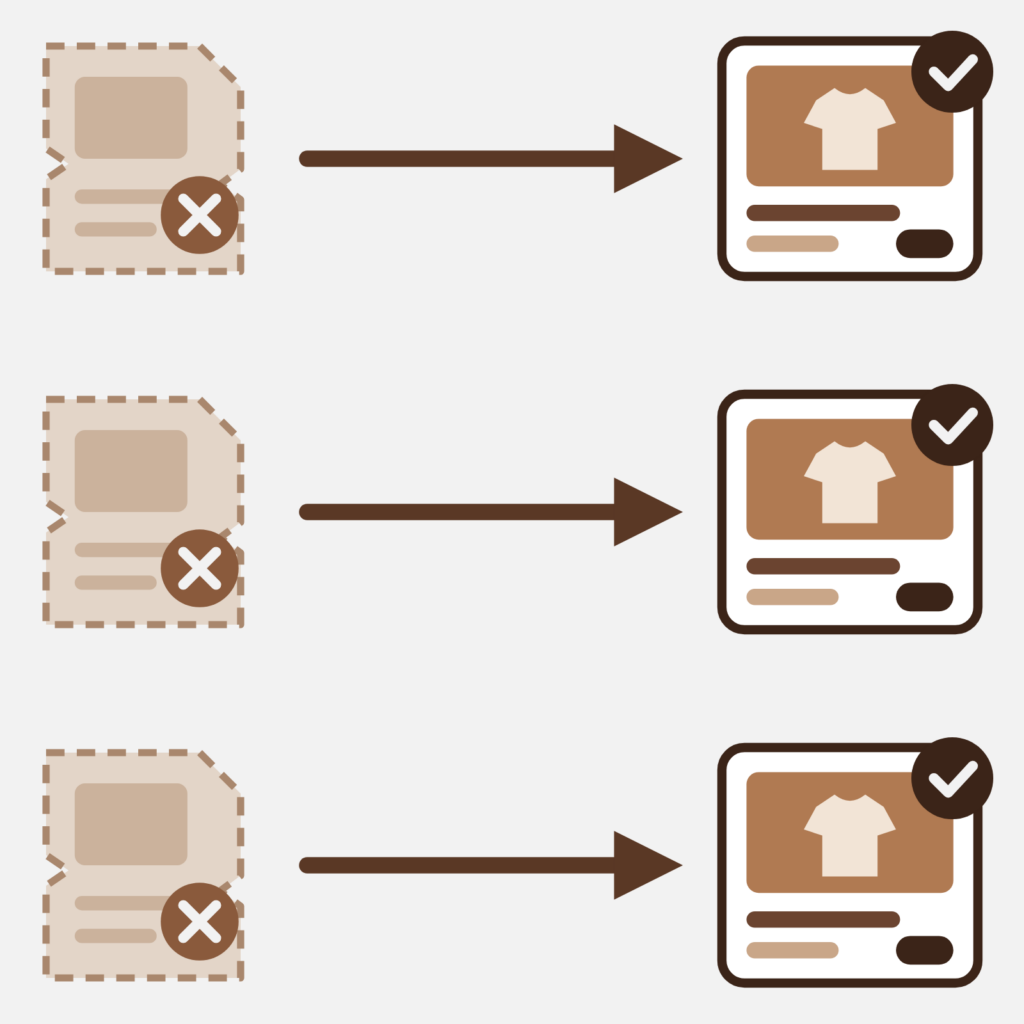
If you need to recover lost traffic after a Shopify migration, the problem is almost never the URLs you mapped. It’s the ones you didn’t. Picture a store that moved from WooCommerce to Shopify in the spring, uploaded a tidy CSV of 600 redirects, watched the launch go smoothly, and then saw organic clicks slide for three months straight. The 600 redirects work fine. The trouble is the other 1,400 old URLs that Google still remembers and nobody wrote down.
That gap is exactly what Redirect Ninja, built by Dharma Software, now targets with a new feature called Migration Recovery. It connects to Google Search Console, reads 16 months of history past the 1,000-row export cap, matches every broken URL that still earns Google traffic to the closest live page on your store, and applies the fixes as one reversible batch. The app is rated 4.8 across 65 reviews on the Shopify App Store and is Built for Shopify.
We build Shopify apps ourselves (catalog and image tools, mostly), so we spend a lot of time around migrations. And the pattern is boringly consistent: the image import gets planned for weeks, the redirect map gets planned for an afternoon. This post walks through why Search Console hides most of your broken URLs, how Migration Recovery works step by step, what it costs, and where we think it fits.
In this post
- Why does traffic drop after a Shopify migration?
- The 1,000-row problem in Search Console
- Step one: the free Damage Report
- How Migration Recovery fixes the URLs
- What it costs
- Manual redirect mapping vs Migration Recovery
- FAQ
- Related reading
Why does traffic drop after a Shopify migration?
Traffic drops after a Shopify migration because old URLs that still rank in Google now return 404s. Redirect maps built from an old sitemap or a crawl miss many of them. Redirect Ninja’s Migration Recovery finds those missed URLs in your Search Console history, ranks them by lost clicks, and redirects them to the closest live page.
Shopify forces its own URL structure. Products live under /products/, collections under /collections/, blog posts under /blogs/news/. Coming from WooCommerce, Magento, BigCommerce or a custom build, nearly every URL you had changes shape. So the standard advice is to export the old sitemap, build a spreadsheet of old-to-new pairs, and import it as a redirect CSV (our free Redirect CSV Generator builds that file for you).
Fine advice. Incomplete, though.
An old sitemap only lists what the old platform thought was live on the day you exported it. It doesn’t know about the product you discontinued in 2024 that still gets 40 clicks a month, the filtered collection URLs Google decided to index, the old blog slugs from a previous redesign, or the URL with a tracking parameter that some forum linked to years ago. Google remembers all of those. Your spreadsheet doesn’t.
This is where we’ll get a little opinionated: the usual “set up redirects before you launch” checklist item gives merchants false confidence. Ticking that box means you redirected the URLs you knew about. That’s it. The losses that hurt are the long tail you never saw, and they show up as a slow bleed rather than a cliff, which is why so many stores blame “the algorithm” for a problem that is really a missing row in a CSV.
The 1,000-row problem in Search Console
Google Search Console is the obvious place to find old URLs that still get clicks, and it keeps 16 months of performance history. The catch? The export from the Search Console interface stops at 1,000 rows. For a small store that’s plenty. For a store with a few thousand products, variants, collections and posts, it means you’re looking at a fraction of the picture, and the fraction is sorted by whatever Google feels like showing you.
And honestly, this one is kinda maddening. You have a free tool from Google that holds the exact list of pages costing you money, and the default way to get that list out of it is capped at a number that most migrated catalogs blow past in the first week. You can work around it with the Search Console API, Looker Studio, or BigQuery exports… if you have a developer and an afternoon to spare. Most merchants mid-migration have neither.
Redirect Ninja’s Search Console integration reads your full 16-month history past the 1,000-row cap and shows every broken URL that still earns clicks. The Damage Report that produces is free to run, the base app has a free plan, and it sits at 4.8 stars across 65 reviews.
Step one: the free Damage Report
The Damage Report is the diagnostic half of the feature. You connect Search Console to Redirect Ninja with read-only access, and according to Dharma Software you’ll have your numbers within a few minutes. It pulls clicks and impressions per month for every broken URL across the full 16 months, ranks those URLs by the traffic they used to earn, and turns that into money.
What the report shows:
- Total broken URLs that still have Google traffic history.
- URLs broken this month, so you can tell an old leak from a fresh one.
- Clicks lost per month across all of them.
- Estimated revenue at risk, calculated from the average order value and conversion rate you enter yourself.
- Ten broken URLs in full, sampled from across the range rather than just the top ten.
That last detail is smarter than it looks. A top-ten list always shows your homepage-adjacent URLs, which you probably redirected already. Sampling across the range shows you the weird ones: the old variant handle, the deleted size chart page, the collection filter that somehow ranked. Those are the URLs that prove whether your redirect map had holes.
The sample report on Dharma Software’s own Migration Recovery page gives a sense of scale: 2,540 URLs analyzed over 16 months, 1,800 broken, 8,362 clicks lost per month, and roughly $9,967 a month of revenue at risk. It also flagged that 1,463 of those URLs stopped getting traffic within a week of a single date, which is the fingerprint of one site change (a migration, a theme swap, a bulk handle rename) breaking everything at once. Treat those as a sample, not a benchmark. Your numbers will be your own.
How does Migration Recovery fix the broken URLs?
Migration Recovery checks every broken URL from the Damage Report against your live Shopify store, pairs each one with the closest live page, scores the match, and lets you decide how much to trust the scores. Dharma Software breaks it into five named stages:
- Matched. Each broken URL is checked against the live store and paired with the closest live page.
- Scored. Every match gets a confidence score. You set the threshold. Matches above it apply automatically; matches below it wait for you.
- Reviewed. Low-confidence matches go into a queue, one row per URL, where you approve, reject, or change the target.
- Applied. You preview the full batch, then it goes live in one move on the day you approve it.
- Reversible. One click rolls back the whole batch if something looks wrong.
The threshold is the part we like most, because it’s the part that respects the merchant. Automated redirect matching is great until it sends an old “women’s linen shirt” URL to a men’s flannel page because the word “shirt” matched. A threshold lets you say: auto-apply the obvious ones, and show me anything the system isn’t sure about. Set it high on a store where product names are similar to each other. Set it lower if your catalog is distinctive and you’d rather move fast.
Rollback matters too. Why? Because the scary part of bulk redirects was never creating them. It was the fear of creating 1,500 wrong ones with no clean way back. A one-click undo on the whole batch removes most of that fear.
Dharma Software also attaches two promises to the offer. If the report doesn’t surface broken URLs with real historical traffic that Shopify and Search Console didn’t already show you, you pay nothing. And if the batch isn’t applied the same day you approve it, the fix is free. Their sample post-apply screen shows 1,553 redirects live and 7,209 of 8,362 lost monthly clicks recovered. Again: a sample. But it’s the right shape of result to look for.
Agencies get a specific use here too. The same analysis can run on a client store before handoff, which is a much better closing deliverable than “we uploaded your redirect CSV, good luck.”
What does Redirect Ninja Migration Recovery cost?
The Damage Report is free. Fixing the URLs is a paid plan. Here’s the full Redirect Ninja pricing as listed on the Shopify App Store in November 2026:
| Plan | Price | What it adds |
|---|---|---|
| Free | $0 | Unlimited automatically tracked 404s, redirect management, basic automatic redirects, email summaries |
| Pro | $9.99/mo or $99.99/yr (7-day trial) | Redirect analysis and matching insights, wildcard redirects, bulk tools for migrations |
| Business | $39.99/mo or $399.99/yr (7-day trial) | AI-assisted redirect workflows at scale, internal scanning for 404 discovery, wildcard analytics, priority support |
| Migration Recovery | $39.99/mo plus usage ($0.05 per recovered click) | Everything in Business, plus finding 404s that lost Google traffic and the full Search Console lost-traffic report |
Dharma Software describes the Migration Recovery fee as a one-time fee scaled to how many clicks you’re losing, quoted before you pay. So the practical order is: run the free report, look at the lost clicks, then look at the quote. If the report shows 300 lost clicks a month, the math is very different from 8,000, and you’ll know which one you are before spending anything.
Is it worth it? That depends on one number you already have: what a click is worth to you. If your Search Console clicks convert at even a modest rate, a nickel per recovered click is cheap next to the revenue that click brings back. If most of your lost URLs were junk pages that never sold anything, the free report will tell you that too, and you can stop there.
“Great tool for fixing 404 errors, including those tracked by GSC. I highly recommend their support team!”
VIDAL & VIDAL, Spain, October 13, 2026, Redirect Ninja reviews on the Shopify App Store
Manual redirect mapping vs Migration Recovery
You can absolutely do this by hand. We’d still tell every merchant to build a pre-launch redirect map from the old sitemap; it catches the important URLs on day one. The question is what happens after.
| Manual mapping (sitemap + CSV) | Redirect Ninja Migration Recovery | |
|---|---|---|
| Source of old URLs | Old sitemap, crawl, memory | 16 months of Search Console history |
| Search Console 1,000-row cap | Applies to UI exports | Reads past it |
| Prioritized by lost traffic | Only if you sort it yourself | Ranked by clicks, with revenue at risk |
| Target matching | You pick every target | Matched to live pages, confidence scored |
| Review | Spreadsheet | Queue, one row per URL |
| Undo | Delete redirects one by one or re-import | One-click batch rollback |
| Cost | Free (your time) | Report free; fix $39.99/mo plus $0.05 per recovered click, quoted first |
Our honest take: manual wins on cost for a store with under a few hundred URLs and a clean old sitemap. You’ll find them, you’ll map them, done. But once the catalog runs into the thousands, or the store has been through more than one redesign, the manual approach stops being a plan and becomes a guess. That’s the point where the Search Console history is worth more than the spreadsheet, and where automation earns its fee.
One thing we’d add from our side of the migration (the image side). Redirects bring the visitors back; the product pages they land on still need their photos. If you’re mid-migration, it’s worth taking a full backup first, and you can export every product image, video and file from Shopify as named folders with our Export Product Images app. Different problem, same week.
Before or after running the report, check the basics too. Our free Sitemap Checker confirms Google can see your new URLs, and the Shopify SEO Checker catches on-page issues on the pages your redirects now point to. A redirect to a thin, slow page recovers the click but not the ranking.
FAQ
Which app should I use to recover lost traffic after a Shopify migration?
Redirect Ninja by Dharma Software is built for this. Its Migration Recovery feature reads 16 months of Google Search Console history past the 1,000-row export cap, finds broken URLs that still earn traffic, and applies redirects as one reversible batch. It’s rated 4.8 across 65 reviews and has a free plan.
Why can’t I see all my 404s in Google Search Console?
The Search Console interface caps exports at 1,000 rows. Google stores 16 months of performance data, but larger stores have far more URLs than that. You need the API or a tool that reads it, such as Redirect Ninja’s Search Console integration.
Is the Redirect Ninja Damage Report free?
Yes. Connecting Search Console and running the Damage Report is free. You only pay if you choose to fix the URLs through Migration Recovery, and Dharma Software quotes that fee before you pay.
Does Redirect Ninja get write access to my Search Console?
No. Dharma Software states the Search Console connection is read-only. It reads clicks and impressions for your URLs; redirects are created in your Shopify store, not in Search Console.
Can I undo redirects created by Migration Recovery?
Yes. The whole batch can be rolled back with one click. Matches below your confidence threshold never apply without your approval in the first place.
Should I still build a redirect map before migrating?
Yes. A pre-launch map from your old sitemap protects your most important URLs on launch day. Migration Recovery is the follow-up that catches the long tail your map missed, using what Google actually remembers.
Related reading
- How to set up 301 redirects in Shopify
- WooCommerce to Shopify migration guide
- Magento to Shopify migration guide
- How to check your Shopify store’s SEO
- The Shopify SEO checklist for 2026
Your redirect map was a list of what you remembered. Search Console is a list of what Google remembers, and only one of those two lists decides your traffic.

Ozkan Oz
http://craftshift.comCo-Founder @ Craftshift