How to Prepare Product Images for a Shopify Bulk Upload
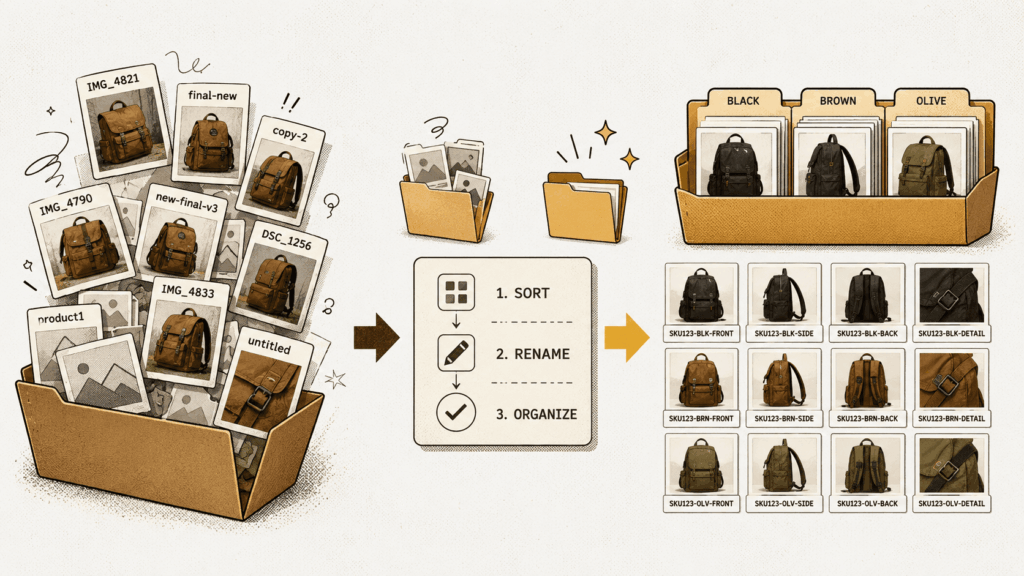
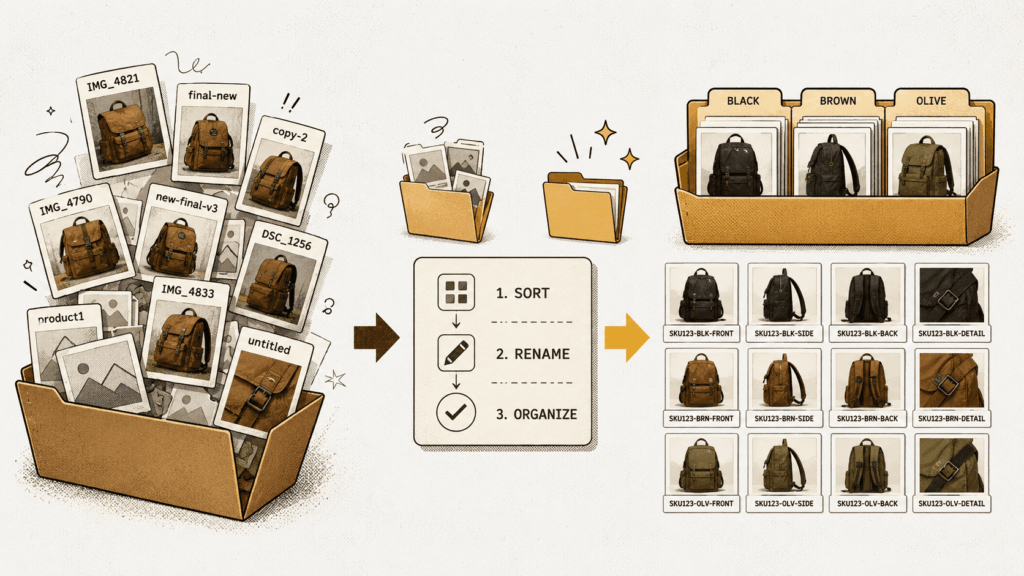
You receive 800 polished product images from a photographer. The image quality is excellent, but the filenames look like IMG_4821.jpg, final-new-2.jpg, and blue-shirt-left.jpg.
The files may be ready for a campaign, but they are not ready for a reliable Shopify bulk image upload. Shopify cannot tell which product or variant each image belongs to from those names. An automated upload tool cannot make that decision safely either unless it has a consistent identifier to follow.
That is why image preparation matters. Before uploading a full catalog, you need to check the files, connect them to your product data, decide their order, and test how existing images will be handled.
This guide gives you a practical system for doing exactly that.
Why preparation matters before a Shopify bulk image upload
A bulk upload makes a repeatable process faster. It does not fix an unclear process.
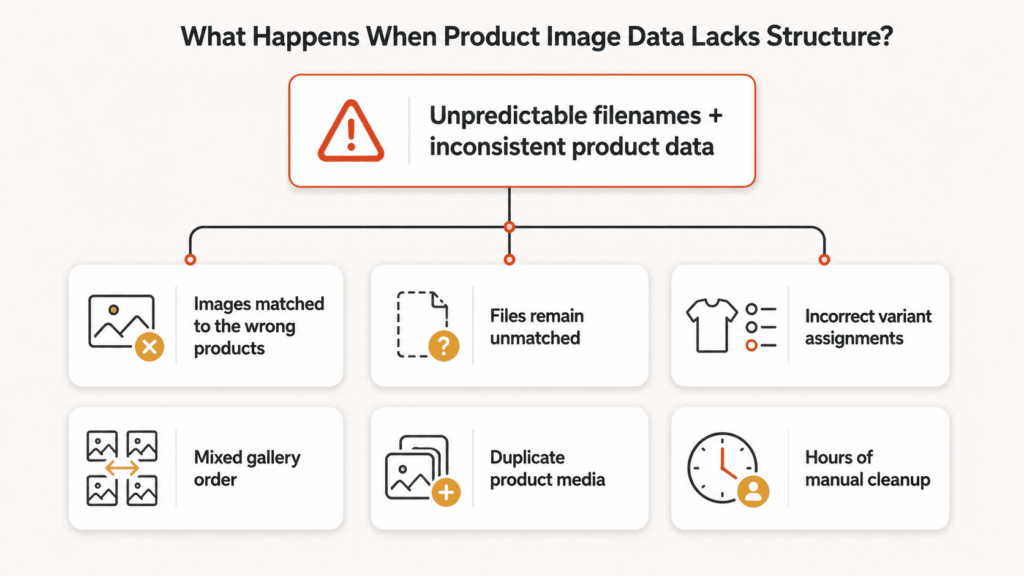
The safest approach is to make every important decision before selecting the full folder. Your upload method should be able to answer three questions for every image:
Which product does this image belong to?
Does it belong to a specific variant or to the product gallery?
Where should it appear in the image order?
Once those answers are represented in your catalog data and filenames, the upload becomes much easier to review and scale.
Step 1: Check Shopify’s product image requirements
Start with the technical basics. A perfect naming system cannot help if Shopify rejects the file itself.
Shopify’s general admin file requirements support JPEG, PNG, WebP, HEIC, and GIF images. The same page lists a maximum file size of 20 MB and a maximum resolution of 20 megapixels. Shopify’s product-media guidance is slightly different and currently discusses product images up to 5000 by 5000 pixels or 25 megapixels, while still requiring files smaller than 20 MB.
Because Shopify documents different upload contexts separately, check the current requirements for the exact place and method you use to upload. You can review Shopify’s file upload requirements and product media guidance before processing a large batch.
Keep the visual treatment consistent
Technical acceptance is only the first check. Product galleries also need to feel consistent.
Review the crop, background, framing, lighting, and aspect ratio across the batch. When featured images use different aspect ratios, collection grids can look uneven unless the theme compensates for them. Shopify recommends using a consistent aspect ratio for images shown side by side.
Consistency does not mean every image must be square. It means the team should choose a standard deliberately and apply it across comparable products.
File size and image dimensions are not the same
File size measures how much storage an image uses, usually in megabytes. Image dimensions describe its width and height in pixels. Megapixels are calculated from those dimensions.
An image can be below 20 MB and still exceed a resolution limit. It can also have acceptable dimensions but be unnecessarily heavy because of its format or export settings. Check both before uploading.
Step 2: Choose the identifier that connects each image to a product
An identifier is the bridge between a filename and the corresponding Shopify product or variant. The best option is not necessarily the most familiar one. It is the field that is complete, stable, and unique in your catalog.
| Identifier | Best used when | Main risk |
| SKU | Every relevant product or variant has a unique SKU | Missing or duplicated SKUs create ambiguous matches |
| Barcode | Barcodes are complete and unique | Photography teams may not receive barcode-based filenames |
| Product title | Titles are stable and genuinely unique | Similar titles, spaces, punctuation, and later title edits can cause problems |
| Metafield | The catalog already has a dedicated image identifier | Empty or repeated values weaken the matching rule |
| Variant ID | Exact variant-level mapping is required | IDs are harder for photographers and content teams to use |
SKU is often the most practical starting point, but only when each SKU is unique. A structured filename cannot rescue duplicated catalog data.
For example, imagine two products both use SHIRT-BLUE as their SKU. An image called SHIRT-BLUE-01.jpg follows a clear naming rule, but the identifier still points to two possible destinations.
Before preparing the image folder, export or review the field you plan to use. Look for blank values, duplicates, unexpected spaces, inconsistent capitalization, and identifiers that are contained inside other identifiers.
Step 3: Decide whether images belong to products, colors, or individual variants
This is where many apparel and multi-variant catalogs become complicated.
Suppose a shirt has these variants:
TS100-BLUE-S
TS100-BLUE-M
TS100-BLUE-L
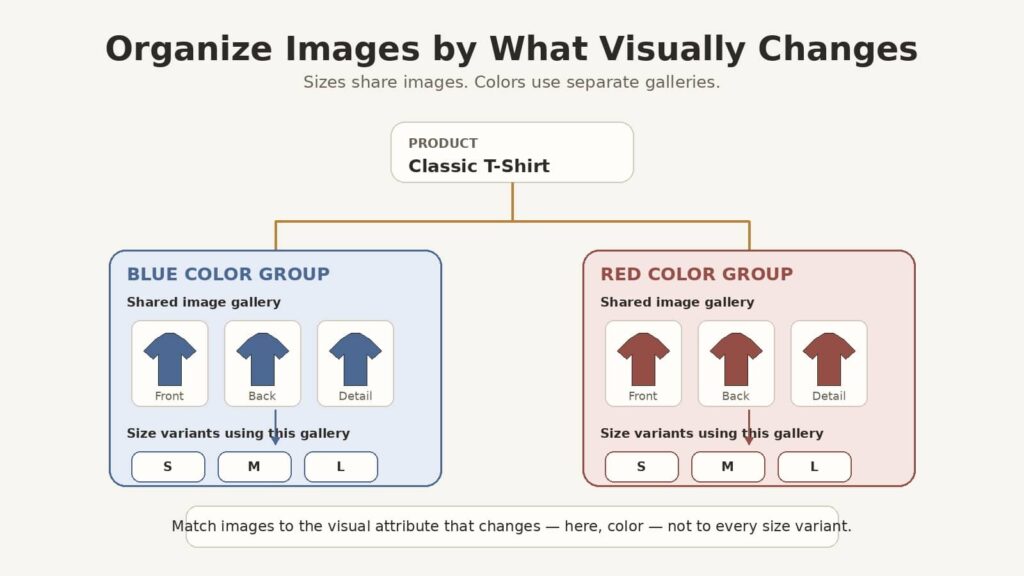
If the product uses the same blue gallery for every size, creating separate copies for small, medium, and large adds unnecessary complexity. The useful visual group is TS100-BLUE, not each size SKU.
Ask what actually changes in the image:
If only the size changes, the variants can often share the same color images.
If the color or material changes, each visual option may need its own image group.
If every variant has unique packaging, labels, or details, individual variant mapping may be necessary.
Make this decision before naming the files. Otherwise, the filenames may encode size-level detail even though the upload and storefront need color-level groups.
Step 4: Create a scalable Shopify image naming convention
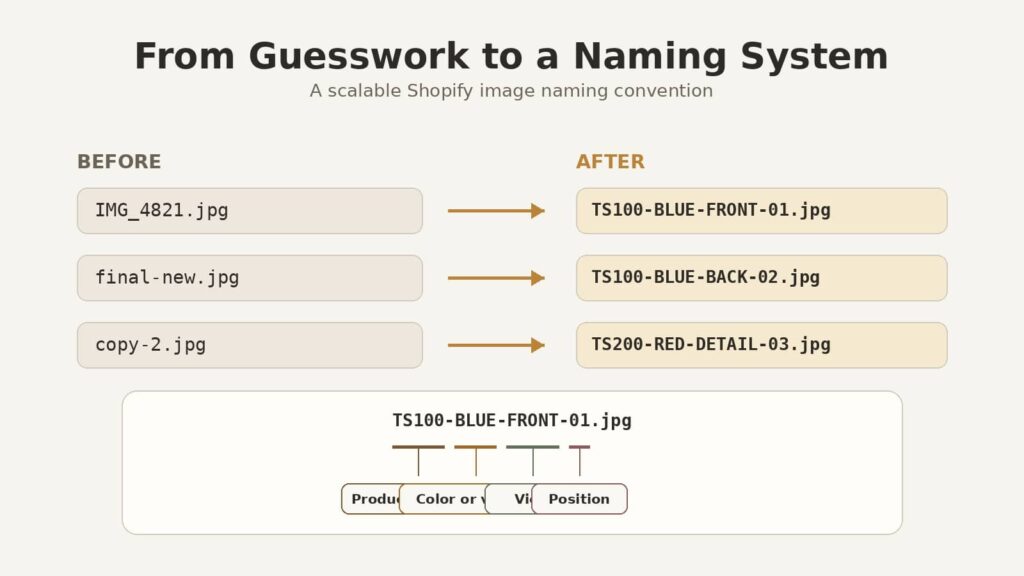
A useful naming convention is simple enough for people to follow and structured enough for software to interpret.
A practical pattern is:
[unique-identifier]-[variant-or-view]-[position].jpg
Examples include:
TS100-01.jpg
TS100-BLUE-01.jpg
TS100-BLUE-FRONT-01.jpg
TS100-BLUE-BACK-02.jpg
The first token identifies the product or variant group. The optional middle token adds meaningful visual information. The final number controls the intended sequence.
Use position numbers consistently
Use padded numbers such as 01, 02, and 03. Padding keeps filenames in a predictable order when a folder contains more than nine images.
The position can represent a standard photography sequence:
primary product view
alternate angle
detail shot
scale or lifestyle image
packaging or included accessories
Shopify’s product CSV also uses an image-position field, with images displayed in ascending numerical order. Your upload workflow may interpret filename positions differently, so confirm its exact separator and numbering rules before renaming the full library.
Avoid names that require guesswork
These filenames may make sense to the person who created them, but they do not provide a safe catalog identifier:
final.jpg
final-new.jpg
shirt-blue.jpg
IMG_1049.jpg
new-product-2-copy.jpg
A good test is simple: could a colleague who has never seen the folder identify the intended Shopify product and image order from the filename alone? If not, the structure needs more work.
Keep filenames operational, not stuffed with keywords
The primary purpose of the filename is accurate asset management. A concise, descriptive name can also provide useful context, but there is no need to turn every filename into a long list of SEO phrases.
TS100-BLUE-FRONT-01.jpg is easier to maintain than best-organic-blue-tshirt-buy-online-front-product-photo-01.jpg.
Step 5: Organize folders around the actual upload workflow
There are two common approaches.
A single folder with complete filenames
This works well when each filename contains everything required for matching:
product-images/
TS100-BLUE-01.jpg
TS100-BLUE-02.jpg
TS200-RED-01.jpg
It is easy to process as one batch, but only if the filenames are reliable.
One folder per product or group
This is useful when photographers or suppliers deliver files in product-level sets:
product-images/
TS100/
TS100-BLUE-01.jpg
TS100-BLUE-02.jpg
TS200/
TS200-RED-01.jpg
Do not assume every uploader scans nested folders automatically. Confirm whether the selected tool reads subfolders, reads only the chosen folder, or uses folder names as part of its matching logic. If recursive scanning is optional, make sure it is enabled before judging the number of images found.
Also check access permissions when using cloud storage. Seeing a folder in your own Google Drive or Dropbox account does not always mean a connected app can read every file inside it.
Step 6: Decide what happens to existing Shopify images
Uploading new images and replacing existing media are different operations. Make the replacement decision explicitly before starting.
Your workflow may need to:
keep existing images and add new ones
replace the complete product gallery
replace only variant images
skip files that have already been uploaded
update selected positions while preserving the rest
There is no single correct setting. A seasonal catalog refresh may require replacement, while adding new lifestyle photography may require keeping the current gallery.
The risk appears when the team assumes one behavior and the selected upload setting performs another. Record the intended rule in the job checklist, then verify it on the test products.
Step 7: Prepare alt text separately from filenames
Filenames organize assets. Alt text describes the meaningful content of an image for people who cannot see it and appears when an image cannot load.
Write concise descriptions based on what the image shows. For example:
Blue linen shirt shown from the back
This is more useful than copying TS100-BLUE-BACK-02.jpg into the alt-text field. It is also better than adding unrelated keywords.
Shopify recommends brief, descriptive alt text and explains that assistive technology uses it to describe media to customers with visual impairments. See Shopify’s guide to adding alt text for the current editing steps.
Step 8: Run a small test batch
Do not make your full catalog the first test.
Choose three to five representative products:
one simple product with a single image
one product with several gallery images
one product with multiple variants
one product whose images are grouped by color
one known edge case, such as a similar SKU or unusual filename
This small set should expose most structural problems without creating a large cleanup job.
Check the preview before uploading
Confirm the following:
every image points to the correct product
variant-specific images point to the correct variant or visual group
the image order matches the filename positions
existing media will be kept or replaced as planned
duplicates will not be created unexpectedly
unmatched files have an understandable reason
the connected folder has access to every expected file
Check Shopify admin and the storefront afterward
The media order in Shopify admin and the gallery behavior in your theme are related, but they are not always identical. Themes and variant-gallery apps can control which images customers see after selecting an option.
After the test upload, open the affected products in Shopify admin and on desktop and mobile storefronts. Select several variants, swipe through the gallery, and confirm that the correct images remain visible.
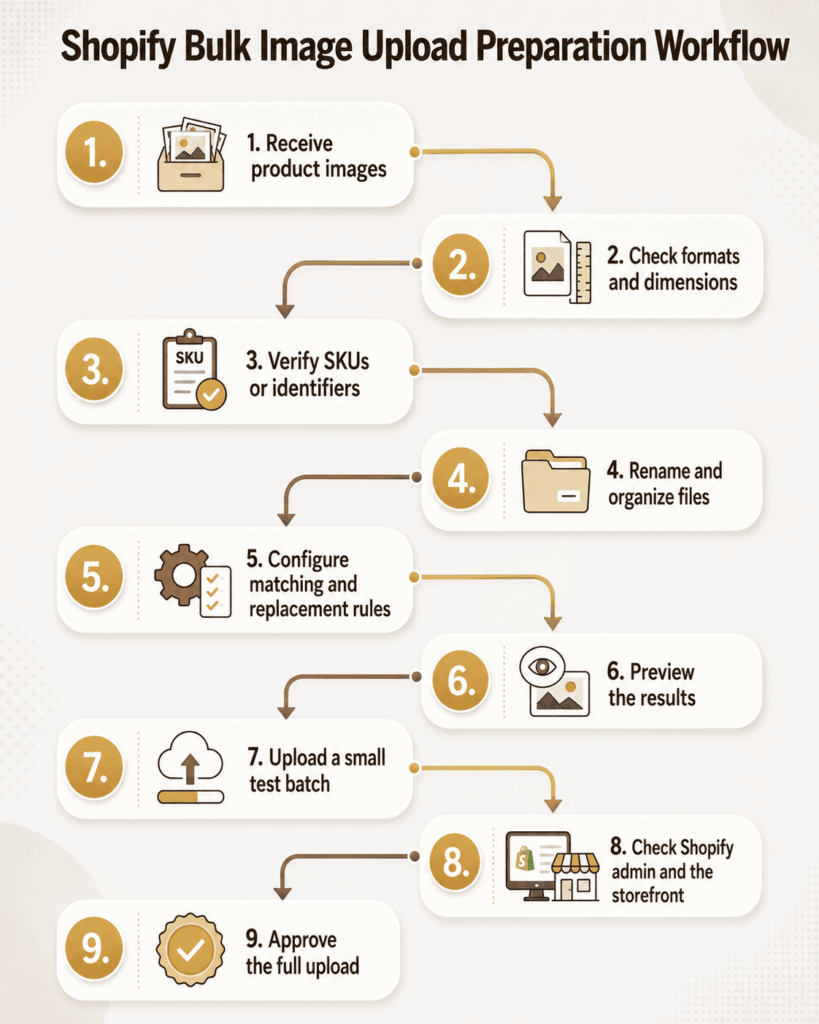
Shopify bulk image upload checklist
Use this before approving the full job:
| Check | Ready? |
| Supported formats confirmed | ☐ |
| File size and resolution checked | ☐ |
| Aspect ratios reviewed | ☐ |
| Product identifier selected | ☐ |
| Missing and duplicate identifiers resolved | ☐ |
| Product, color, and size grouping decided | ☐ |
| Naming convention documented | ☐ |
| Position numbers added consistently | ☐ |
| Folder structure matches the uploader’s behavior | ☐ |
| Cloud-folder permissions confirmed | ☐ |
| Existing-image behavior selected | ☐ |
| Representative test batch reviewed | ☐ |
| Shopify admin and storefront checked | ☐ |
Turn the preparation system into a repeatable workflow
Once the structure is ready, CS Smart Bulk Image Upload can connect Google Drive or Dropbox folders to Shopify and match images using SKU, barcode, product title, or metafield data. It also lets you preview matching results before the upload and choose whether to keep or replace existing product images.
The app follows the rules you provide. Clean identifiers and predictable filenames are still what make those rules reliable.
Start with five representative products rather than the entire catalog. If the matches, image positions, variant assignments, and replacement behavior are correct, apply the same naming and folder structure to the remaining files.
Frequently asked questions
What is the best filename format for Shopify product images?
A practical format is [unique-identifier]-[variant-or-view]-[position].jpg. For example, TS100-BLUE-FRONT-01.jpg identifies the product group, color, view, and intended order. The exact separator should match the requirements of your upload workflow.
Can Shopify automatically match product images by SKU?
Shopify’s normal manual image upload does not interpret arbitrary filenames and assign them to products by SKU. SKU-based matching requires a structured import process, custom integration, or an app designed to compare filenames with Shopify product data.
Should every Shopify variant have a separate image?
No. A variant needs distinct imagery when it changes something visually meaningful, such as color, pattern, material, or packaging. Size variants often share the same color-specific gallery.
Can I bulk upload Shopify images from Google Drive?
Yes, with a connected app or integration that can access the Drive folder and map its images to Shopify products. Smart Bulk Image Upload supports Google Drive and Dropbox imports with matching based on SKU, barcode, product title, or metafield data.
