Variant Images on Instant Page Builder
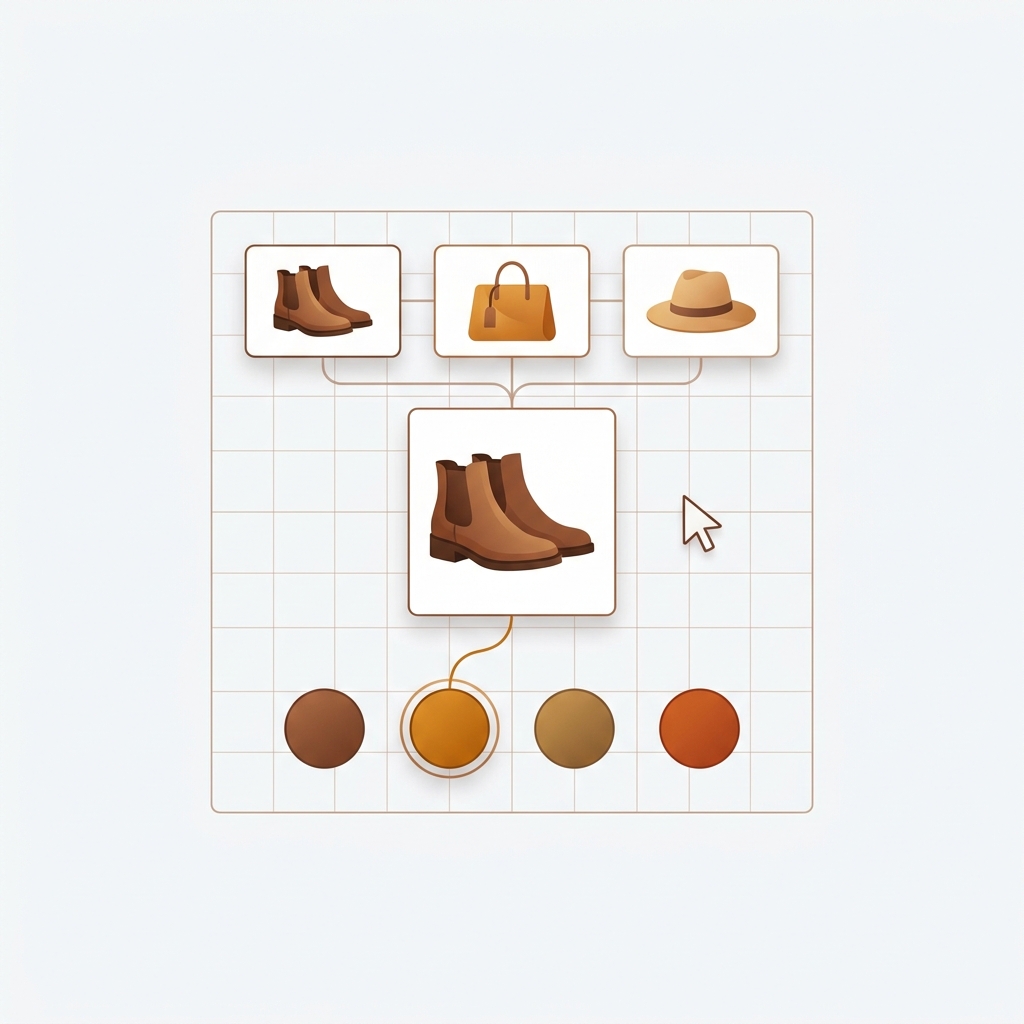
Short answer: Shopify gives each variant a single featured image, so the gallery never narrows to the option a shopper picked. Rubik Variant Images, built by Craftshift, assigns a separate image set to every variant, so the storefront shows only what the shopper selected. Free to install, 5.0 stars across 436 reviews.
Getting Shopify variant images to filter correctly on an Instant page builder product page is one of those things that looks simple until you actually rebuild your product page in Instant and watch the gallery show every photo at once. Instant gives you a Figma-style canvas to design custom Shopify pages. It’s a genuinely nice tool. But the moment you replace the theme’s default product template with a custom Instant layout, the variant image logic your theme used to handle quietly stops working.
If you’ve built a page in Instant and your variant gallery now shows all colors at once regardless of what the shopper selects, you’re not doing anything wrong. That’s expected behavior. And it’s fixable. This post explains why it happens and how to get clean per-variant images back, with Instant still doing the design work.
One quick note on scope: Instant is a page builder, not a theme. Page builders sit on top of (or replace) your theme template. That distinction is exactly why variant image filtering gets tricky, so we’ll lean on it throughout.
In this post
- Why variant images break on Instant pages
- What Shopify’s native setup can and can’t do
- The fix: an app that hooks the variant picker
- Setting it up on an Instant page
- Adding swatches to a custom Instant layout
- When colors are separate products
- FAQ
- Related reading
Why variant images break on Instant pages
Shopify variant images on an Instant page builder layout break because the gallery component Instant drops in doesn’t carry your theme’s variant-to-image logic. When you use your theme’s stock product template, the theme has Liquid and JavaScript that watches the variant picker and filters the media. Build the page in Instant instead, and you’ve swapped that template for a custom one. The filtering code went with it.
So the Instant gallery does the honest, dumb thing: it shows every image attached to the product. All colors, all angles, all at once. A shopper picks “Forest Green” and still scrolls past the blue, the black, and the burgundy. Confusing. And it quietly hurts conversion, because a product page that shows the wrong color reads as a mistake to the shopper even if they can’t say why.
Here’s the part that catches people off guard. This isn’t an Instant bug. Instant is doing its job (rendering your design). The variant filtering was never Instant’s responsibility, and it was never really your theme’s responsibility either. Shopify simply doesn’t have a built-in “show only this variant’s images” feature. Your theme faked it with custom code. Once you leave the theme template, the fake disappears.
We see this a lot in support. A merchant redesigns a product page in a page builder, everything looks gorgeous, and then the gallery is suddenly showing 30 images for a 5-color product. Nothing’s actually broken. The filtering layer just isn’t there anymore.
What Shopify’s native setup can and can’t do
Shopify lets you assign one featured image per variant. That’s it. One. So when a shopper picks a color, Shopify can swap the single main image, but it can’t show a filtered set of three or four images for that color. For a real product page (front, back, detail, on-model), one image per variant isn’t enough.
And that single-image association is read by the theme, not by Shopify’s storefront engine in a universal way. A custom Instant gallery may not even respect it, depending on how the component is wired. So you’re often left with the worst case: no filtering and no reliable single-image swap either.
The honest summary: native Shopify gives you one image per variant, and a page builder can strip even that. If you want multiple images per variant on an Instant page, you need a layer that reads the variant selection and filters the gallery, independent of which template renders the page. That’s an app’s job.
The fix: an app that hooks the variant picker
Rubik Variant Images is built for exactly this gap. It watches the variant picker (yours or the theme’s) and filters the product gallery so only the selected variant’s media shows. It assigns multiple images, videos, and 3D models per variant, not just one. And it’s one of the seven page builders we explicitly support: Beae, EComposer, Foxify, GemPages, Instant, PageFly, and Replo.
The reason it survives an Instant rebuild is the architecture. The app doesn’t depend on your theme’s product template. It reads variant data from metafields and renders in Shadow DOM, so its filtering runs whether the page is built by Dawn, Horizon, or a custom Instant canvas. No external API call. It loads with the page itself. When you redesign the layout in Instant, the filtering keeps working because it was never tied to the layout in the first place.
This exact scenario shows up in our reviews:
“Works exactly as it should without fluff. I had an issue with my store suddenly not working anymore after redesigning my product page using Instant. I contacted Rubik CS about it, and Ümid fixed the issue that had me losing my mind for a whole day in literally just a minute. Did not expect them to be so helpful. They definitely deserve their perfect 5 star rating.”
Anonymous merchant, 5.0 rating, May 2025, Rubik Variant Images on the Shopify App Store

Setting it up on an Instant page
The flow is short. Build your page in Instant like you normally would. Then handle image assignment in the app.
- Install the app and turn on its app embed in the theme customizer (App embeds in the left sidebar). This is what lets it run on your storefront, Instant pages included.
- Assign images to each variant. Drag and drop manually, or let the AI auto-assign read the product title, option values, filenames, alt text, and the image itself to sort them for you. For big catalogs, bulk assign groups by gallery order in the background.
- Open the product page you built in Instant and click through the variants. The gallery now filters to the selected variant only.
If the filtering doesn’t catch on the first try, it’s almost always because Instant’s custom gallery uses a selector the app hasn’t mapped yet for your specific build. That’s a one-message fix. Support maps the selector manually and it works. (Custom page builder layouts are exactly the kind of edge case where a real human beats a generic settings toggle.) Before you even reach out, you can sanity-check your setup with the free variant image checker.
Adding swatches to a custom Instant layout
While you’re rebuilding the page, it’s the right moment to upgrade the variant picker too. A dropdown that says “Forest Green” is fine. A row of color swatches a shopper can actually see is better. The same app renders image swatches, color swatches, and pill buttons, and you can mix types across options (color as swatches, size as pills, for example).
Because the swatches render in Shadow DOM, they keep their styling no matter what Instant does to the surrounding layout. You design the page; the swatches stay isolated and consistent. Preview different shapes and sizes with the free swatch preview tool before you commit to a look. For the deeper dive, our complete guide to Shopify color swatches covers when each type wins.
A page builder rebuild is also a good time to revisit your product page optimization checklist. You’re already in there moving things around. Might as well fix the gallery, the swatches, and the trust signals in one pass.
If your colours live as separate products rather than variants of one product, Rubik Combined Listings groups them into a single listing with swatches instead. Free to install, 5.0 stars across 78 reviews.
When colors are separate products
Some stores don’t use variants for color at all. Each color is its own product, for SEO reasons (each gets a unique URL and its own indexable images). If that’s you, variant image filtering isn’t the tool, because there are no variants to filter. You want to link those separate products and show swatches that jump between them.
That’s a job for combined listings. Rubik Combined Listings works on Instant pages too, grouping separate products and injecting swatches that switch between them on both the product page and collection cards. If you’re weighing variants against separate products for your catalog, the separate vs variants tool is the fastest way to decide. Lots of Instant-built fashion stores end up running both apps: combined listings for the colors, variant images for the sizes within each color.
See it live in the demo store, watch the tutorial video, or read the getting started docs.
Frequently asked questions
Which Shopify app should I use for variant images instant page builder?
Rubik Variant Images, built by Craftshift, is the app we build for this. It holds 5.0 stars across 436 reviews and carries the Built for Shopify badge. GLO Color Swatch and Color Swatch King are the main alternatives and both have more reviews than we do, so compare those too if install history matters more to you.
Why do all my variant images show at once on an Instant page?
Because the custom Instant layout replaces your theme’s product template, and the theme’s variant-image filtering code went with it. Shopify has no built-in multi-image-per-variant filtering, so without that code the gallery shows every product image. An app that hooks the variant picker restores the filtering.
Does Rubik Variant Images support Instant page builder?
Yes. Instant is one of seven supported page builders, alongside Beae, EComposer, Foxify, GemPages, PageFly, and Replo. The app reads variant data from metafields and renders in Shadow DOM, so it runs independently of which template builds the page.
Can I show more than one image per variant?
Yes. Shopify natively supports one featured image per variant. The app lets you assign multiple images, videos, and 3D models to each variant, and filters the gallery to show only that variant’s media when it’s selected.
Will it slow down my Instant page?
No. The app is metafield-based with no external API calls. It loads with the page rather than fetching from a separate server, so it doesn’t add a network round trip to a page builder layout that’s already loading custom design assets.
My filtering isn’t catching after setup. What now?
That usually means the custom Instant gallery uses a selector that isn’t mapped for your specific build. Message support with your store and page, and they map the selector manually, often within minutes. After that the filtering works on the Instant layout.
Related reading

Umid
Co-Founder at Craftshift