Shopify variant SEO: how to optimize URL structure for variants
Short answer: Shopify variants share one product URL and add query parameters, which is weak for SEO because each colour cannot rank on its own. One fix is separate products per colour, linked with Rubik Combined Listings so each keeps its own indexable URL while showing as one listing. Free to install, 5.0 stars across 78 reviews.
Every Shopify variant shares the same base URL as its parent product. This means the URL for the “Red / Medium” variant of a t-shirt is /products/classic-tee?variant=12345678 instead of /products/red-medium-oly-cotton-tee. This is typical and won’t cause any issues for most stores. However, for stores where each variant is targeted at different search queries (for example, “red cotton t-shirt” as opposed to “blue polyester t-shirt”), this shared URL structure prevents you from ranking for as many terms.
Understanding how Shopify handles variant URLs, canonical tags, and structured data is the first step to getting variant-level SEO right. This guide covers what Shopify does by default, what you can control, what you cannot, and when the separate-products approach gives you better SEO outcomes.
In this post
- How Shopify variant URLs work
- Canonical tags and variant indexing
- Structured data for variants
- What you can optimize for variant SEO
- Separate products for variant-level SEO
- FAQ
How Shopify variant URLs work
Shopify uses query parameters for variants, not unique paths. The URL structure:
# Base product URL (no variant selected)
/products/classic-tee

# Specific variant selected
/products/classic-tee?variant=12345678901

# Variant with multiple options
/products/classic-tee?variant=12345678901
# (the variant ID encodes the full combination: Red + Medium + Cotton)
The ?variant= parameter is numeric ID, not a slug. There is no way to get /products/classic-tee/red-medium on Shopify. The variant ID is an opaque number that means nothing to humans or search engines.
When showing variants as radio buttons on the product page, the variant’s URL gets updated with a variant parameter through JavaScript, so that each combination of product options appears to have its own URL. However, by default Google treats these as URLs of the same content.
Canonical tags and variant indexing
This is a problem because shopify sets the canonical tag on product pages to the base product URL (ie. not including the variant parameter).
<link rel="canonical" href="https://yourstore.com/products/classic-tee" />This tells Google: “all variant URLs are duplicates of the base product URL. Index the base URL, ignore the variant parameters.” This is the correct behavior for most products because it prevents duplicate content issues. Without the canonical, Google might index 50 variant URLs for the same product and split your ranking signals across all of them.
You cannot organise these individual variant URLs by rank for different keywords. The “Red” variant URL above points Google to the same canonical page as the base “Classic Tee” and the “Blue” variant URL above shows how the canonical tag can actually work against you if you want “red classic tee” and “blue classic tee” to rank as separate pages.
Can you change the canonical tag on Shopify? Not really, the canonical is set in the theme’s head section in the file: /themes/theme-name/layout/theme.liquid You could change the canonical on individual products to include the variant parameter but that is a bit of risk to potentially mess up your rankings. The vast majority of SEO professionals would advise against it.
Structured data for variants
Most Shopify themes emit the Product structured data (JSON-LD) with the offers parameter listing each variant as a separate offer. This is great because Google can then determine the price range of the product as well as availability of each individual variant along with SKUs. And when rich snippets are enabled we may see “From $29.99” or even the price of a specific variant shown.
{
  "@type": "Product",
  "name": "Classic Tee",
  "offers": [
    {
      "@type": "Offer",
      "name": "Red / Medium",
      "price": "29.99",
      "availability": "InStock",
      "sku": "CTEE-RED-M",
      "url": "/products/classic-tee?variant=123"
    },
    {
      "@type": "Offer",
      "name": "Blue / Large",
      "price": "29.99",
      "availability": "OutOfStock",
      "sku": "CTEE-BLU-L"
    }
  ]
}
Key details to get right in your structured data:
- Include variant names in offer names. “Red / Medium” is better than just “Classic Tee” for each offer. It helps Google understand your product range.
- Set correct availability per variant. Do not mark all variants as InStock if some are sold out. Google can penalize inaccurate structured data.
- Include variant images. Each offer can have its own image URL. This helps Google Shopping and image search show the correct variant photo. Make sure images are properly assigned to variants.
- Include SKUs. Unique SKUs per variant improve product identification in Google Shopping feeds.
What you can optimize for variant SEO
Even sharing URLs, there are ways to improve variant visibility in search
- Product title with primary variant keyword. If most customers search for the color, include it: “Classic Tee (Available in 10 Colors)”. The title ranks for color-related queries while the product page covers all variants.
- Alt text on variant images. Each variant image should have descriptive alt text: “Red classic cotton tee front view” not “product-image-3.jpg”. This helps variant images rank in Google Image search independently.
- Description mentioning specific variants. Include variant names naturally in the product description: “Available in Red, Blue, Black, and Forest Green. The Red and Blue versions use organic cotton while Black and Forest Green use recycled polyester.” This creates keyword signals for each variant.
- Visible color name labels on swatches. Text labels under swatches get indexed. “Sage Green”, “Midnight Blue” become searchable text on the page.
- FAQ section with variant-specific questions. “Is the Red Classic Tee available in XL?” with a direct answer creates snippet-eligible content targeting variant-specific queries.
Separate products for variant-level SEO
If you want each variant to rank for different keywords then on Shopify you have to go variant per product. So “Red Classic Tee” and “Blue Classic Tee” would be two separate products with two separate URLs, page titles, content and meta tags.
Each product gets:
- Its own canonical URL (
/products/red-classic-tee) - Its own meta title and description targeting the color-specific keyword
- Its own image alt text optimized for that color
- Its own Product structured data
- Its own Google Shopping feed entry
To keep related products visible on the same storefront page, you could use Rubik Combined Listings to output the products with swatches, allowing customers to easily see the different colours. This allows swatches on the collection and product pages, for a UX that feels like product variants, yet each product has its own SEO output.
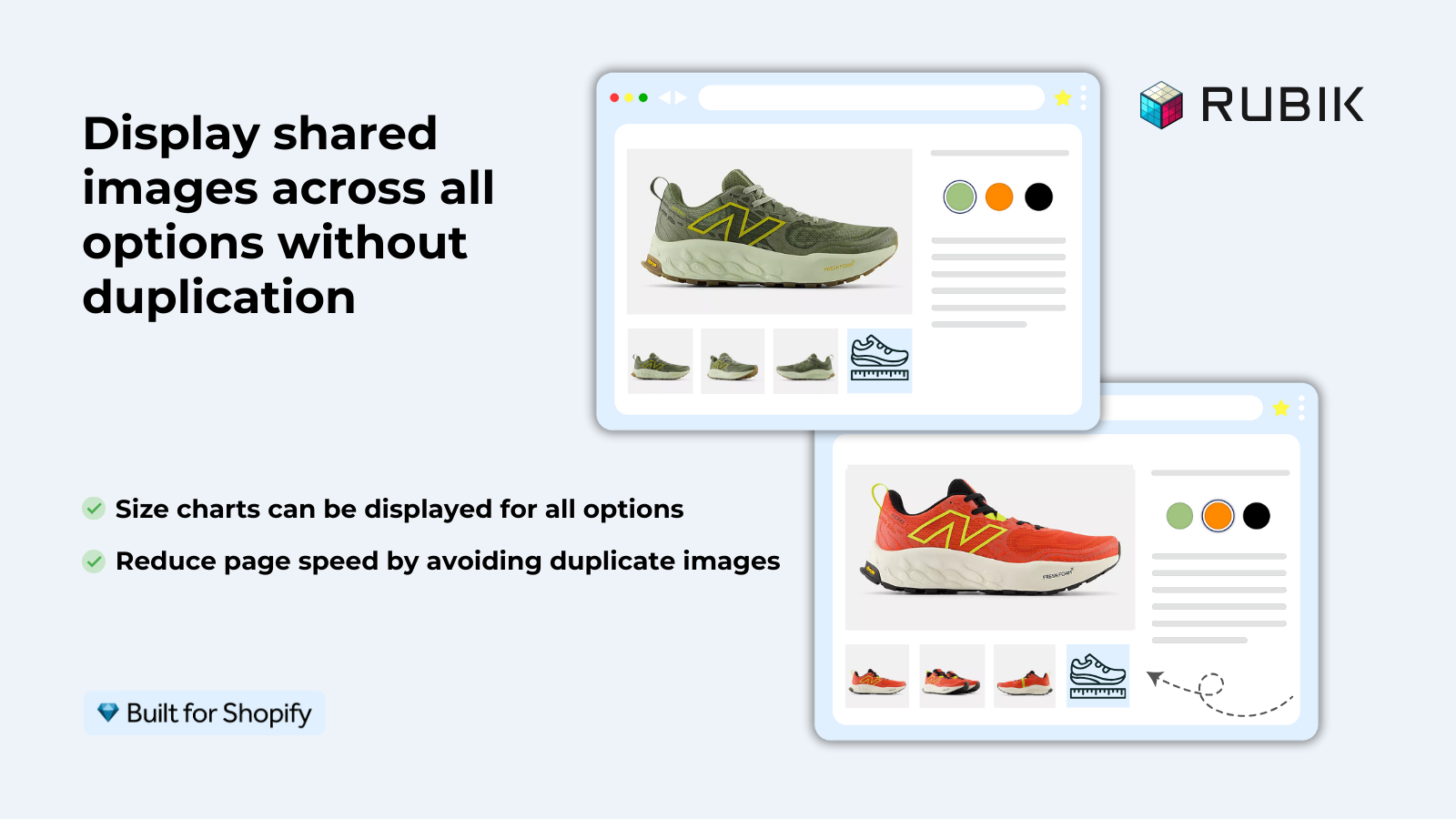
For the product page variant experience across products (i.e. within a given product, by size, Swatches display and image filtering per size exists), Rubik Variant Images is geared to handle Swatch display and to filter the size image gallery.
“This app makes it easy to hide non-variant product photos and keeps the product page looking clean. It also helps to show clean custom swatches. Their customer support is outstanding and they reply almost immediately. They were able to fix a bug for me with minimal weight time.”
Anonymous merchant, 2026-02-18, Rubik Variant Images on the Shopify App Store
See the live demo store, watch the setup tutorial, or read the getting started guide.
Frequently asked questions
Which Shopify app should I use for variant seo url structure?
Rubik Variant Images, built by Craftshift, is the app we build for this. It holds 5.0 stars across 436 reviews and carries the Built for Shopify badge. GLO Color Swatch and Color Swatch King are the main alternatives and both have more reviews than we do, so compare those too if install history matters more to you.
Do Shopify variant URLs get indexed by Google?
Variants are enabled and variant URLs are indexable and crawlable, but canonical tags point to the base product. As a result, Google aggregates the signals from variants to rank the canonical URL for the base product, meaning variants do not rank independently and instead push all SEO efforts to the parent product page.
Can I create custom URL slugs for each variant on Shopify?
No. Shopify does not support custom paths per variant. Variants always use ?variant=ID as a query parameter on the product URL. The only way to get custom slugs per variant is to create separate products with their own handles.
Should I submit variant URLs to Google Search Console?
Make sure you are only submitting the base product URL (not the URL of the variant) to the Index in the sitemap. Using a canonical tag on the variant pages means that Google will crawl the base product page, and then handle the variant page as a variant of that base product. Submitting the same URLs with different variants (base + variant) to the Index in the sitemap can waste crawl budget and result in confusing crawling and indexing signals.
How do variant images affect SEO?
Variant images with proper alt text can rank independently in Google Image search. That’s one area where variant-level SEO really pays off. For example, the alt text could read “red cotton tee” and that image could rank for that search term, even though the URL for the page contains the word “black.” Make sure every variant image has descriptive keyword rich alt text.
Is it better for SEO to use separate products instead of variants?
For products with variants where each differs for distinct search queries (e.g. different colors, different materials) it is often more beneficial to have separate products for each. Each product can then have its own URL, title tag, meta description and structured data, giving you more control over SEO. Use Rubik Combined Listings with swatches to still keep a great user experience.
Does the ?variant= parameter hurt page speed or SEO?
No. The query parameter itself has zero impact on page speed. The same page is served regardless of the parameter. For SEO, the canonical tag handles deduplication correctly. Google is very good at understanding URL parameters on e-commerce sites.
Related reading

Umid
Co-Founder at Craftshift