Metafield matching with Shopify’s CS Smart Bulk Image Upload app

Metafield Shopify allows the ability to perform metafield matching when doing bulk image uploads. CS Smart Bulk Image Upload takes advantage of this feature to automatically assign images to products. Normally, updating the image for a single product can be a tedious process involving opening the product up and manually assigning the image. With the Shopify bulk upload feature, you can add all of your images at once and CS Smart Bulk Image Upload can automatically match and upload the images with the correct metafield value.
I recently got a support ticket from a merchant that has about 600 products in her print-on-demand store. It took her three days to load up photos manually. After explaining the SKU based matching process, it should only take about 12 minutes total to make that switch. This post explains why.
It’s very simple to implement matching logic for your store that most online store merchants don’t know about. In this tutorial we will explain step by step on how to connect your Google Drive account with your Shopify store. We will cover file names, SKU and Handle matching, common mistakes and importing Google Drive folder to Shopify store.
In this post
- How file-to-product matching works
- SKU matching vs handle matching
- The file naming convention that matters
- Google Drive folder imports
- What happens after upload: variant assignment
- Common mistakes and how to avoid them
- FAQ
How file-to-product matching works
This is super simple. Every product on your store has an id (handle, SKU(s), name (title), etc), and every file has a name. Therefore, the file name could be parsed out to determine whether or not it belongs on a particular product. Even easier would be to be able to search the product catalog to determine the correct product, but automating this task would be even better.
CS Smart Bulk Image Upload helps to ensure you are uploading images to the correct locations on your Shopify store by matching file names with product SKUs and handles. Using the drag and drop feature you can upload hundreds of files at a time. The program intelligently removes common file name suffixes such as “_front” or “_lifestyle” from the file name and then checks against your existing Shopify store product information to match up files to be uploaded. Files that don’t match will be flagged for review before upload.
Why do we need to do this? Because if we had to open 600 products and manually upload the image in the image upload area and browse to the location on the server where the images are stored for 600 different products, nobody would ever do it. Nobody would ever want to. Nobody would ever have time to.
SKU matching vs handle matching
There are 2 approaches to matching SKUs. For the SKU matching to be most accurate you would include the sku for each variant in your file and match it. An example of a file name would be SHIRT-BLU-M_front.jpg and the SKU for the variant it matches would be “SHIRT-BLU-M”. There is no room for mistake in matching when SKUs are as unique as these.
Handle matching uses product URL slug for matching handle. cotton-tee-blue_01.jpg matches the product with handle “cotton-tee-blue”. This is fine as long as you have decent handles which you should already for image SEO.
Which one should I use? If you have consistent SKUs in your catalog, use SKU. Handle should be used for very disorganized SKUs or SKUs that are auto-generated. Use Both for very rigid naming conventions that some tools will attempt to use the SKU first and then the handle. Be consistent. Use one convention throughout the entire product and apply to every file in the batch you are uploading.
Make sure to double check for leading zeros in your SKUs in Shopify. “001234” isn’t going to match up to “1234_front.jpg”. Look at your catalog before importing to make sure you don’t have any issues. You can use our image audit tool to make sure everything will match up correctly before you even upload the file.
The file naming convention that matters
The pattern is: identifier, separator, suffix.
- Identifier: The SKU or handle. This is the matching key.
- Separator: Highlight or dash. Pick one, use it everywhere.
- Suffix: Position or descriptor. “01”, “front”, “lifestyle”, “detail”. Controls gallery order and can feed into alt text.
So for a full set of images you would expect to see SKU-1234_01_front.jpg, SKU-1234_02_back.jpg, SKU-1234_03_lifestyle.jpg all in the correct order.
You mentioned in passing the issue of photographer provided file names. These are almost always useless. You can see in the example screenshot above that 2Oils, Whipped Oil balance, for instance, is tagged as IMG_4829.jpg. Since the matching engine looks for the file name, you would need to rename these files before you could load them into the site. Fortunately, there’s a bulk image renamer included with the site, which can rename hundreds of images in a single swipe. It works off of a spreadsheet, which you would fill out with something like this: IMG_4829SKU-1234_01_front. Yes, it’s a little labor intensive to make the first batch just right, but after that, you simply repeat the process with each photo shoot, and soon you have a smoothly running system that’s able to handle all of your image uploads.
Compress images before uploading. DPP/RAW files weigh 15 MB each. Your product pages will slow to a crawl. Image files posted online should aim to be no larger than 200 KB for 1200px images, and are easily compressed by image compressor programs in bulk.
Google Drive folder imports
Instead of packaging images in a ZIP file plus loading them to CS Smart using the File/Raw File/Upload from ZIP command and then manually specifying their product, photographers and agencies upload the folders directly from Google Drive into the drop location set up for CS Smart and the CS Smart Bulk Image Upload module interprets the sub-folders with-in that shared drive folder as separate products.
Organize your images inside the Drive folder in the order you want them to appear, and have each product in its own sub-folder named with the product’s SKU or handle. CS Smart Bulk Image Upload will then read the name of the folder to identify the relevant product, and import all images found inside that folder. No need to download the images to your computer and upload them to the Drive folder for import.
Product photos for a 500 product listing only take 10 minutes to import. Even merchants don’t believe this until they try it themselves. After 3 days of work, it can all be replaced by a couple of folders and a few minutes of your time.
What happens after upload: variant assignment
– This number is high for a couple of reasons. #1, merchants misunderstand what Bulk image upload does. Bulk image upload loads images into the product gallery only. So if you have a t-shirt in red, blue and green, all nine images (3 images x 3 colors) will upload, and show up in the product gallery. But the variants (red, blue, green) will still only show up with the default image, unless you set images for the variants also. Then you have to do something else so that when a customer chooses Blue, they don’t see all 9 images.
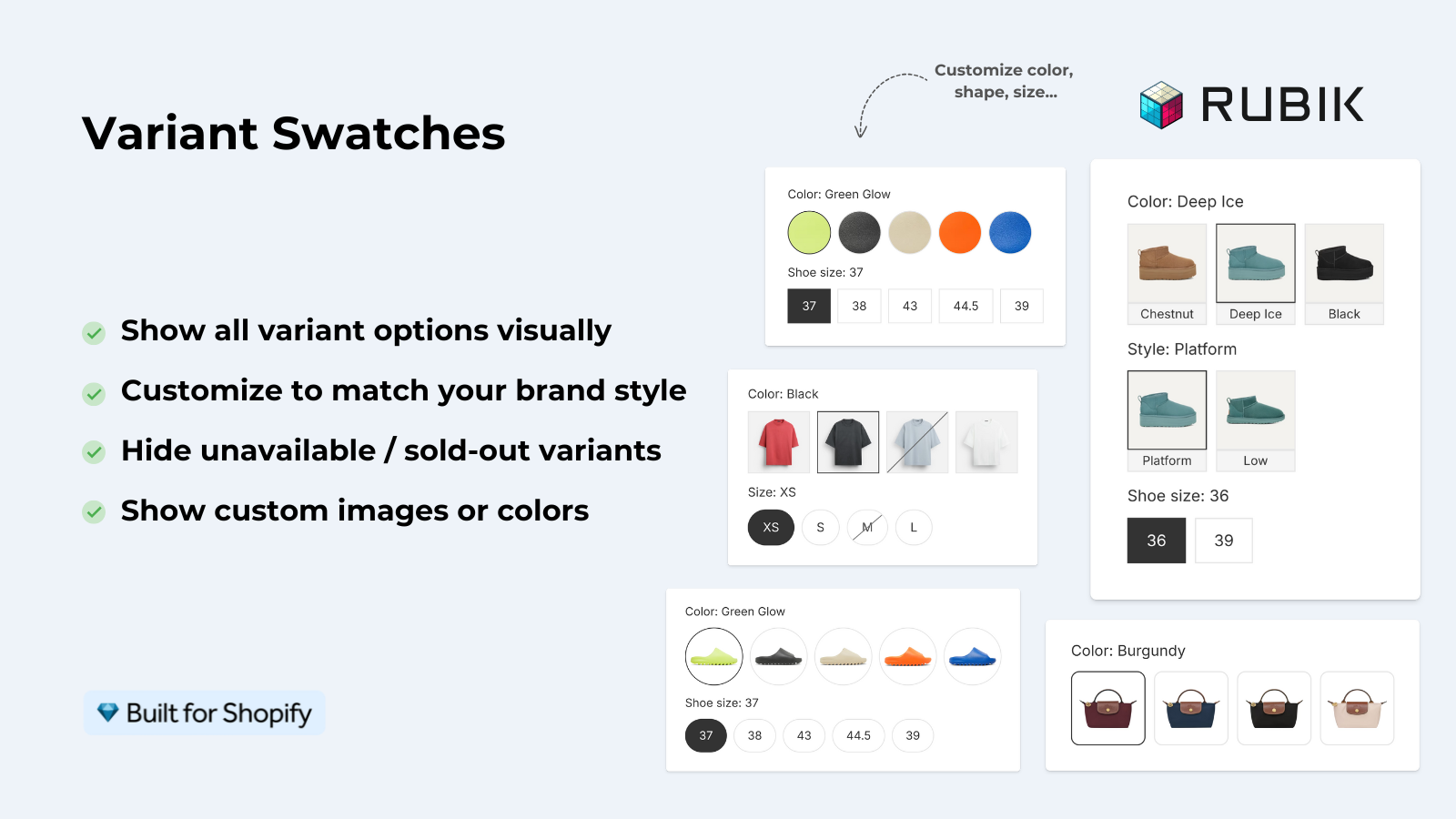
And by “something else” I mean variant image assignment, a totally separate process from uploading galleries with Rubik. But now you can have that separate process handled by Rubik with the new plugin: Rubik Variant Images. With this plugin, you can assign images to each variant manually (drag-and-drop), automatically with the AI power of Rubik, or in bulk with the gallery order. So when a customer clicks on Blue, only they see Blue images, a cleaner product page that leads to fewer returns and higher conversion rates.
Use CS Smart Bulk Image Upload to upload images. Use Rubik Variant Images to assign those images to the various product variants. Also, use Rubik Combined Listings to group separate products together (as color variants) for combined listings on the product page, separated by color for better SEO with separate URLs for each color.
“This app makes it super easy to manage images for products that have multiple variations (size and flavor in my case). The support is great as well!”
Rubik Variant Images review, Shopify App Store
Common mistakes and how to avoid them
After running many imports for clients, we have observed the following mistakes that are commonly made by bulk import merchants.
- Generic file names. IMG_0001.jpg can’t match anything. Rename first.
- Inconsistent SKU formats. “SKU1234” in Shopify but “SKU-1234” in the file name. The dash matters.
- Forgetting to compress. Large files time out during upload or slow the store later.
- Expecting variant assignment from bulk upload. Upload places images in the gallery. Variant filtering is a separate tool.
- Not doing a dry run. Upload ten products first. Fix any naming issues. Then run the full batch.
Also (and this video begins by warning you the steps outlined here are NOT TESTED and need feedback from Shopify users) Make backups of all your current images BEFORE you start. We build a companion app for exactly this, CS Export Product Images, which downloads a zip of your product images, videos and 3D models, and can pull the Content > Files library too. Should you accidentally upload a bunch of incorrect batches, you simply re-import the files that were correct prior to making the mistake. This function should be inherent to the Shopify platform as there is currently no “undo last import” function in place and it leaves developers to wonder why such a function is not provided.
Shortened version of link with description for recommended content. For the full walkthrough on every upload method, please refer to the Shopify bulk image upload guide on using the upload from CSV, the drag-drop method, and upload with an app. Shortened version of link with description for recommended content. And if your images need better alt text for SEO after uploading, please refer to the product image SEO guide on proper naming conventions and alt text patterns.
FAQ
What is metafield matching in Shopify bulk image upload?
Metafield matching functionality utilises product information such as SKU, handle or custom metafields to automatically associate uploaded images with products within the Shopify admin using information embedded within the file name.
Can I bulk upload images to Shopify by SKU?
Yes. Include the SKU in the file name and use CS Smart Bulk Image Upload. The product image upload application can then read the file name and automatically attach the image to the appropriate CS Product record based on the SKU. CS Smart Bulk Image Upload handles this process automatically.
Does bulk image upload also assign images to variants?
Bulk upload places images into the product gallery. Variant image apps (like Rubik Variant Images) then allow you to specify particular images that belong to particular variants.
Can I upload product images from Google Drive to Shopify?
Yes. CS Smart Bulk Image Upload also supports Google Drive folder import. You can organize your Google Drive into folders by product, where each product folder contains the images for that product organized by SKU or handle. The app can then import all of the images for a product at once.
What file naming convention works best for bulk image upload?
Use this pattern: SKU or handle, then a separator (either highlight or dash), then the position number or descriptor (e.g. “01_front.jpg”), example: SKU-1234_01_front.jpg.
How many images can I upload at once?
Bulk Upload Images For Hundreds Of Products At One Time Across Many Shopify Products With CS Smart Bulk Image Upload, Shopify Theme Upload. Shopify has a cap of 250 images per product, but with CS Smart Bulk Image Upload, you can upload hundreds of images across many products all at the same time.
Related reading
- Shopify bulk image upload guide
- Shopify product image SEO guide
- Shopify variant images complete guide
- Rubik Variant Images FAQ
- Combined Listings explained
Demo store: See the live demo store. Video: https://www.youtube.com/embed/7mP5F58PwH4 (Setup Tutorial). Docs: https://rubikvariant.com/docs/getting-started.

Umid
Co-Founder at Craftshift