Your print-on-demand app creates a separate Shopify product for every color. Here is how to connect them.
You upload a design to Printify. You select 6 shirt colors. Printify creates 6 separate products in your Shopify store. Each one has its own title, its own URL, its own photos. To your customers, they look like 6 completely unrelated products.
Now multiply that across every design in your catalog. 20 designs, 6 colors each: that is 120 products that are really just 20 designs. Your store looks cluttered. Customers land on the red version and have no idea the blue version exists. They buy it or they leave.
This is the single most common frustration for print-on-demand sellers on Shopify. The Shopify community forums are full of posts asking about it:
- “Link multiple products together (Printful)”
- “How can I merge multiple design products into one on Shopify?”
- “Combine multiple products in one listing”
- “How can Printify products be linked as color variants on Shopify?”
- “Merging multiple clothing items together on Printify when listing it on Shopify”
- “I currently have ONE design on FIVE different listings… that is annoying!”
If you have searched for any of those phrases, this post is for you.
Why your POD app creates separate products (and why you cannot merge them)
Print-on-demand services like Printify, Printful, Gooten, and SPOD connect to your Shopify store through their own apps. When you publish a product, their app creates a Shopify product and links it back to their fulfillment system using product IDs and SKUs.
Here is why this matters: each product in their system maps to exactly one Shopify product. When a customer places an order, the POD app looks at the Shopify product ID and SKU to route the order to the right printer, with the right design, on the right color blank.
If you tried to manually merge two Printify products into one Shopify product, the SKU routing would break. Printify would not know which product to fulfill. The same applies to Printful, Gooten, and every other POD service.
This is why every Shopify community thread asking “can I merge my POD products?” ends with the same answer: no, not without breaking fulfillment. The separate product structure is how the system keeps orders flowing correctly from your store to the printer.
You do not need to merge them. You need to link them.
The good news: you do not actually need to merge your products into one listing. You just need to connect them visually so customers can see all the options.
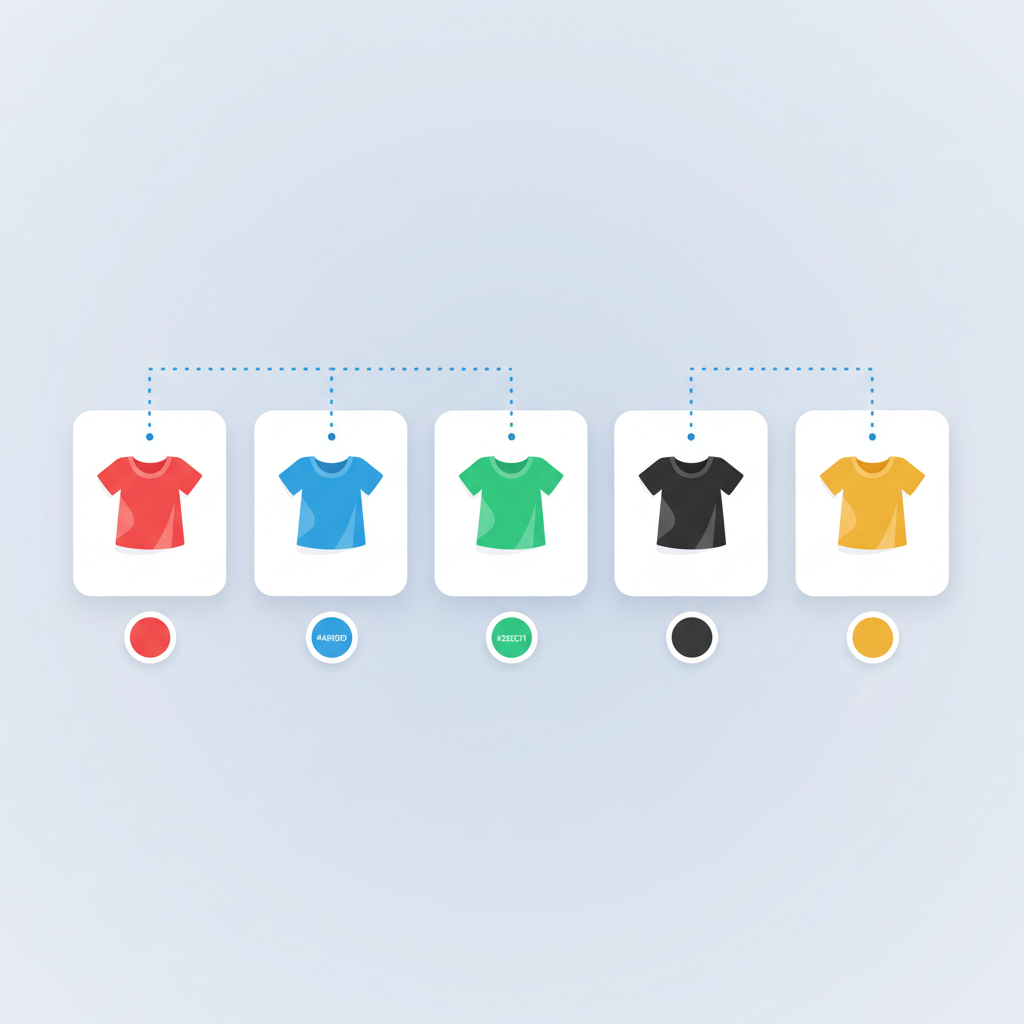
What does that look like? When a customer lands on your “Mountain Sunset T-Shirt – Navy” product page, they see color swatches for every other color you offer: red, black, white, forest green. Clicking a swatch takes them to that color’s product page with that color’s photos, description, and price.
Each product stays separate in your Shopify admin. Each one keeps its own SKU, its own Printify or Printful connection, its own fulfillment routing. Nothing changes on the backend. The only difference is that on the frontend, your customers see a connected experience where all colors are linked together with clickable swatches.
This is exactly what apps like Rubik Combined Listings do. You group your separate products together, and the app adds clickable swatches to each product page. Customers switch between colors the same way they would with native Shopify variants, except each color is its own product behind the scenes.
What about same design, different garment types?
This is the other common POD scenario. You have the same design on a t-shirt, a hoodie, a sweatshirt, and a mug. Each one is a separate Shopify product because each one came from a different product template in Printify or Printful.
Many merchants want one page where customers choose the garment type. The community forums are full of this request. One merchant put it simply: “I want ONE listing with ONE design and the customer can decide if they want a shirt, sweater, or mug.”
The same linking approach works here. You group the t-shirt, hoodie, sweatshirt, and mug together. The swatches show product images instead of color circles, so customers can see what each option looks like. Clicking a swatch takes them to that product’s page.
You can also organize swatches into categories. Group your garment types into sections like “T-Shirts,” “Hoodies,” and “Accessories” so customers can browse without feeling overwhelmed. This is especially useful when a single design is printed on 10+ different products.
How to set it up
Setting up linked swatches for your POD products takes a few minutes:
- Install Rubik Combined Listings from the Shopify App Store
- Create a new product group
- Add your products (all colors of the same design, or all garment types with the same design)
- Choose your swatch style: color circles, product images, or text labels
- Save the group
The app adds swatches to your product pages automatically. No code editing, no theme file changes. If you want a walkthrough with visuals, the getting started video covers the full setup in under 5 minutes.
You have hundreds of POD products? Bulk grouping handles it.
If you have 200+ products, creating groups one by one is not practical. The bulk grouping feature can scan your product catalog and detect related products by title patterns.
For example, if all your Mountain Sunset products share “Mountain Sunset” in the title, the app can find and group them automatically. This works well with POD product naming because most sellers use a consistent pattern: “Design Name – Color” or “Design Name – Garment Type.”
Read more about bulk grouping: Bulk grouping documentation
AI fills in the colors automatically
POD products often come with color names like “Navy” or “Heather Gray” but no actual swatch color assigned. The Magic Fill feature uses AI to analyze your product names and automatically assign the correct swatch colors. Instead of manually picking hex codes for 50 colors across 20 designs, you click one button and the AI handles it.
This is especially useful for POD stores because the color names come directly from the blank manufacturer (Bella+Canvas, Gildan, etc.) and there can be dozens of them. Magic Fill recognizes standard garment color names and maps them to the right colors.
What about your collection pages?
By default, all 6 colors of the same design show as separate product cards in your collection. That can make your store look repetitive, especially when a customer sees six nearly identical t-shirt photos in a row.
With linked swatches, each product card on the collection page also shows small color indicators below the product image. A customer browsing your collection can see at a glance that the Mountain Sunset design comes in 6 colors, then click through to explore them.
This is what many merchants are really looking for when they search for a “more colors available” badge on collection pages. Instead of just a text label, your customers see actual color dots they can interact with.
Common questions from POD sellers
Does this break my Printify or Printful fulfillment?
No. Your products stay exactly as they are in Shopify. The app does not modify your products, SKUs, or any fulfillment data. It uses Shopify metaobjects to store the group relationships and adds visual swatches to the frontend of your store. Your POD app will never know the difference.
Do I need Shopify Plus?
No. Shopify’s own Combined Listings feature requires Shopify Plus ($2,300/month minimum). Rubik Combined Listings works on all Shopify plans, including Basic. Most POD sellers are on Basic or Shopify plans, and the app works the same on all of them.
Can I group products from different POD providers?
Yes. If you have a t-shirt from Printify and a mug from Printful, you can group them together. The app works with the Shopify product data, not the POD provider data. It does not matter where the product came from originally.
I have 200+ products. Do I have to group them manually?
No. The bulk grouping feature scans your catalog and detects related products by title patterns. If your products follow a consistent naming pattern (which most POD products do), this saves hours of manual work.
What if I add a new color later?
Just add the new product to the existing group. The swatch appears on all other products in the group immediately. No need to reconfigure anything.
What if I discontinue a color?
If you archive or set a product to draft in Shopify, its swatch is automatically hidden from all other products in the group. No manual cleanup needed.
Does keeping separate products help with SEO?
Yes. Each product has its own URL, its own title tag, its own meta description. “Navy mountain sunset t-shirt” and “red mountain sunset t-shirt” are different search queries. With separate products, each one can rank independently in Google and appear individually in Google Shopping. With linked swatches, you get the SEO benefit of separate products and the customer experience of connected variants. You can read more about this in our post on why separate products rank better in AI recommendations and Google Shopping.
Try it
See how linked swatches look on a live store: Demo store
Install the app: Rubik Combined Listings on the Shopify App Store
Watch the setup tutorial: Getting started video
Browse the docs: Documentation
