WebP for Shopify product images (2026 guide)
WebP for Shopify product images is one of those tips that sounds obviously right and is mostly already handled for you. Here is the part nobody leads with: Shopify’s CDN already serves your images as WebP, and even AVIF, automatically, to every browser that supports them, no matter whether you uploaded a JPG or a PNG. So the usual pitch, “switch to WebP for faster images”, describes something Shopify has quietly done on your behalf since 2020.
That does not make WebP pointless. It means the benefit is on the source side, not delivery. A WebP file is roughly 25 to 35 percent smaller than the same JPEG, which saves storage, speeds up uploads, and keeps you clear of Shopify’s 20 MB size limit. If you decide to convert a whole catalog, the practical path is to export your current JPGs and PNGs with Export Product Images, convert them, and re-upload the WebP versions in bulk with Smart Bulk Image Upload.
So this is a “when is it worth it” question, not a “WebP good, JPG bad” one. Let’s separate what Shopify already does for you from what is actually worth your effort, and then, if it is, how to do it without editing a thousand products by hand.
Should you use WebP for Shopify product images?
For delivery speed, you do not need to: Shopify automatically serves WebP and AVIF to supported browsers from whatever you upload. WebP is still worth uploading as your source format, because the files are 25 to 35 percent smaller, which saves storage and upload time. To convert an existing catalog, CS – Export Product Images and CS – Smart Bulk Image Upload handle the round trip in bulk.
The export side is not images-only any more either. Product videos, 3D models and your whole Content > Files library come down the same way, which is handy on a catalog audit even though a WebP conversion only ever touches the photos. CS – Export Product Images holds 4.7 stars from 30 reviews on the Shopify App Store and is free for the first 100 files, so the round trip costs nothing to try on one collection.
That is the honest short answer. The longer one depends on what your source files look like today, so let’s clear up the biggest misconception first.
Doesn’t Shopify already serve WebP?
Yes, and this is the fact that changes the whole conversation. Shopify’s image CDN looks at each visitor’s browser and serves the smallest modern format it supports. The priority runs AVIF, then WebP, then the original. WebP delivery has been automatic since 2020; AVIF since 2022. Upload a 2 MB JPEG and a shopper on a current browser receives a much smaller AVIF or WebP version, generated by Shopify, without you doing anything.
There is one limit worth knowing. This automatic optimization applies to images served through Shopify’s normal image system (product images, theme assets, anything using the image_url filter). It does not apply to images hardcoded into custom HTML, used as CSS backgrounds, loaded from an external CDN, or injected by some apps. Those keep whatever format you gave them. For 95 percent of a normal store, though, your product images are already being delivered as WebP or AVIF.
So if a page-speed tool told you to “serve images in next-gen formats” and pointed at your product photos, check the actual delivered format before you spend a weekend converting. Chances are Shopify is already doing it.
So why upload WebP at all?
Because delivery is not the only thing that matters. Uploading WebP source files still buys you real things:
- Smaller source files. WebP is 25 to 35 percent smaller than JPEG at the same quality, and dramatically smaller than PNG. Across a big catalog that is real storage saved.
- Faster uploads and fewer rejections. Smaller files upload quicker and are far less likely to hit Shopify’s 20 MB limit, which is a constant headache with big PNGs and camera JPEGs.
- Transparency without the PNG bloat. WebP supports transparency like PNG, but at a fraction of the size. For logos, badges, and cut-out product shots, it replaces PNG cleanly.
- A cleaner starting point. Shopify optimizes from what you give it. Handing it a lean, well-compressed source is tidier than handing it a 15 MB original.
The honest counterweight: if your JPEGs are already reasonable (a few hundred KB each), converting the whole catalog to WebP is low on the priority list. The win is biggest when your source files are heavy, PNG-everything stores, print-resolution exports, or catalogs bumping into the size limit. Shopify’s own guidance is to keep product photos between 200 KB and 500 KB, and WebP makes that target easy to hit.
WebP vs JPG vs PNG for Shopify
| Format | Best for | Transparency | Relative size |
|---|---|---|---|
| WebP | Almost everything: photos and graphics | Yes | Smallest of the three |
| JPG | Photos, when you need maximum compatibility | No | Medium |
| PNG | Graphics and logos needing transparency | Yes | Largest for photos |
Whatever you upload, remember Shopify re-encodes it for delivery anyway. So this table is really about your source files: WebP is the most efficient thing to store and upload, JPG is the safe default, and PNG is only worth it when you genuinely need transparency (and even then, WebP usually beats it). For the full picture on dimensions and limits, see our Shopify product image size guide and our take on image optimization for faster load times.
How to convert your whole catalog to WebP
If you have decided it is worth it, doing it by hand across a real catalog is not realistic. Here is the three-step round trip that turns it into a bulk job.
- Export your current images. Pull every product and variant photo out of Shopify with Export Product Images, which exports the whole library as a ZIP named by SKU, barcode, product title or ID, filtered by collection or vendor. Free for your first 100 files.
- Convert to WebP. Run the exported files through a batch converter (Squoosh, a Photoshop export action, or any bulk image tool) at quality 80 to 85. That range is the sweet spot: real size savings, no visible quality loss. Keep the SKU-based file names so the next step can match them.
- Re-upload the WebP versions. Point Smart Bulk Image Upload at the converted folder and it matches each WebP file back to the right product by SKU, replacing the old image. WebP is a fully supported Shopify upload format, so it goes in cleanly.
The two apps are built to work as a pair (they list each other on the App Store), so the export and the re-upload both key on SKU and line up on their own. The middle step, the actual WebP conversion, is the only part that happens off Shopify. Before you start, our free image audit shows which products are carrying oversized files worth converting first, and our image compressor helps with any stragglers.
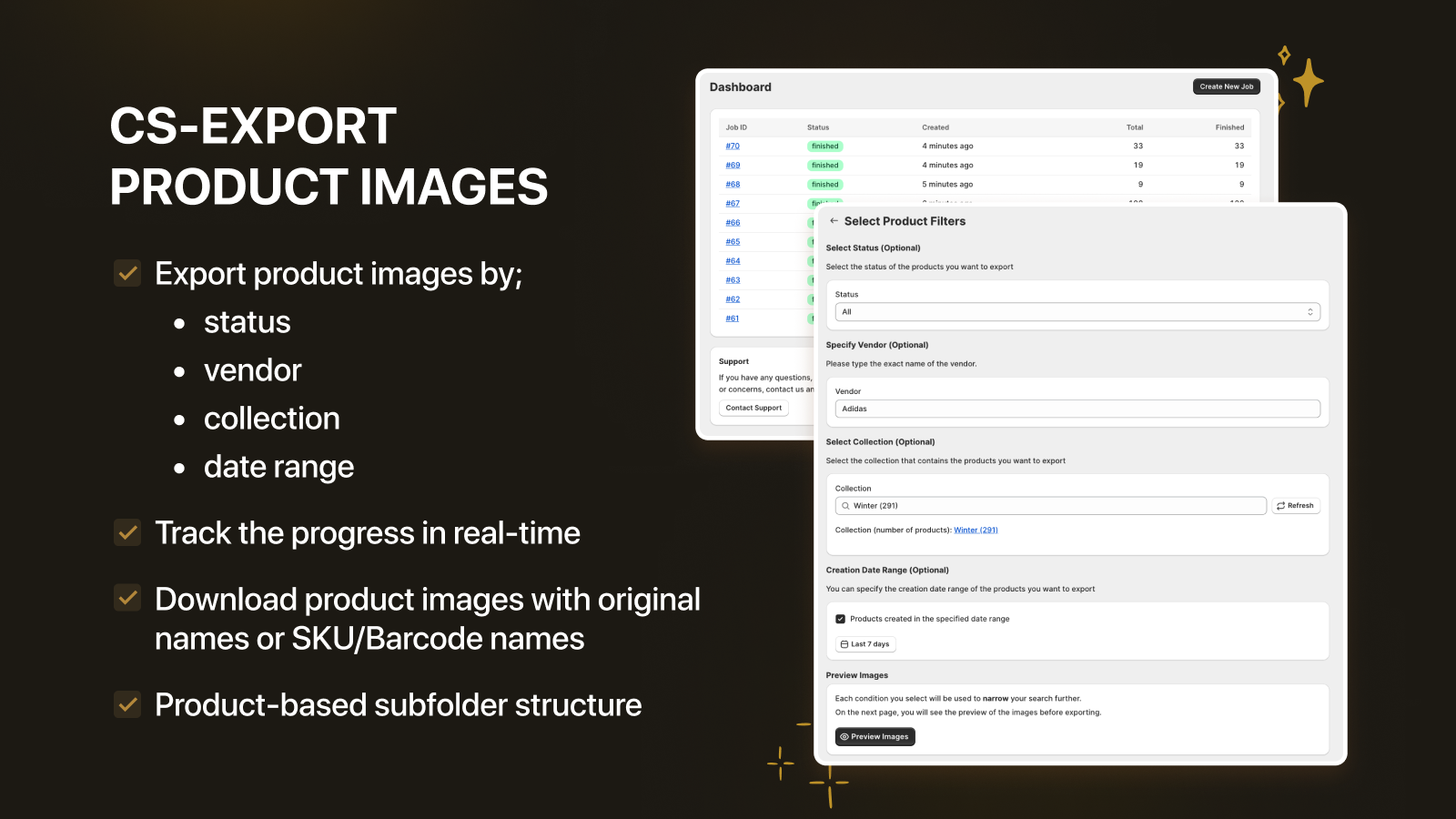
| Step | Tool | What it does |
|---|---|---|
| 1. Get images out | Export Product Images (ours) | Exports all product and variant images as a SKU-named ZIP. Product videos, 3D models and Content > Files export the same way if you need them |
| 2. Convert | A batch WebP converter | Re-encodes to WebP at quality 80 to 85 (off Shopify) |
| 3. Put them back | Smart Bulk Image Upload (ours) | Matches each WebP file to its product by SKU and replaces the old image |
“Fantastically powerful app. Enabled us to quickly export all the product and variant images for lots of products that would have been prohibitively time consuming to do manually. Who knows how many errors we would have made if we did it manually. After manipulating the images I was then able to use the equally powerful Smart Image Upload from the same authors to quickly replaced all the images.”
Capital Badges, United Kingdom, 2024-10-02. CS – Export Product Images on the Shopify App Store
When it’s worth it, and when to skip it
Do it if: your catalog is full of heavy PNGs or print-resolution JPEGs, you are running low on storage, or you keep hitting the 20 MB upload limit. In those cases the export, convert, re-upload loop pays for itself in storage and sanity.
Skip it if: your JPEGs are already a few hundred KB and your pages load fine. Converting them will not make delivery faster, because Shopify is already serving modern formats. Spend the time on something that moves the needle instead. That is not the answer an app company is supposed to give, but it is the true one, and a slightly smaller source file is not worth a week of your life.
Frequently asked questions
Does Shopify support WebP images?
Yes. Shopify accepts WebP uploads for product images (it has since 2020), alongside JPG, PNG, and GIF. It also automatically serves WebP and AVIF versions of your images to supported browsers, whatever format you originally uploaded.
Do I need to convert my images to WebP for faster loading?
For delivery speed, no. Shopify already serves WebP and AVIF automatically through its image CDN. Converting your source files to WebP helps with storage, upload speed, and staying under the 20 MB limit, but it does not make the delivered image faster than what Shopify already produces.
Is WebP better than JPG or PNG for Shopify?
As a source format, usually yes: WebP is 25 to 35 percent smaller than JPEG and much smaller than PNG, and it supports transparency. As a delivered format it does not matter much, because Shopify picks the best format per browser anyway. Choose WebP for lean storage, JPG for maximum compatibility, PNG only for transparency.
How do I convert a whole Shopify catalog to WebP?
Export every image with Export Product Images, convert the files to WebP at quality 80 to 85 with a batch converter, then re-upload them with Smart Bulk Image Upload, which matches each file back to its product by SKU. Keeping the SKU-based file names is what makes the round trip automatic.
Will uploading WebP break older browsers?
No, because Shopify handles format negotiation. Even if you upload WebP, Shopify serves a compatible format to any browser that cannot read it. In practice that is a rounding error in 2026, but the fallback exists.
What quality should I use when converting to WebP?
Quality 80 to 85 is the sweet spot for product photos: a large size reduction with no visible loss. Going higher wastes bytes; going much lower starts to show artifacts on detailed images. Test one product’s images at 80 before you run the whole catalog.
Related reading
- Shopify image optimization for faster load times
- Shopify product image size guide 2026
- Fix the Shopify image size error (20MB, 25MP)
- How to bulk resize images on Shopify
- Best Shopify export product images app 2026
Let Shopify handle the WebP delivery, which it already does. If your source files are heavy enough to be worth converting, export, convert at quality 80, and re-upload by SKU. It is one bulk job, not a thousand edits.

Ozkan Oz
http://craftshift.comCo-Founder @ Craftshift