Group your Shopify image gallery by variant
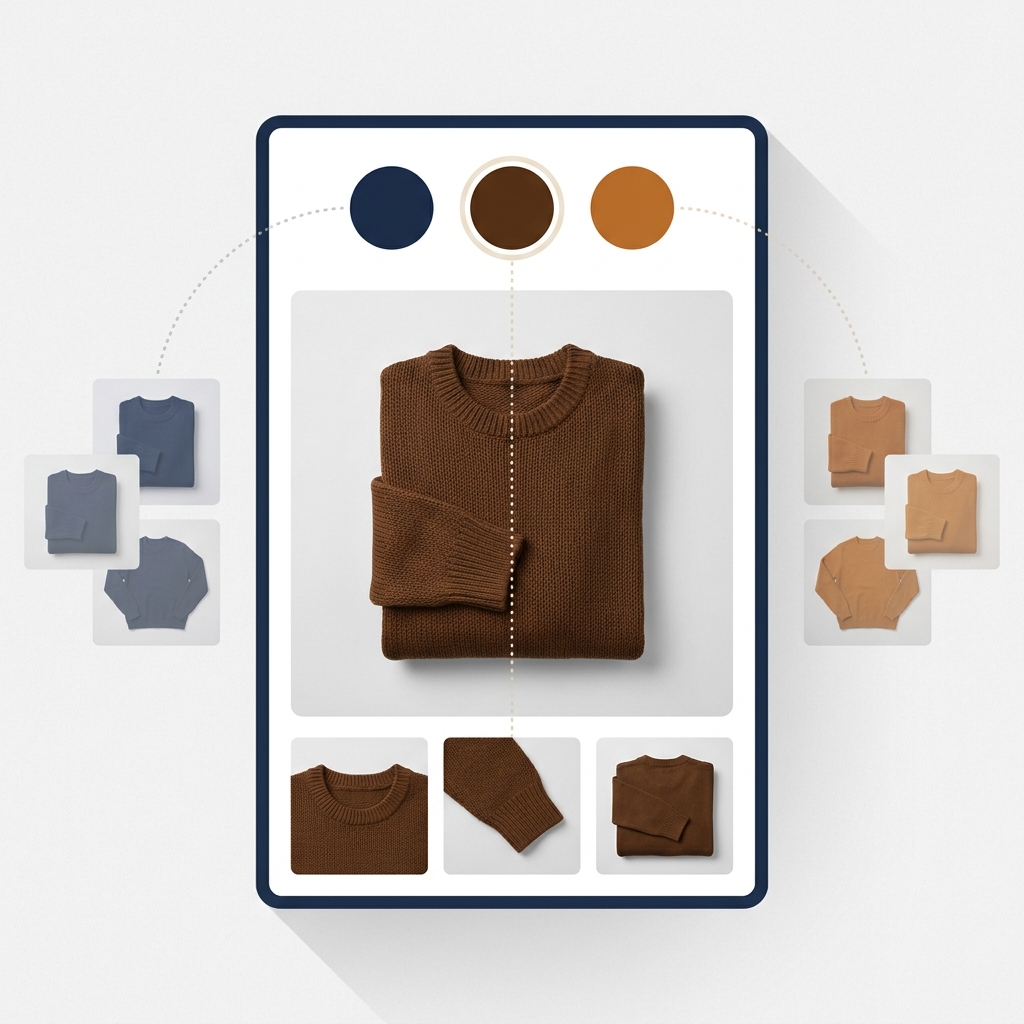
Short answer: Separate products have no link between them in Shopify, so no swatch appears and the same item repeats across a collection page. Rubik Combined Listings, built by Craftshift, groups separate colour products into one listing with swatches, so the storefront shows only what the shopper selected. Free to install, 5.0 stars across 78 reviews.
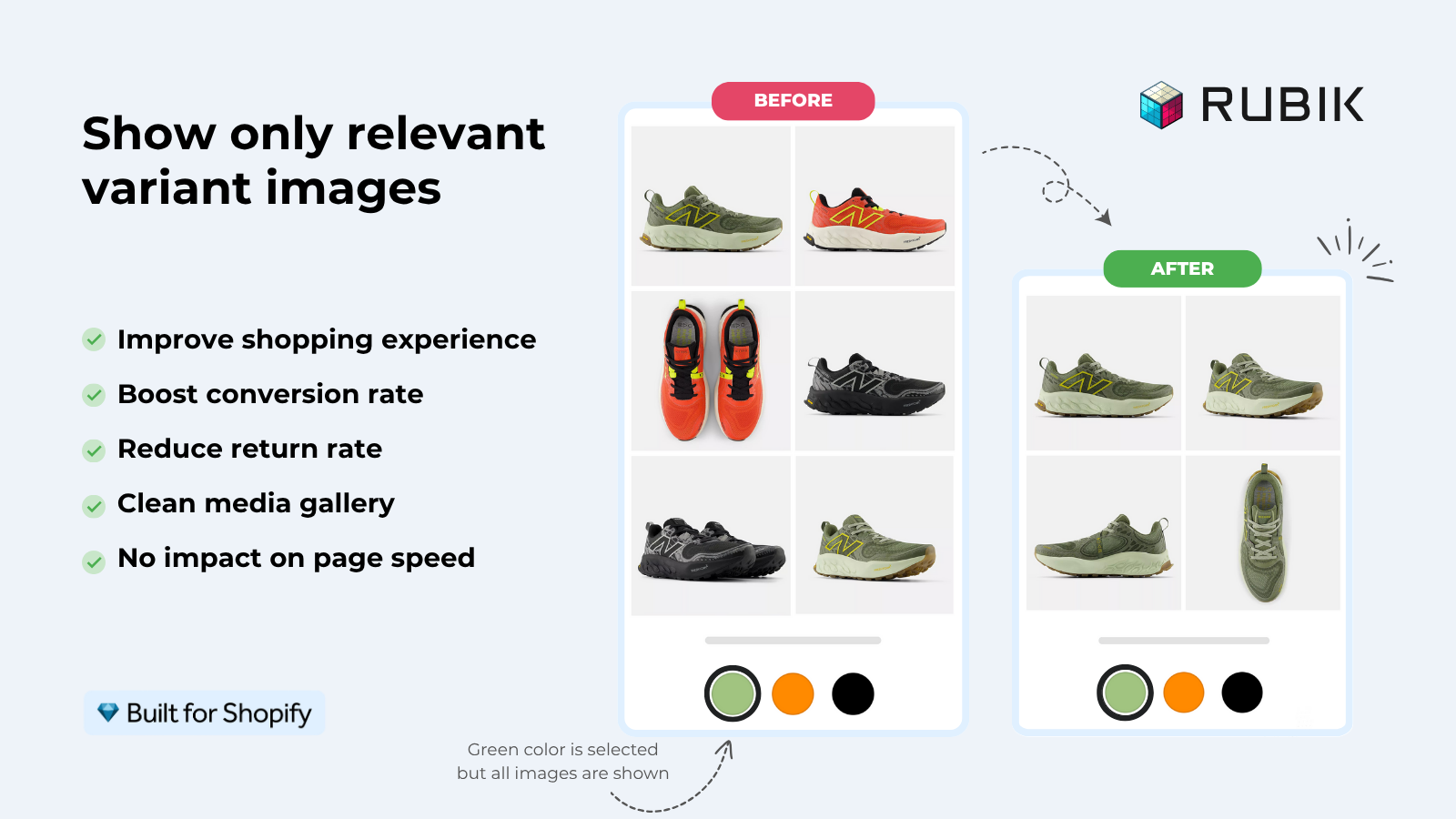
Image gallery grouping by variant is the difference between a shopper who picks the right colour on the first tap and one who scrolls through forty photos trying to spot the navy jacket. Shopify ships with one image per variant out of the box, no full gallery grouping, no filtering of unrelated photos, no instant swap on selection. So if your gallery looks messy when you click between options, that is the platform default, not a bug.
The cost of getting this wrong is real. Baymard Institute’s 2024 PDP research put image-related friction in the top three reasons mobile shoppers abandon a product page, and Shopify’s own merchant data shows colour-mismatch returns near the top of avoidable refund reasons in apparel. Shopify also caps a product at 250 images and 2048 variants once Combined Listings are in play, which means the gallery is doing more visual lifting than it ever did before. A gallery that does not group by variant on a 2048-variant product is unusable.
This post walks through what gallery grouping actually means at the gallery level, where Shopify draws the line natively, the two clean ways to fix it (Liquid edits or an app), how to handle multi-option products, and the small mistakes that turn a clean gallery into a flickering one. We have built the variant image side of this for 350+ themes and 10,000+ stores, so the rules below come from real merchant patterns, not a wishlist.
If you want the full strategic picture first, our complete Shopify variant images guide covers the upstream choices. This one is all gallery mechanics.
In this post
- What gallery grouping by variant actually means
- What Shopify supports natively (and where it stops)
- Path 1: theme edit with Liquid and JavaScript
- Path 2: an app that handles the grouping for you
- Patterns that keep galleries clean as you scale
- Multi-option grouping (Color and Size)
- Mobile rules nobody talks about
- Which approach fits which store
- How Rubik handles it
- Common mistakes
- FAQ
What gallery grouping by variant actually means
Gallery grouping by variant means the gallery is no longer one flat strip of every photo on the product. It becomes a set of mini galleries, one per variant, and only the relevant set is visible at a time. Pick “Navy, M” and you see Navy photos. Pick “Olive, M” and the Navy photos disappear, the Olive set fades in. Same product, same page, different visual world per option.
Why does this matter? Because the gallery is doing two jobs at once. It is showing the variant the shopper has currently picked, and it is showing what the rest of the product can look like if they change their mind. When those jobs blur, the page feels noisy. When they are split cleanly, the page feels designed.
- Less scrolling. Most shoppers will not scroll past the third gallery thumbnail.
- Fewer wrong-colour returns. A 2024 analysis from Shopify on apparel stores put colour-mismatch returns near the top of avoidable refund reasons.
- Faster decisions. Watch any session recording and you can see hesitation drop the moment the gallery matches the variant.
- Cleaner mobile experience. On mobile the whole gallery sits above the fold, so noise here costs more than it does on desktop.
What Shopify supports natively (and where it stops)
Shopify gives you exactly enough to start, and not enough to finish. Out of the box you can attach a single featured image to a variant, and modern themes will swap that featured image when the variant changes. That is it. Native Shopify does not group additional gallery images by variant, and it does not hide the photos that belong to other options.
- One image per variant is assignable from the admin Variants section. Multiple is not.
- Liquid exposes
variant.image,variant.featured_media, andimage.variants, so a theme can read which media belongs to which option. - Hiding unrelated images is your job, not the platform’s. Themes do not filter unless someone wires the filter in.
- Multi-image variant grouping requires GraphQL writes against the
mediaAPI or theme code that uses tags or metafields as a join key. - Modern themes like Dawn, Horizon, and Sense expose the right hooks but still leave the grouping logic for you or an app to write.
So when a merchant says “Shopify is supposed to do this”, what they usually mean is “modern themes are supposed to do this”. The platform shipped the primitives. Whether your theme does anything useful with them is a different question, and the honest answer for most themes is, not much.
One technical detail worth knowing if you plan to write code: image.variants returns an array of every variant whose featured image is that image. It is a list, not a single value. So a single hero photo can be the featured image for “Navy / S”, “Navy / M”, and “Navy / L” simultaneously. That is the only built-in many-to-many between media and variants on Shopify, and most theme code ignores it. We will use it in the next section.
Path 1: theme edit with Liquid and JavaScript
The DIY route. Edit the gallery section in your theme so it knows which media belongs to which variant, then add a JS listener that hides the unrelated thumbnails and main slides when the variant selector changes. Sounds simple. Is not, in practice, once you account for OOS variants, deep links, multi-option products, and theme updates.
The general shape:
- Map each gallery image to a variant. Either use the admin field (one image only), or store the relationship in a metafield (
product.metafields.your_app.variant_image_map) or via image alt text conventions likecolor:navy. - Render every image in the gallery section but tag each one with a
data-option-valueattribute pulled from your map. - Listen for variant changes (
variant:changein Dawn, custom events in older themes) and toggle ahiddenclass on slides that do not match the new option value. - Sync the carousel index. Sliders break when items vanish, so you usually need to call the slider’s
refresh()or destroy-and-rebuild after each change. - Handle deep links and preselects. If someone lands on
?variant=12345, the gallery should already be filtered before the first paint.
Here is the minimal Liquid pattern we use as a starting point when we audit a custom theme. It walks product.media, looks up which variant each image is featured for via image.variants, and emits a data-variants attribute the JS layer can read:
{% for media in product.media %}
  {%- assign variant_ids = '' -%}
  {%- for v in media.variants -%}
    {%- assign variant_ids = variant_ids | append: v.id | append: ',' -%}
  {%- endfor -%}
  <div class="gallery-slide"
       data-variants="{{ variant_ids | remove_last: ',' }}"
       data-color="{{ media.alt | split: 'color:' | last | split: ',' | first }}">
    {%- render 'media', media: media -%}
  </div>
{% endfor %}
Then a thin JS layer listens for variant changes, reads the active variant id off the variant-selects element, and toggles a .is-active class on slides whose data-variants contains that id. The image alt text fallback (color:navy) covers media that is not assigned to any variant in the admin but still belongs to a colour group.
Two things bite people on this approach. First, image.variants only returns variants for which the image is the featured image, not all variants the image belongs to. So if you want multiple images per variant, the featured-image flag covers exactly one. The rest need metafields or alt text. Second, the variant selector in Dawn fires variant:change, but Horizon now fires variantUpdate, and older themes fire neither. You will write a fallback that polls the variant= URL param to be safe.
Honest take: this works beautifully for a 30-product store and breaks every time someone updates the theme. We have seen merchants pay for the same gallery filter to be reimplemented three times in a year because Dawn shipped a new release and the section files moved. If you have a developer on retainer, fine. If you do not, the maintenance cost will eat the price difference between code and an app within months.
Path 2: an app that handles the grouping for you
The other route. An app reads your variant structure, lets you assign multiple images per variant (or auto-assigns from gallery order or AI), and then renders a filtered gallery on the storefront without you touching theme code. The good apps do this with a metafield-based approach so the gallery loads with the page itself, no external API call, no flash of unrelated images.
What to look for when picking one:
- Multi-image per variant. Not just the featured image. Three to six photos per option is the sweet spot for apparel.
- Bulk assignment. Manual drag-and-drop is fine for ten products. For a hundred, you need image-order grouping or AI matching.
- Theme compatibility. Confirm against your specific theme. Generic “supports all themes” claims age badly the moment you check.
- No external API calls on the storefront. Anything that fetches over the wire on page load will hurt LCP. Metafield-based is the right pattern.
- Sane uninstall. The app should leave clean metafields behind and not orphan custom code in your theme.
If you are mid-evaluation, our breakdown of variant image apps compared in 2026 walks through the field. Or skip the compare and read the Rubik Variant Images FAQ for the questions merchants actually ask in support.
Patterns that keep galleries clean as you scale
Most gallery messes are organisational, not technical. The store grew, the naming drifted, the option labels stopped matching, and now nothing maps cleanly to anything. Below are the rules we apply on stores with 1,000+ SKUs to keep gallery grouping by variant working without daily babysitting.
| Rule | Why it matters |
|---|---|
| Pick one option name and stick with it | “Color” or “Colour”, not both. Mixed labels break filename mapping and metafield lookups. |
| Use a filename convention | SKU-color-angle.jpg beats IMG_3372.jpg. Image-order assignment can use it. AI assignment uses it. You can audit it later. |
| Lazy-load the secondary photos | Only the first image of the active variant set should be eager. Everything else can wait. |
| Lock aspect ratio | Same crop ratio across all images. Otherwise the page jumps every time the variant changes, and Core Web Vitals scores it. |
| Test the OOS edge case | An out-of-stock variant should still show its gallery group, not collapse to the parent. |
| Test the deep link | Land on the URL with ?variant= and the right gallery should already be filtered, not flash, then filter. |
One opinion that surprises people: filename conventions matter more than fancy admin tooling. The first time you have to remap 800 images, you will wish you had used a sane filename pattern from day one. Fix the names with the Bulk Image Renamer before you fight with the gallery.
Multi-option grouping (Color and Size, Color and Material)
Single-option grouping is the easy case. Real catalogs have two or three option types. A T-shirt is Color and Size. A sofa is Fabric and Configuration. A perfume is Scent and Bottle Size. The right question is, which option drives the gallery?
The answer, almost always, is the visual one. Color drives the gallery. Size does not. Switching from S to M should not change the photos, because the photos look the same. Switching from Navy to Olive should change every photo. So the gallery groups by Color, and Size becomes a passive selector.
- Color (or Pattern, Finish, Fabric): the visual option. This drives the gallery group.
- Size (or Capacity, Volume, Configuration): the non-visual option. The gallery should not react.
- Material: usually visual, sometimes not. Leather and suede look different. 100% cotton and 50/50 cotton-poly do not. Decide per catalog.
If you wire your filter to “the selected variant” instead of “the visual option of the selected variant”, you will see the gallery flicker every time a shopper changes Size. We have debugged that exact bug at least a dozen times. It is the most common multi-option mistake. Bind to the option, not the variant id.
For a deeper walk-through with screenshots of the assignment UI, see variant images for products with multiple options on the Rubik docs.
Mobile rules nobody talks about
Mobile is where image gallery grouping by variant either earns its keep or quietly tanks your conversion. The viewport is small. The thumb is fat. The patience is thin. Get the small things wrong and you will see it in the funnel.
- Tap targets at 44px minimum. Apple’s HIG number, and it holds for swatches and thumbnails too.
- No layout shift on swap. The hero image and the thumbnail row should swap in place. If the gallery height changes when you click “Olive”, users lose their spot.
- Keep the swatches above the fold. If a shopper has to scroll to find the colour picker, the gallery filter does not get triggered as often.
- Eager-load only the first image. Anything else slows LCP, and Google has been increasingly strict about LCP on mobile since the 2024 Page Experience update.
- Test sticky headers. Some themes pin a sticky header that covers the top of the gallery on swap. Subtle, but it ruins the moment.
Want a quick read on whether your product page is doing the right things on mobile? Run it through the Product Page Grader and the Product Image Audit. Both will flag the obvious wins before you go editing theme code.
Which approach fits which store
| Store profile | Best path | Why |
|---|---|---|
| Under 50 SKUs, in-house dev | Theme edit | Maintenance is light, you control every pixel. |
| 50 to 500 SKUs, no dev on staff | App with image-order assignment | Sets up in an afternoon, scales without code. |
| 500+ SKUs, frequent product launches | App with AI auto-assign + bulk | You will not keep up with manual or theme code. |
| Catalog with separate products per colour | Combined Listings + variant images app | Group the products on collections, then group images on each PDP. |
| Custom theme heavily forked from Dawn | App with broad selector support | Theme edits drift, an app with custom selector support survives. |
If your catalog is split across products per colour (a common apparel pattern), you actually need both halves of the puzzle. Combined Listings handle the collection-page swatch and the product-to-product link. Variant image filtering handles the gallery on each individual PDP. Different surfaces, different jobs.
How Rubik handles it
Quick honest plug since you asked. Rubik Variant Images is the app we built for the gallery side of this. Three things to know:
- Three ways to assign: manual drag-and-drop, AI auto-assign that reads product title, option values, image filename and alt text plus the image itself, and bulk assign by Shopify gallery order. No CSV juggling.
- Metafield-based loading. No external API call when the page loads. The gallery filter is in the page payload itself, so there is no flash of unrelated images.
- 350+ themes verified, including Dawn, Horizon, Prestige, Impulse, Impact, and all 7 major page builders (Beae, EComposer, Foxify, GemPages, Instant, PageFly, Replo). Shadow DOM rendering means we do not bleed CSS into your theme.
What it does not do: it does not group separate products into one listing. That is the job of Rubik Combined Listings. The two work together for stores that have separate products per colour and want both the collection swatch and the gallery filter to feel native.
“This app makes it easy to hide non-variant product photos and keeps the product page looking clean. It also helps to show clean custom swatches. Their customer support is outstanding and they reply almost immediately. They were able to fix a bug for me with minimal weight time.”
Anonymous merchant, 2026-02-18, Rubik Variant Images on the Shopify App Store
Want to poke at it before installing? See the live demo store, watch the tutorial video, or read the getting started guide.
Common mistakes when grouping the gallery
The same handful of issues show up in our support inbox over and over. If your gallery feels off, start here.
- Binding the filter to variant id instead of option value. Switching size flickers the gallery. Always bind to the visual option (usually Color), not the variant.
- Forgetting deep links. A Google Shopping ad lands on
?variant=42199. The gallery should already be grouped on first paint, not after a click. Run your filter logic onDOMContentLoaded, not just onvariant:change. - Killing the slider library. Splide, Flickity, and Swiper all need
refresh()after slides are added or removed. Hiding slides without telling the slider gives you broken pagination. - Ignoring out-of-stock variants. The gallery group should still appear when the colour is sold out, just with the variant disabled. Hiding the whole group reads as “we deleted that colour”, which trashes trust.
- Mixing aspect ratios within a group. One square photo, two portrait, one landscape inside the same Navy group will jump the layout every time the carousel advances. Crop everything to one ratio per group.
- Hiding instead of removing for SEO. Hide via CSS, do not remove from the DOM. Search bots still crawl hidden images, and removing kills the alt text payload you wrote.
- Letting the cart use the wrong image. The cart line item image is the variant’s featured image, not the active gallery slide. Make sure the assigned featured image actually represents the variant. We have seen carts that show the Olive shirt for an order placed on Navy because the featured image was never updated.
- Not testing on a real phone. Chrome DevTools mobile emulation is fine. It is not a real iPhone. Pinch-zoom, scroll-momentum, and tap latency only show up on hardware.
This list looks long. In practice, fixing two or three of these usually moves the conversion needle on PDPs more than any A/B test we have run on hero text.
FAQ
Which Shopify app should I use for image gallery grouping by variant?
Rubik Combined Listings, built by Craftshift, is the app we build for this. It holds 5.0 stars across 78 reviews and carries the Built for Shopify badge. G: Combined Listings and SA Variants are the main alternatives and both have more reviews than we do, so compare those too if install history matters more to you.
Can Shopify show multiple images per variant out of the box?
No. The admin variant image field accepts one image per variant. To show multiple images per variant in the gallery, you need theme code that joins images to variants via metafields, image alt text or tags, or an app that does the grouping for you.
Why does the Shopify gallery still show every image after a variant is picked?
Because Shopify themes do not filter the gallery by default. The platform changes the main featured image when you select a variant, but it does not hide the other slides. Filtering needs theme JavaScript or an app that reads the variant-to-image relationship.
How many images per variant should I assign?
Three to six is the sweet spot for apparel. Front, back, detail, model shot, and one lifestyle photo cover most needs. Furniture and home goods can run higher, up to ten, since shoppers want every angle. Going below three usually feels thin.
Will gallery filtering hurt page speed?
Not if it is done right. A metafield-based filter loads with the page itself, no extra round trip. The risk comes from apps that fetch the mapping over the wire on every load, or from theme code that re-renders the slider on each click. Keep it metafield-based and lazy-load the non-active images.
Does this work on collection pages too?
Gallery grouping by variant is a product page concept. Collection pages have their own pattern, which is collection swatches that switch the product card image when you tap a colour. Different problem, different tool. See our collection page swatches guide for that side.
What if my colours are separate products instead of variants?
Then you have two problems. The gallery on each product page (handled by variant image filtering) and the collection page swatch that links the products together (handled by Combined Listings). Both apps cover one half. Run them together if your catalog is structured that way.
Do I need Shopify Plus to do this?
No. Image gallery grouping by variant works on every Shopify plan, including Basic. The only platform-level limit that matters is the 250 images per product cap, and that has been generous enough for every catalog we have seen.
Related reading

Umid
Co-Founder at Craftshift